

In this guide, we’ll walk through the installation and configuration of the DataForSEO MCP Server in n8n step by step. Let’s get started!
➤ Already have a local n8n instance? Start at step 4.
➤ Working in cloud n8n? Jump to step 7.
➤ Need a full guide with local n8n instance install? Start with the first step below.
1 First, go to Nodejs.org and download the latest version of Node.js for your operating system.
2 Once this is installed, open your Terminal (for macOS) or PowerShell / Command Prompt (for Windows) and set your environment variables. Remember to replace your_username and your_password with your actual DataForSEO API login and password.
Note that some LLM models (such as Google Gemini and older Chat GPT models) don’t support nested structures, so it can be difficult to connect them to DataForSEO MCP server. As a simple workaround, we recommend using the DATAFORSEO_SIMPLE_FILTER to enable a simplified DataForSEO filters schema.

macOS/Linux
export DATAFORSEO_USERNAME=your_username
export DATAFORSEO_PASSWORD=your_password
export DATAFORSEO_SIMPLE_FILTER="true"
Windows PowerShell
$env:DATAFORSEO_USERNAME = "your_username"
$env:DATAFORSEO_PASSWORD = "your_password"
$env:DATAFORSEO_SIMPLE_FILTER = "true"
Windows Command Prompt
set DATAFORSEO_USERNAME="your_username"
set DATAFORSEO_PASSWORD="your_password"
set DATAFORSEO_SIMPLE_FILTER="true"
3 Run the following command to install n8n globally:
npm install n8n -g
In case you encounter an “access denied” error on Mac, just run this:
sudo su
It will switch you to admin mode and allow the installation to proceed. You may need to run the previous command to install n8n globally once more.
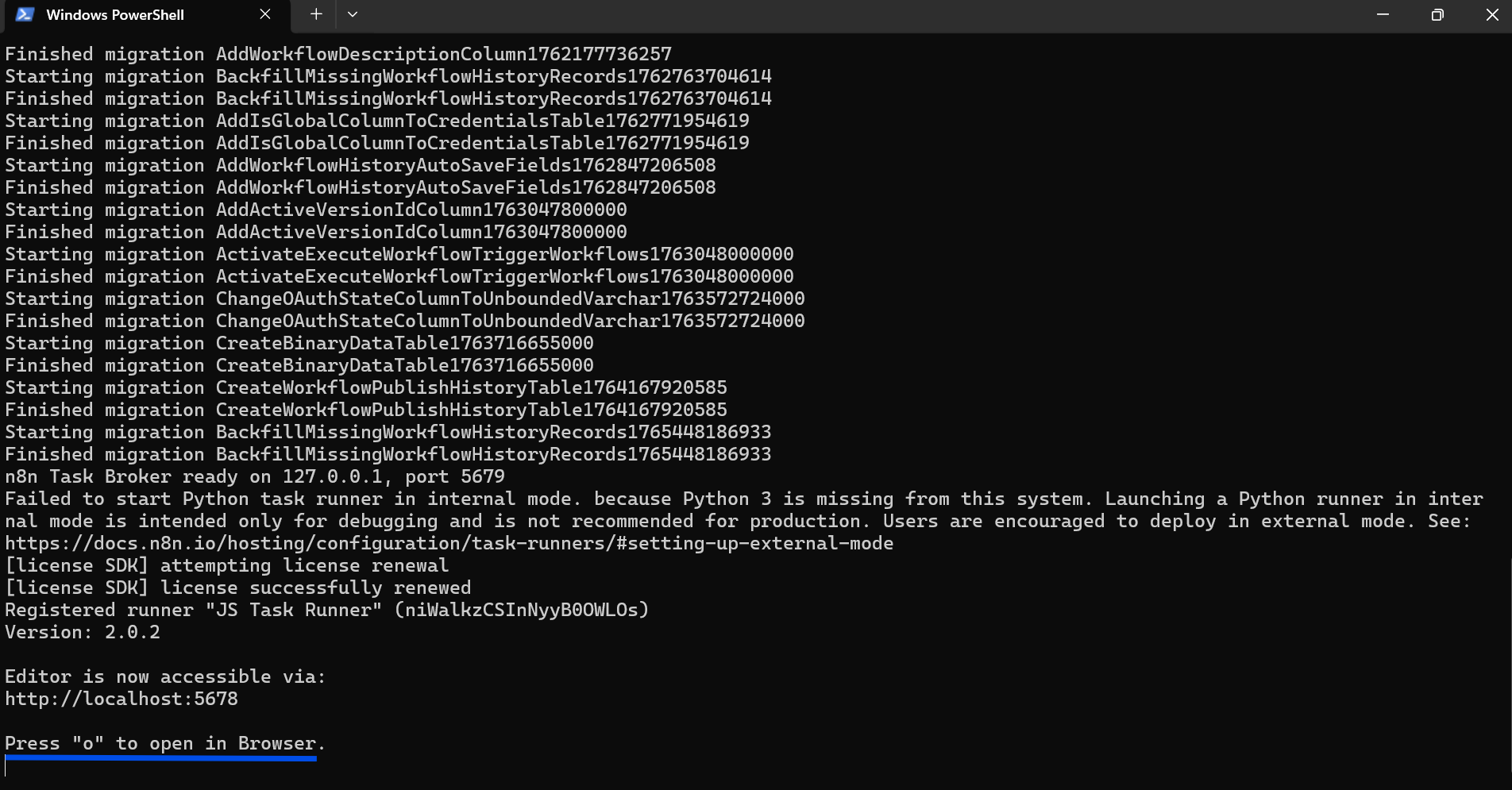
4 Start n8n by typing this command:
n8n start

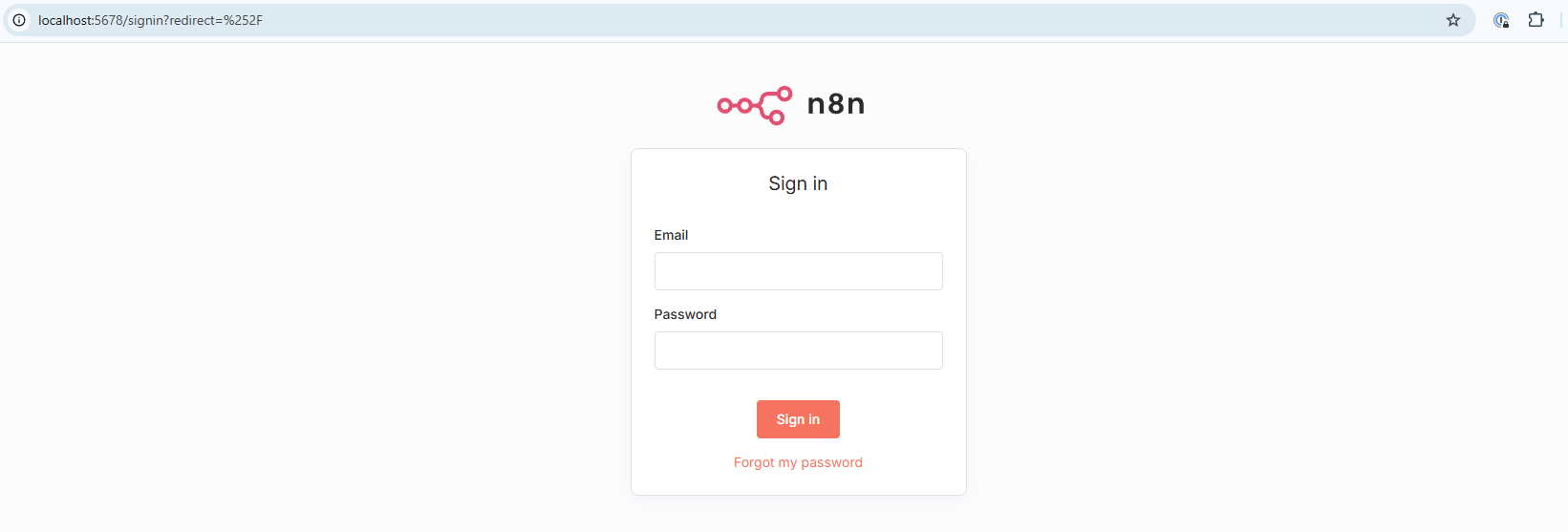
5 Open the provided link in your browser.
You’ll need to register or sign in to your n8n instance.
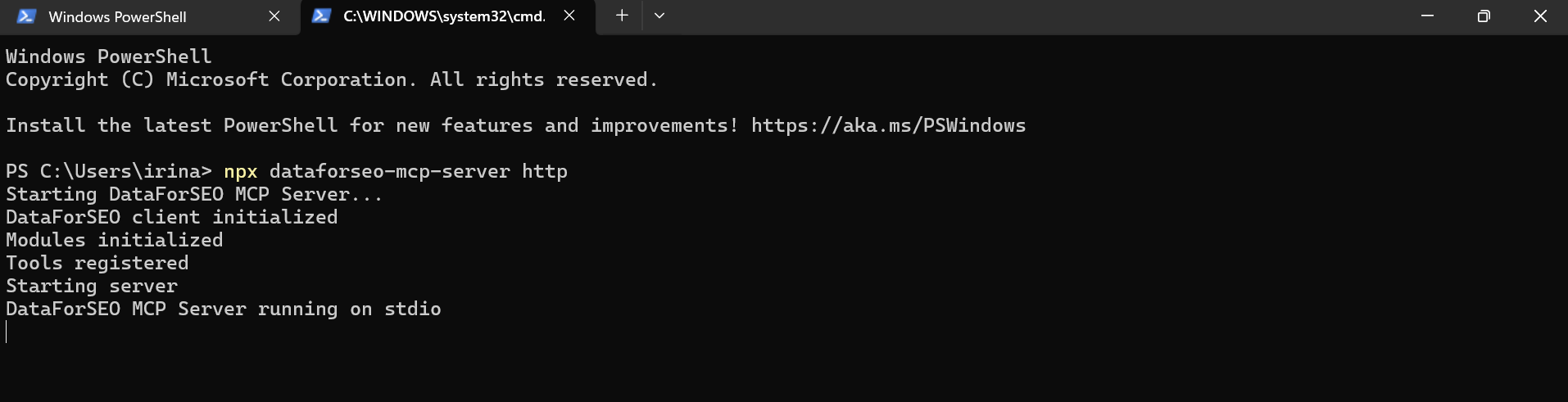
6 Back in the Terminal/Powershell, start the DataForSEO MCP server with this command:
npx dataforseo-mcp-server http
It launches the server using an HTTP protocol.
7 Open n8n and create a new workflow. As your first step, add an AI Agent, then:
- Choose a Chat Model.
- Set your preferred Memory option.
- Under Tools, find the MCP Client Tool.
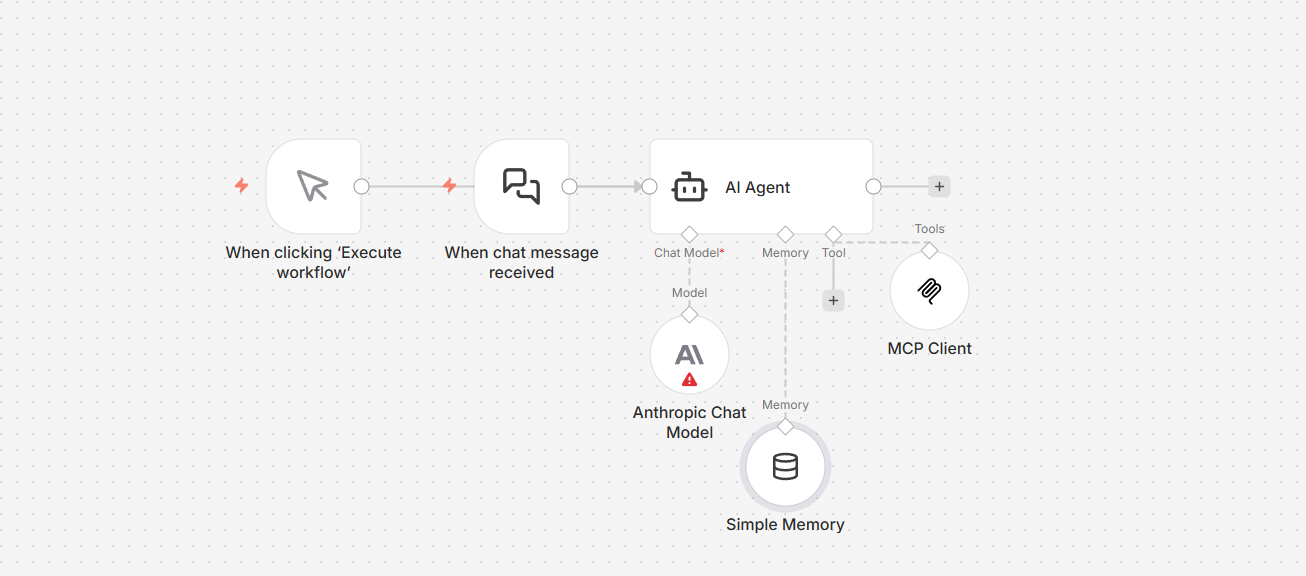
In the MCP Client Tool, specify the path to your local MCP server (for example, http://localhost:3000).
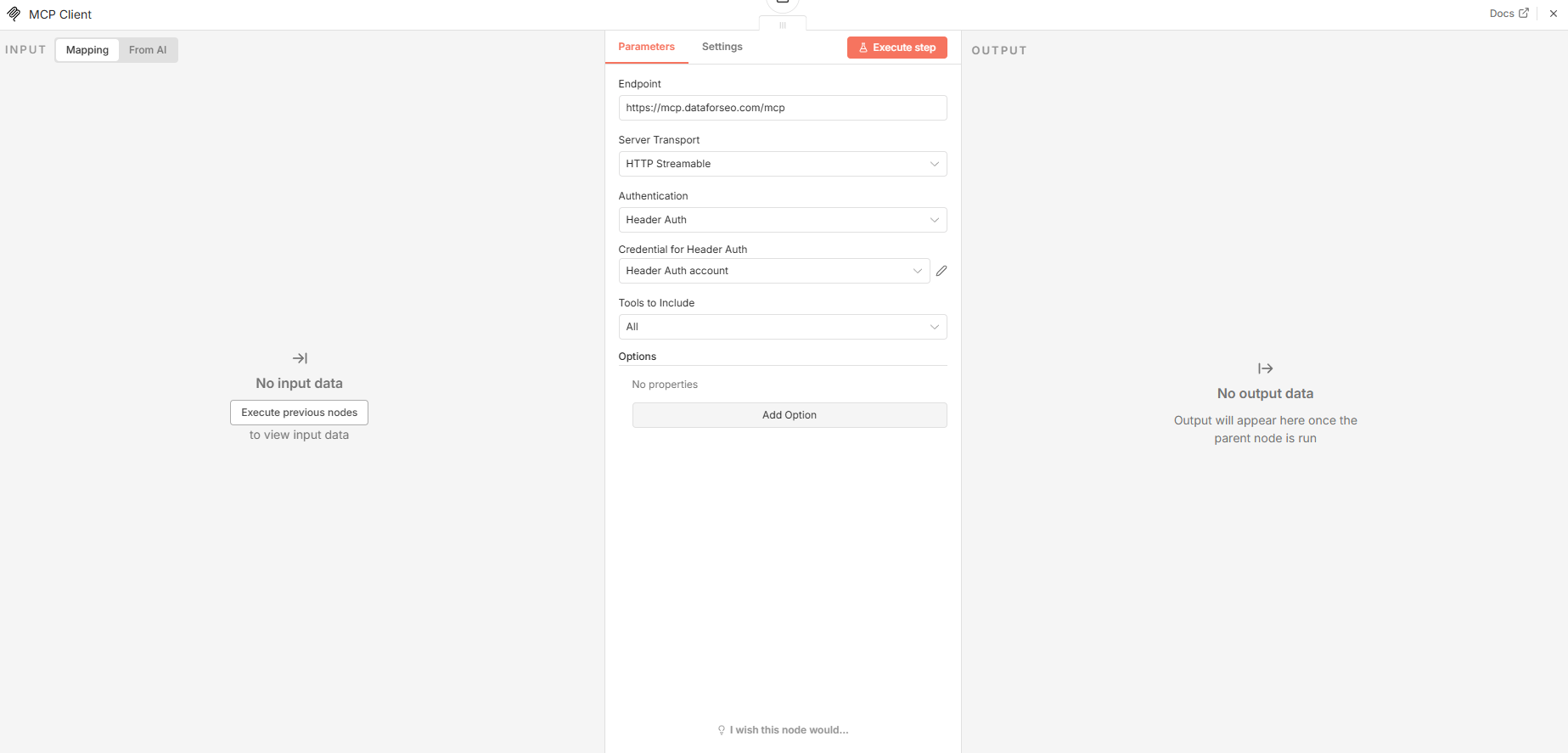
As an alternative, you can access the MCP server remotely by specifying the HTTP endpoint in the MCP Client settings illustrated below. Please not that remote MCP server does not support the DATAFORSEO_SIMPLE_FILTER parameter, so using a local server is recommended for models that don’t support nested structures, such as Google Gemini and older Chat GPT models.
https://mcp.dataforseo.com/mcp
Then, choose Header Authentication. Under Value, input a Base64-encoded string with your DataForSEO API login and password.
Once everything is set up, try sending a chat message to test the workflow.
That’s it! You’ve successfully set up the DataForSEO MCP Server with n8n.