
Quick overview
This Make.com template automatically enriches your HubSpot contacts with detailed business information by connecting to the DataForSEO Business Data API. Rather than manually researching company details, this workflow gathers enriched data such as business description, industry categories, ratings, address, and contact information – and updates your HubSpot contact records seamlessly.
Who it’s built for
This template is ideal for marketing teams, sales professionals, CRM administrators, and agencies using HubSpot who want to gain deeper insights into their contacts’ businesses. It helps improve segmentation, personalize outreach, and enhance targeting in campaigns and sales activities.
Workflow breakdown
- The scenario triggers when a new contact is created or updated in HubSpot.
- It retrieves existing contact details, including company name or domain.
- The workflow calls the DataForSEO Business Data API using those details.
- Relevant business information (e.g., overview, industry categories, ratings, address, and phone details) is extracted.
- The enriched data is written back into the corresponding HubSpot contact properties.
What you get
You get enhanced HubSpot contact profiles with accurate, up-to-date business data pulled directly from the DataForSEO Business Data API. This includes structured company insights such as detailed descriptions, industry classifications, ratings, address components, and contact details, all without manual lookups. These richer profiles support better segmentation, personalization, and more effective marketing and sales engagement.
What you need to get started
- DataForSEO account and API credentials (your API login and password).
- A HubSpot account with appropriate permissions to update contact properties
- A Make.com account with connected HubSpot and DataForSEO integrations
Setup Guide for First Use
Before using the template, you simply need to create custom fields in HubSpot for the website domain and for storing the Business Data.
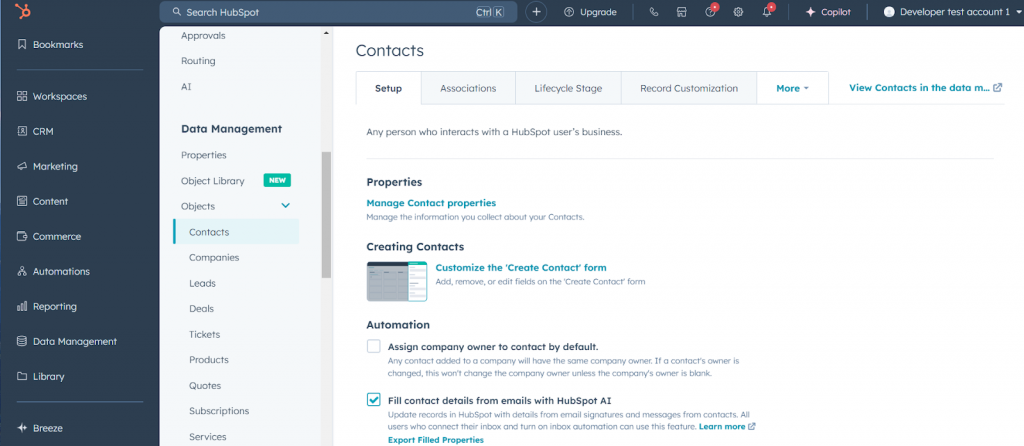
- Navigate to Settings > Data Management > Contacts and click Manage Contact Properties.
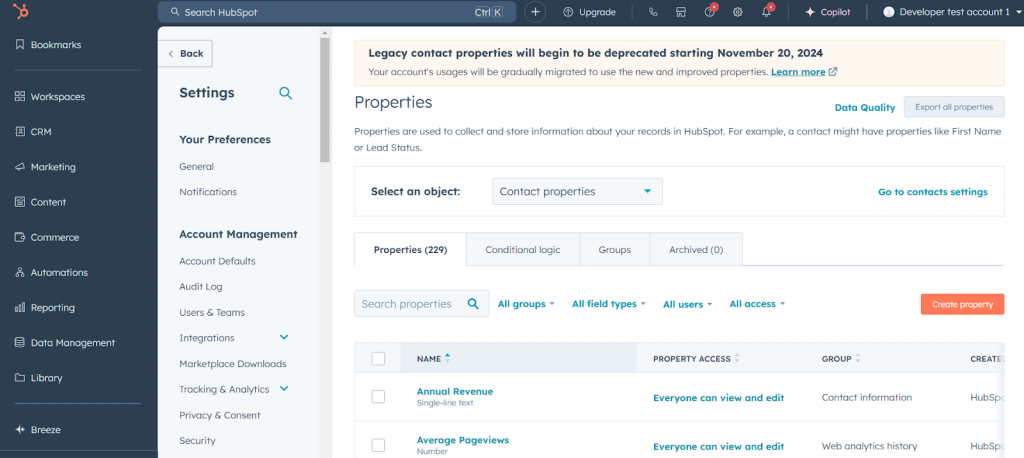
- Click the Create property button.
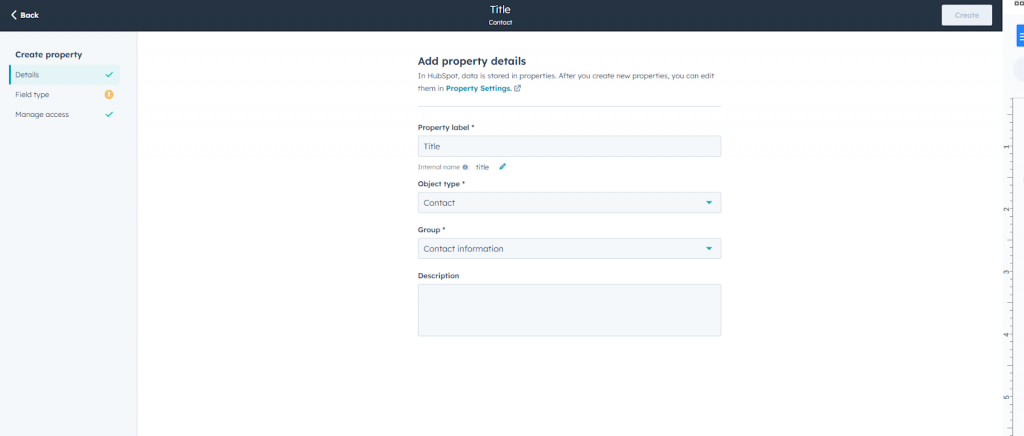
- In the Details tab, enter a name in the Property label field, then select the group where the property will be located in the Group field.
- Go to the Field type tab and choose Single-line text under Field type.
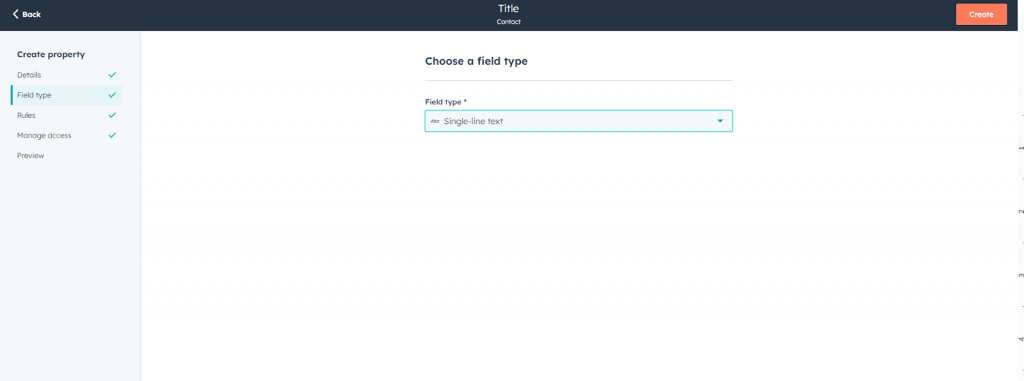
- Leave the fields in other tabs as they are or modify them as needed, then click Create.
- Similarly, create other fields for storing Business Data:
- Description with type Multi-line text
- Main Category with type Single-line text
- Additional Categories with type Multi-line text
- Address with type Single-line text
- Rating on Google with type Number (Formatted number)
- Price Level with type Single-line text
Additionally, you can configure the contact creation form to include a field for entering a Website URL. To do so, follow the instructions below.
- From the settings screen (Settings > Data Management > Contacts), click Customize the “Create Contact” form.
- Expand the Add properties list in the left panel. Under the Contact information section, select the Website URL field.
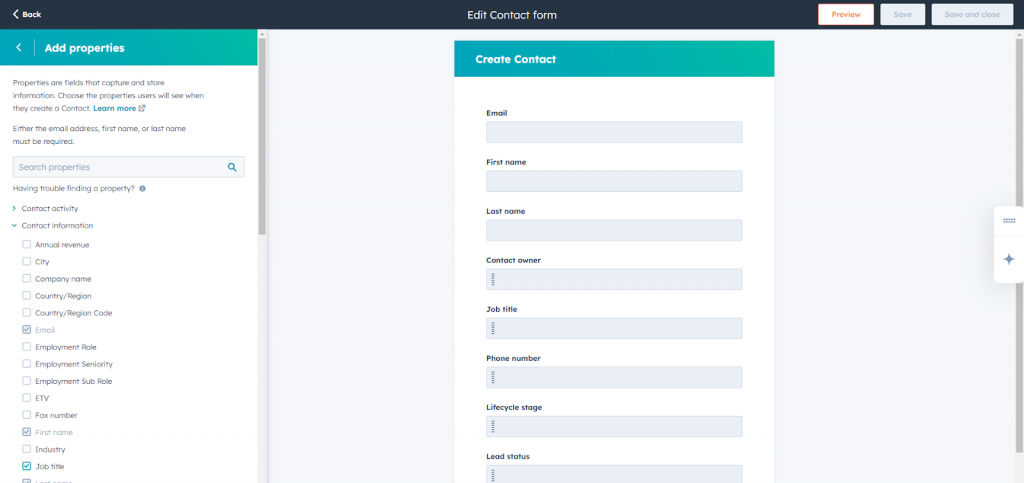
- Save the form by clicking Save.
That’s it! You’re all set to make the most out of our Business Data for HubSpot leads template in Make. Enjoy the power of business listing data within your CRM.