
Quick overview
This Make.com template automatically enriches your Pipedrive contacts and organizations with detailed business information using the DataForSEO Business Data API. Rather than manually researching company details, this workflow fetches structured business insights – such as company overview, industry categories, ratings, address, and contact information – and writes them directly into your Pipedrive CRM.
Who it’s built for
This automation is ideal for sales teams, business developers, CRM administrators, and marketers who use Pipedrive and want to enhance deal and contact data with accurate business profiles. By enriching your CRM records automatically, you gain a more complete view of prospects and customers without manual lookup.
Workflow breakdown
- The scenario triggers when a new contact or organization is created or updated in Pipedrive.
- It captures the relevant business identifier (e.g., company name or domain).
- The workflow calls the DataForSEO Business Data API using that identifier.
- It extracts relevant business details such as description, industry classification, ratings, address, and phone numbers.
- The enriched business information is written back into the corresponding fields in Pipedrive.
What you get
This workflow delivers automatically enriched contact and organization records in Pipedrive with comprehensive business data sourced directly from the DataForSEO Business Data API. Your CRM records will include structured insights like company descriptions, industry categories, ratings, location, and contact details – eliminating manual research and helping you better segment, prioritize, and engage your prospects and customers.
What you need to get started
- DataForSEO account and API credentials (your API login and password).
- A Make.com account with Pipedrive and DataForSEO integrations connected
- A Pipedrive account with permissions to update contact/organization fields
Setup Guide for First Use
Before using the template, you simply need to create custom fields for your Piperdrive contacts.
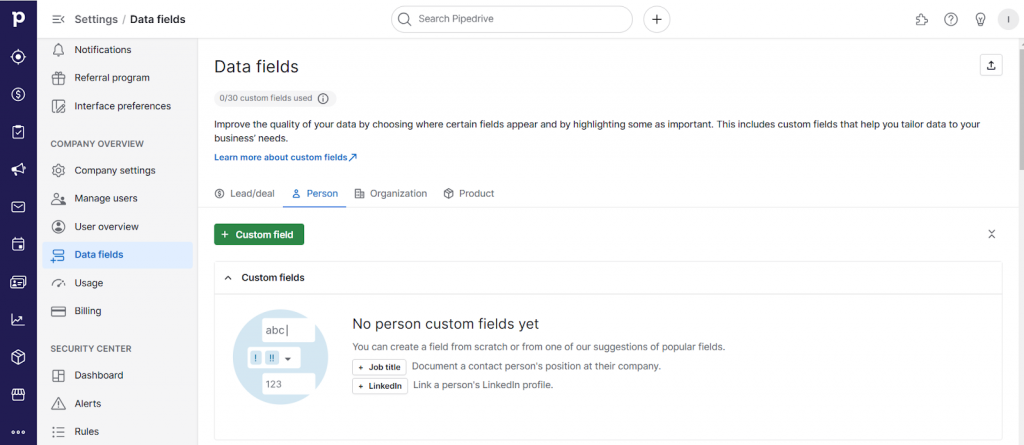
- Go to Settings > Data fields > Person and click + (plus) Custom field.
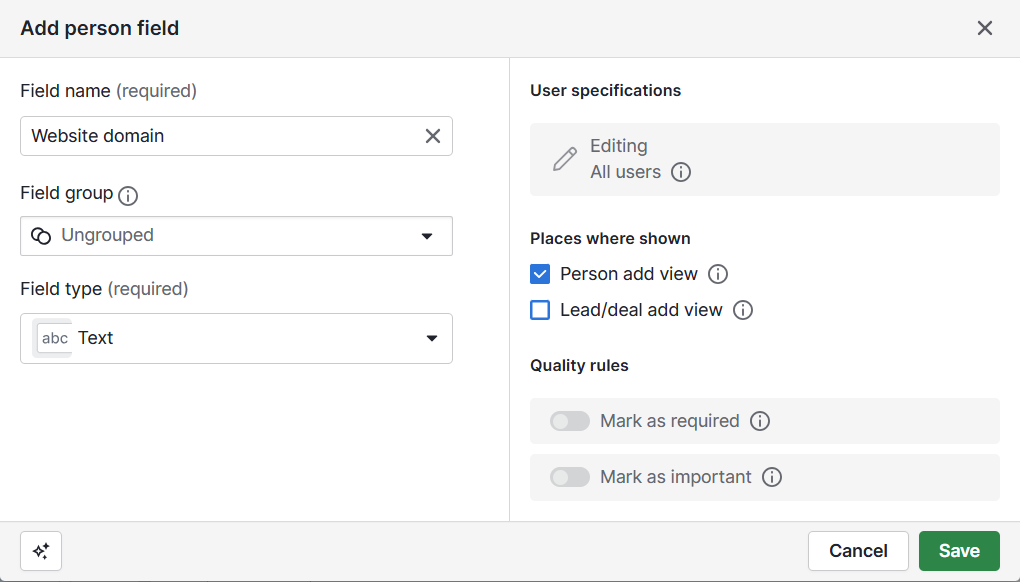
- Create a field for entering a website domain. Enter the desired name under Field name, and select Text under Field type. In the Places where shown section, check Person add view and optionally Lead/deal add view. Click Save.
- Similarly, create a field for Business Data:
- Title with type Text,
- Description with type Large Text,
- Main Category with type Text,
- Additional Categories with type Large Text,
- Address with type Text,
- Rating on Google with type Numerical,
- Price Level with type Text
That’s it! You’re all set to make the most out of our Business Data for Pipedrive leads template in Make.