Quick overview
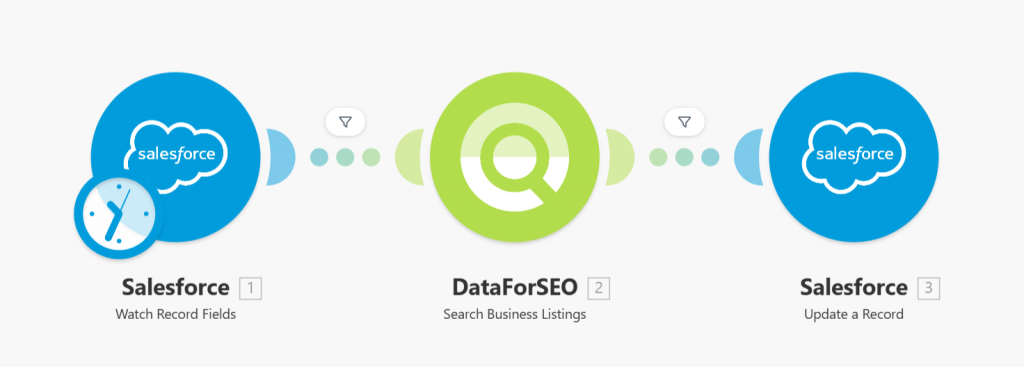
This Make.com template automatically enriches your Salesforce records with business intelligence from the DataForSEO Business Data API. Instead of manually researching company details, this workflow retrieves structured business information such as company description, industry categories, ratings, address, and contact details and updates your Salesforce contact and account fields automatically.
Who it’s built for
This template is built for sales teams, CRM administrators, and marketing professionals using Salesforce who want richer, data-driven profiles for their contacts and accounts. It helps improve segmentation, personalize outreach, and streamline insights directly within your Salesforce CRM.
Workflow breakdown
- The scenario triggers when a new contact is created or updated in Salesforce.
- It captures the relevant identifier (e.g., company name or domain).
- The workflow calls the DataForSEO Business Data API using that identifier.
- Business details such as overview, industry segments, ratings, address, and phone information are extracted from the response.
- The enriched data is written back to the corresponding fields in Salesforce.
What you get
With this workflow, your Salesforce CRM records are automatically populated with detailed business information sourced from the DataForSEO Business Data API. You get enhanced contact and account profiles that include structured insights such as company descriptions, industry classifications, ratings, location data, and contact information without the need for manual data entry. These enriched profiles support better segmentation, more personalized engagement, and stronger sales outcomes.
What you need to get started
- DataForSEO account and API credentials (your API login and password)
- A Salesforce account with permissions to update contact and account fields
- A Make.com account with connected Salesforce and DataForSEO integrations
Setup Guide for First Use
Before using the template, you simply need to create custom fields for your Salesforce contacts.
- Navigate to Object Manager > Contacts > Fields & Relationships.
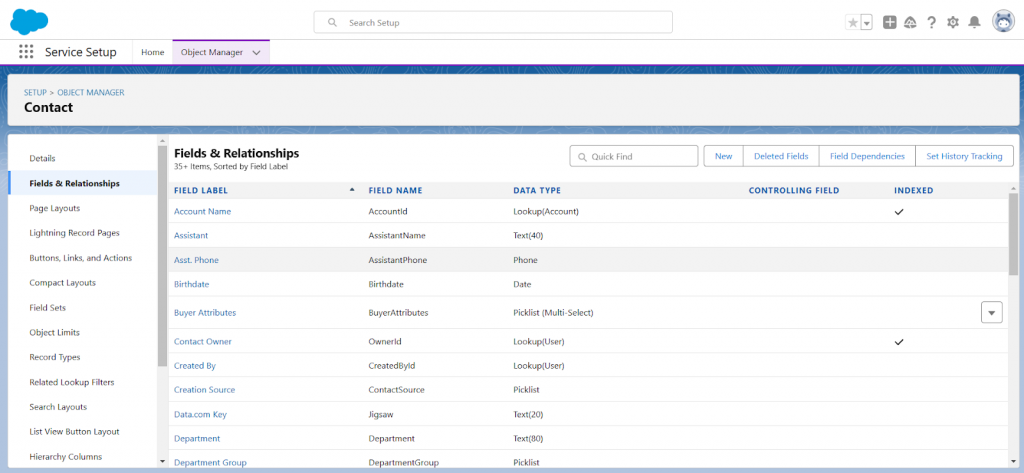
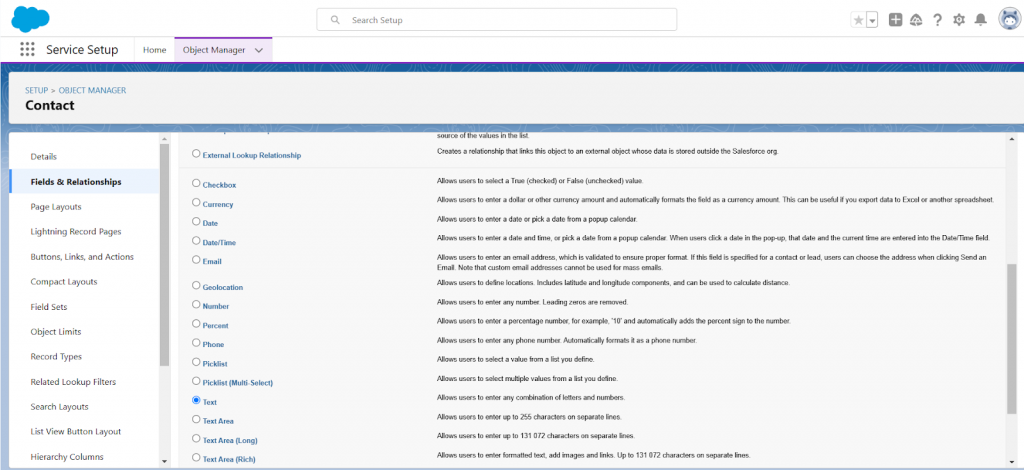
- Click New to create a new field, then select the field type Text, and click Next.
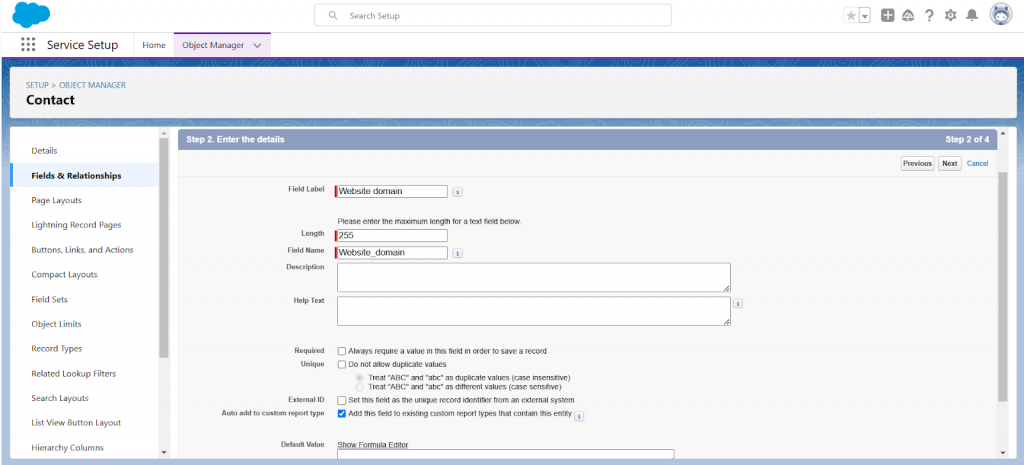
- Enter the field name under Field Label. Set the value for the Length field to 255.
Fill out other fields as needed, and complete the field creation process using the default settings or customizing them as necessary.
- On the field settings page, click Set History Tracking, and check the Enable Contact History box.
In the field list, select the field with the domain value and save the settings.
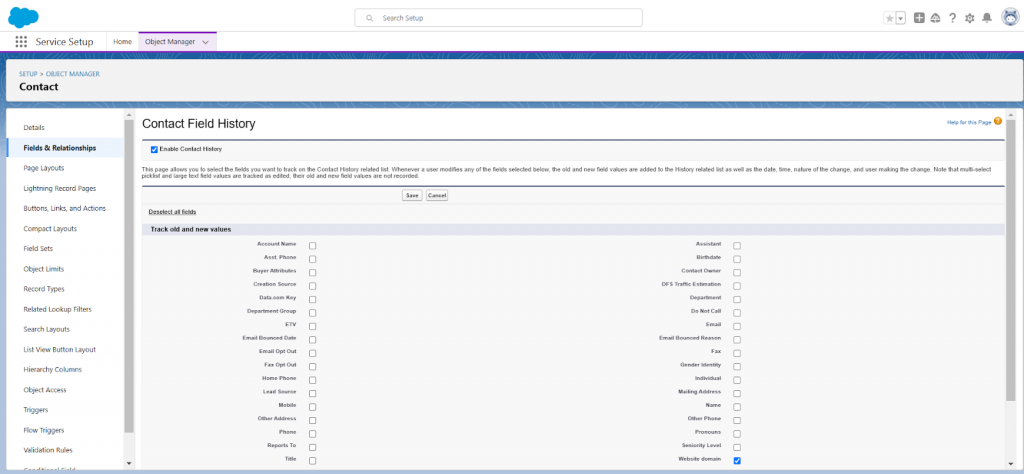
- Similarly, create a field for Business Data:
- Title with type Text (255)
- Description with type Text Area Long (3000)
- Main Category with type Text (255)
- Additional Categories with type Text Area Long (500)
- Address with type Text (255)
- Rating on Google with type Number (2, Decimal places – 1)
- Price Level with type Text (255)
That’s it! You’re all set to make the most out of our Business Data for Salesforce leads template in Make.