
Quick overview
This Make.com template automatically enriches your HubSpot contacts or deals with search traffic estimates pulled from the DataForSEO API. Instead of manually pulling data from multiple sources, this workflow retrieves search demand metrics tied to your domains and updates your HubSpot records accordingly. This helps you better understand keyword interest and audience potential without any manual effort.
Who it’s built for
This automation is ideal for marketing teams, sales professionals, CRM administrators, and growth specialists using HubSpot who want to integrate SEO traffic insights directly into their workflows. It’s especially useful for teams prioritizing content opportunities, targeting campaigns based on search demand, or enhancing CRM records with search performance context.
Workflow breakdown
- The scenario is triggered on new contact.
- It reads domain details from your HubSpot records.
- The workflow calls the DataForSEO traffic estimation endpoint to obtain search traffic metrics.
- The returned traffic data is extracted.
- Traffic estimates are written back into the corresponding fields in HubSpot.
What you get
You get an automated way to populate your HubSpot contacts with search traffic estimates sourced from the DataForSEO API. This provides valuable insight into keyword demand and potential audience interest without manual lookup, helping you make more informed decisions, improve segmentation, and tailor campaigns using enhanced data directly within your CRM.
What you need to get started
- DataForSEO account and API credentials (your API login and password).
- A HubSpot account connected in Make.com.
- A Make.com account with the HubSpot and DataForSEO integrations connected.
Setup Guide for First Use
Before using the template, you simply need to create custom fields in HubSpot for the website domain and for storing the ETV value (Estimated Traffic Volume metric retrieved with DataForSEO API).
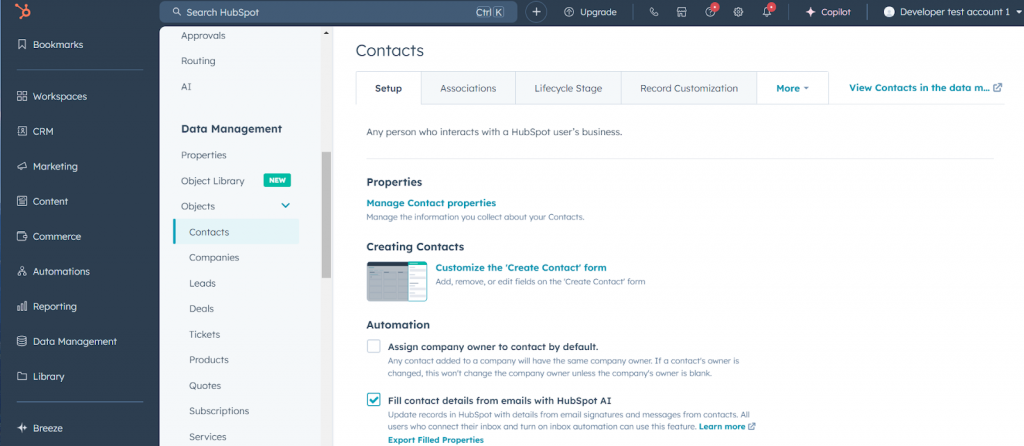
- Navigate to Settings > Data Management > Contacts and click Manage Contact Properties.
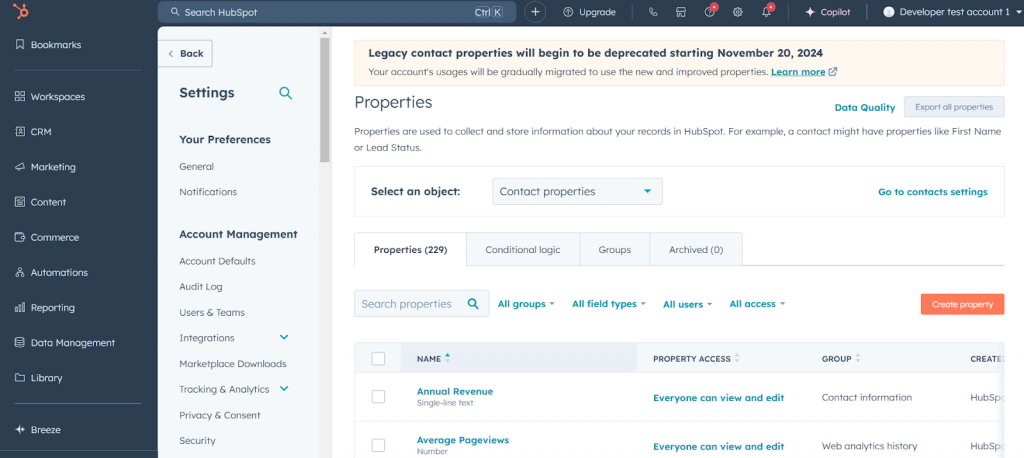
- Click the Create property button.
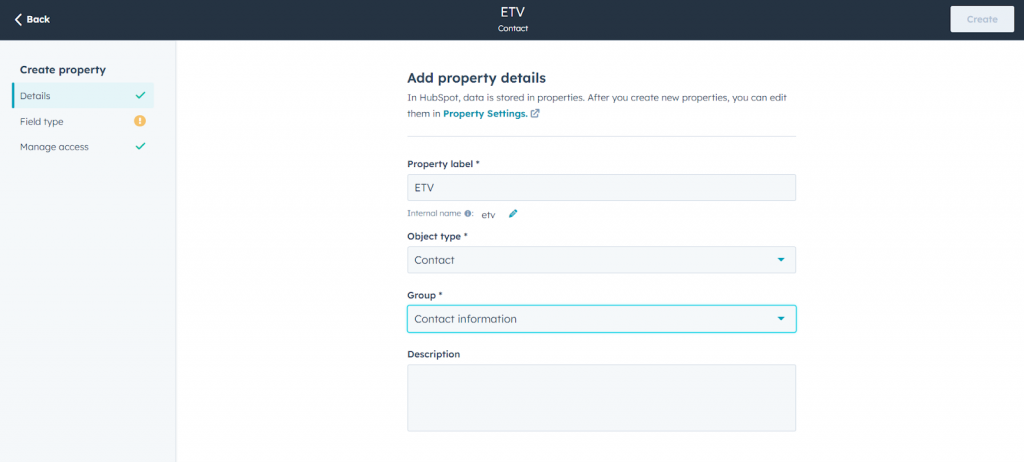
- In the Details tab, enter a name in the Property label field, then select the group where the property will be located in the Group field.
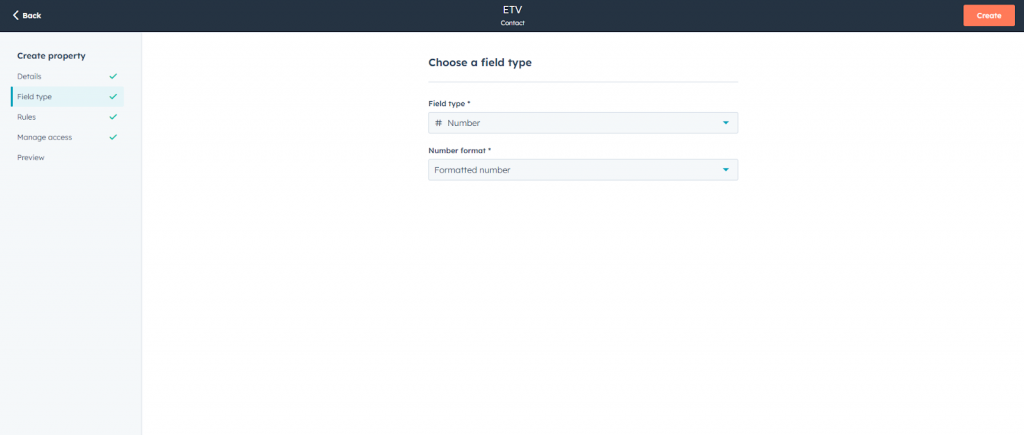
- Go to the Field type tab and:
- Choose Number under Field type.
- Keep Formatted number as the default value in the Number format.
- You can leave the remaining fields in other tabs as they are or modify them if needed, then click Create.
Additionally, you can configure the contact creation form to include a field where you can enter a Website URL. To do so, follow the instructions below.
- From the settings screen (Settings > Data Management > Contacts), click Customize the “Create Contact” form.
- Expand the Add properties list in the left panel. Under the Contact information section, select the Website URL field.
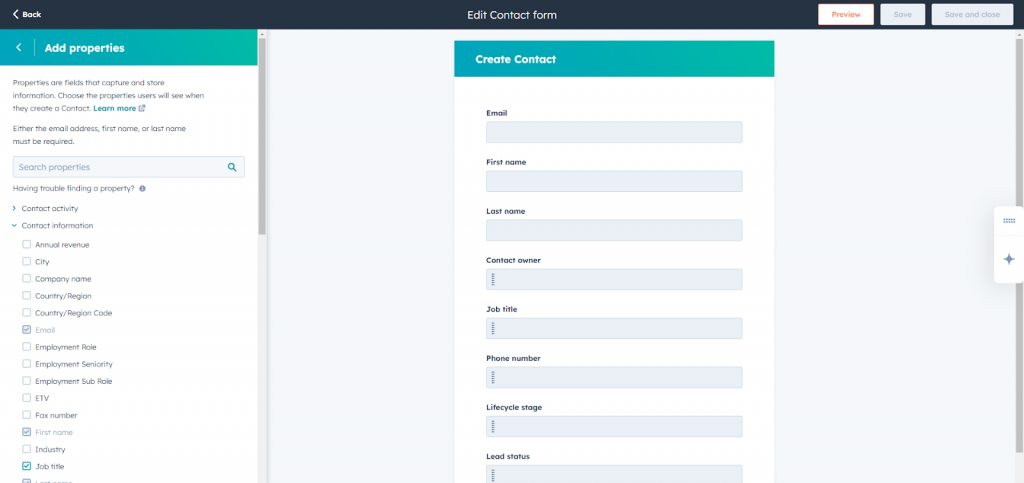
- Save the form by clicking Save.
That’s it! You’re all set to make the most out of our Traffic Stats for HubSpot leads template in Make.