Quick overview
This template automatically retrieves estimated organic search traffic for websites associated with your Zoho CRM leads using the DataForSEO API. When a new lead or record appears in Zoho CRM, the workflow pulls traffic statistics for the lead’s domain and adds this information to your CRM, helping you evaluate each prospect’s online presence.
Who it’s built for
This template is designed for sales teams, digital marketing agencies, and SEO professionals who manage leads in Zoho CRM and want to quickly assess the online visibility of potential clients. It is especially useful for teams that prioritize outreach based on a company’s website traffic and digital footprint.
Workflow breakdown
- The scenario monitors Zoho CRM for new leads.
- Once a lead with a website domain appears, the workflow sends a request to the DataForSEO API.
- DataForSEO retrieves estimated organic search traffic statistics for the domain.
- The traffic data is then added to the lead’s record in Zoho CRM for easy analysis and prioritization.
What you get
You get an automated way to enrich Zoho CRM leads with estimated organic search traffic data. This allows your team to instantly understand how much search visibility a potential client has and prioritize leads based on real traffic insights rather than guesswork.
What you need to get started
- DataForSEO account and API credentials (your API login and password).
- A Make.com account.
- Access to Zoho CRM with permission to update lead records.
- A lead field containing the website domain used to request traffic data from the API.
Setup Guide for First Use
Before using the template, you simply need to create custom fields in Zoho CRM for storing the ETV value (Estimated Traffic Volume metric retrieved with DataForSEO API).
- Navigate to Settings > Customization > Modules and Fields > Contacts > Fields.
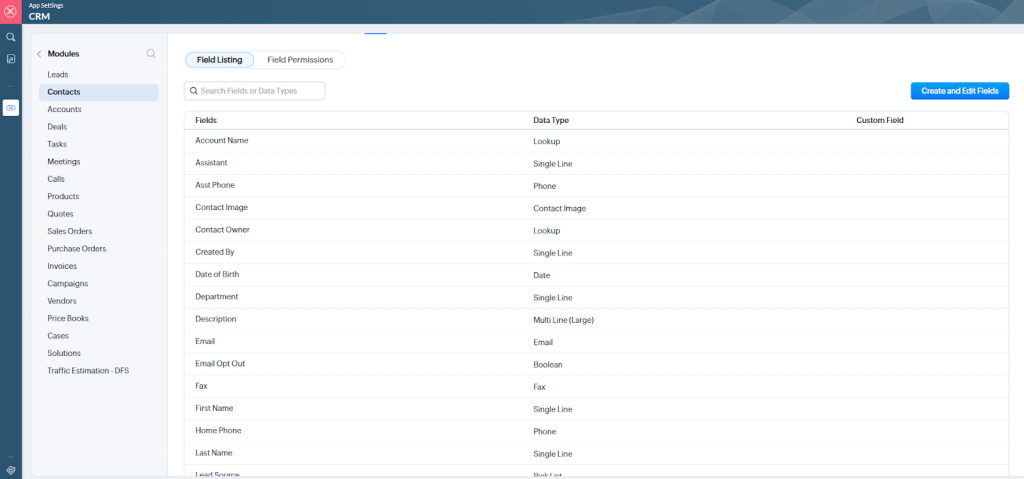
- Click the Create and Edit Fields button.
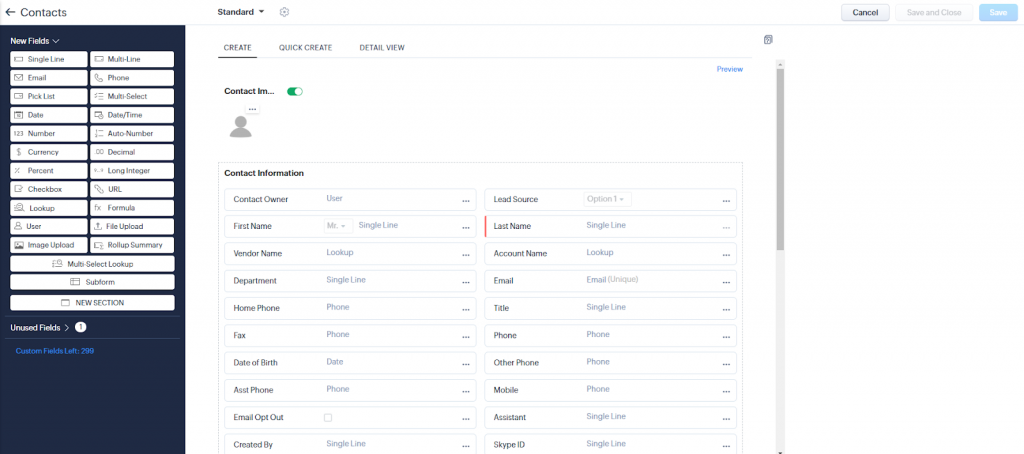
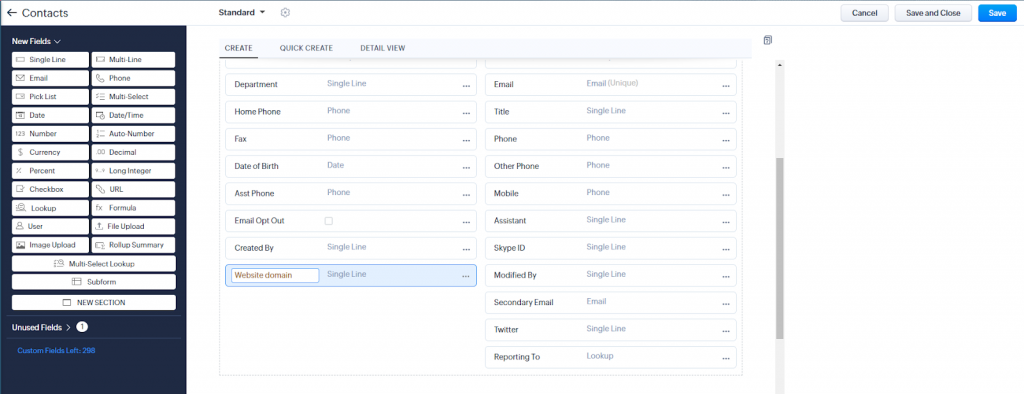
- Create a custom field for entering the website domain by dragging a Single line field from the New fields panel on the left into the desired section of the Contacts module, and give it an appropriate name.
- Similarly, create a field for ETV using the Decimal field type.
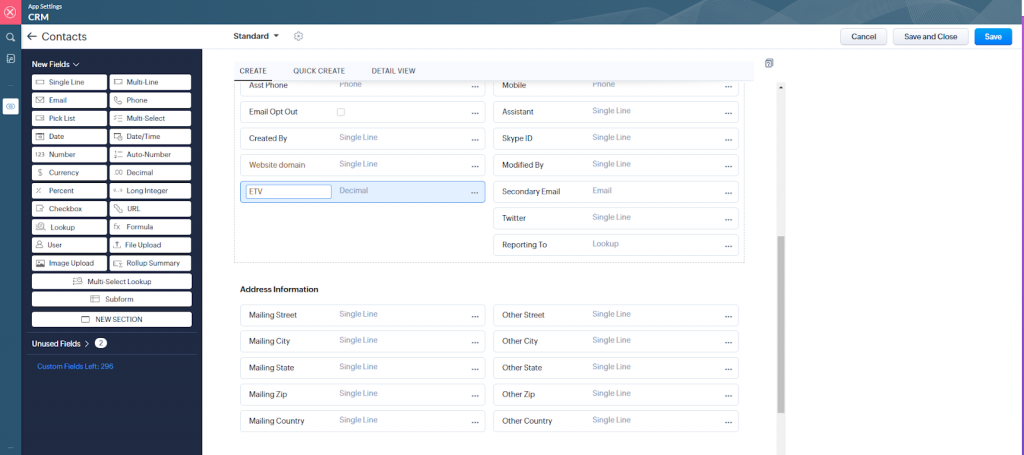
- Save your changes by clicking the Save button.
That’s it! You’re all set to make the most out of our Traffic Stats for Zoho CRM leads template in Make.