Quick overview
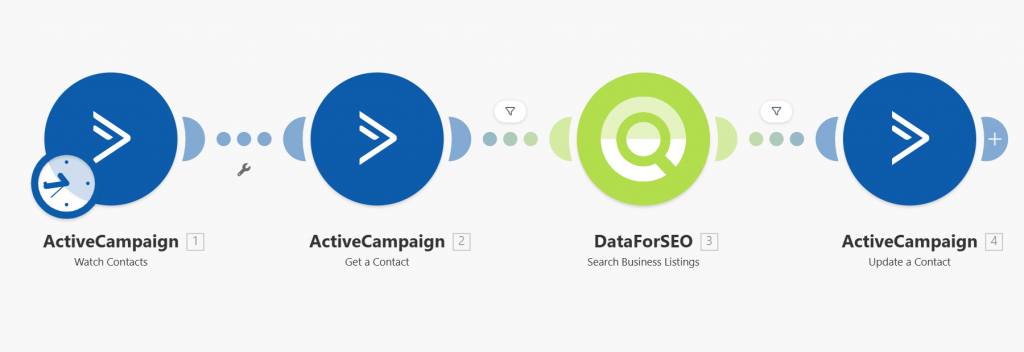
This Make template automatically enriches your ActiveCampaign contacts with detailed business information sourced from Google via the DataForSEO Business Data API. Instead of manually researching company details, this workflow fills in key fields like business name, description, categories, rating, address, phone number, and more. The result is richer contact profiles that support smarter outreach and more personalized marketing.
Who it’s built for
This template is ideal for marketers, sales teams, and CRM administrators who want to enhance lead records with accurate business information. It helps teams running outreach campaigns, account-based marketing, or customer segmentation to better understand their contacts and tailor communications more effectively.
Workflow breakdown
- The scenario starts when an ActiveCampaign contact is created or updated.
- It retrieves the existing contact details, including the company name or domain.
- The template calls the DataForSEO Business Data API using those details to fetch comprehensive business information.
- Extracted data such as overview, categories, rating, address, and contact info are mapped.
- The enriched data is written back into the corresponding ActiveCampaign contact fields.
What you get
You get richer ActiveCampaign contact profiles with accurate, up-to-date business details pulled directly from the DataForSEO Business Data API. This includes information such as company description, industry categories, ratings, address, and contact numbers, all automatically populated without manual lookup. These enriched profiles enable more personalized outreach, improved segmentation, and better campaign performance.
What you need to get started
- DataForSEO account and API credentials (your API login and password).
- An ActiveCampaign account with appropriate permissions
- A Make.com account with connected ActiveCampaign and DataForSEO integrations
Setup Guide for First Use
Before using the template, you simply need to create custom fields in ActiveCampaign for entering the website domain and storing the Business Data.
- Go to the Contacts section > Fields.
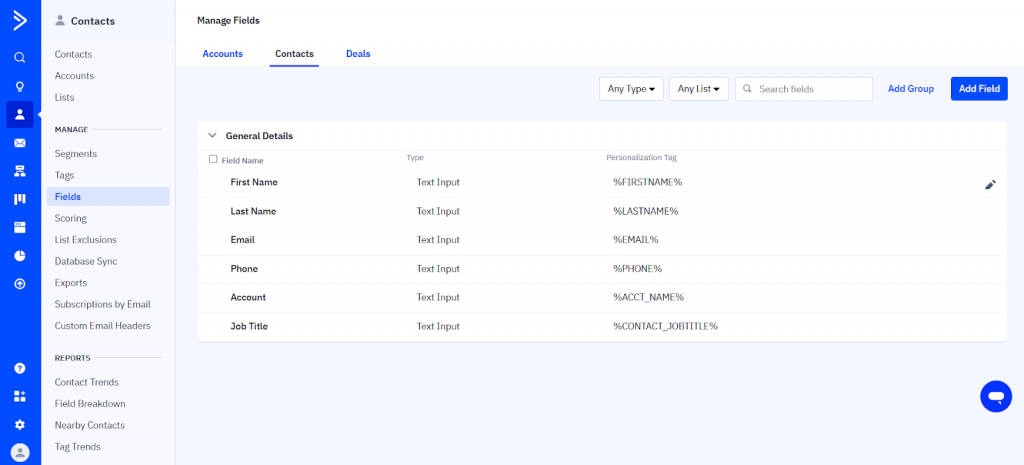
- Click Add field. Under Field name, enter a name for the website domain field. Select Text Input in the Field Type dropdown, adjust the group if needed, and click Add.
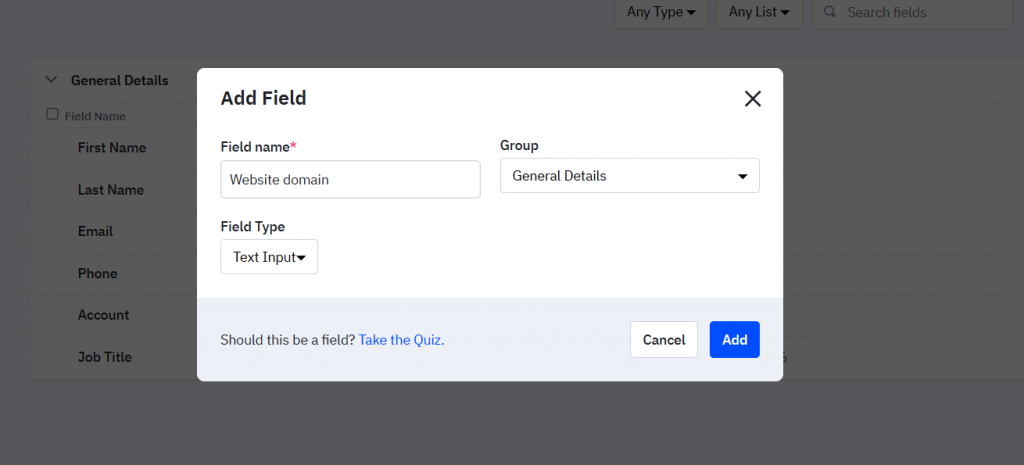
- Similarly, create fields for storing Business Data:
- Title with type Text Input
- Description with type Text Area
- Main Category with type Text Input
- Additional Categories with type Text Area
- Address with type Text Input
- Rating on Google with type Text Input
- Price Level with type Text Input
That’s it! You’re all set to make the most out of our Business Data for ActiveCampaign leads template in Make. Enjoy the power of business listing data within your CRM.