
In this guide, we’ll walk through the installation and configuration of the DataForSEO MCP Server in n8n step by step. Let’s get started!
➤ Already have a local n8n instance? Start at step 4.
➤ Working in cloud n8n? Jump to step 7.
➤ Need a full guide with local n8n instance install? Start with the first step below.
1 First, go to Nodejs.org and download the latest version of Node.js for your operating system.
2 Once this is installed, open your Terminal (for macOS) or PowerShell / Command Prompt (for Windows) and set your environment variables. Remember to replace your_username and your_password with your actual DataForSEO API login and password.

macOS/Linux
export DATAFORSEO_USERNAME=your_username
export DATAFORSEO_PASSWORD=your_password
Windows PowerShell
$env:DATAFORSEO_USERNAME = "your_username"
$env:DATAFORSEO_PASSWORD = "your_password"
Windows Command Prompt
set DATAFORSEO_USERNAME="your_username"
set DATAFORSEO_PASSWORD="your_password"
3 Run the following command to install n8n globally:
npm install n8n -g
In case you encounter an “access denied” error on Mac, just run this:
sudo su
It will switch you to admin mode and allow the installation to proceed. You may need to run the previous command to install n8n globally once more.
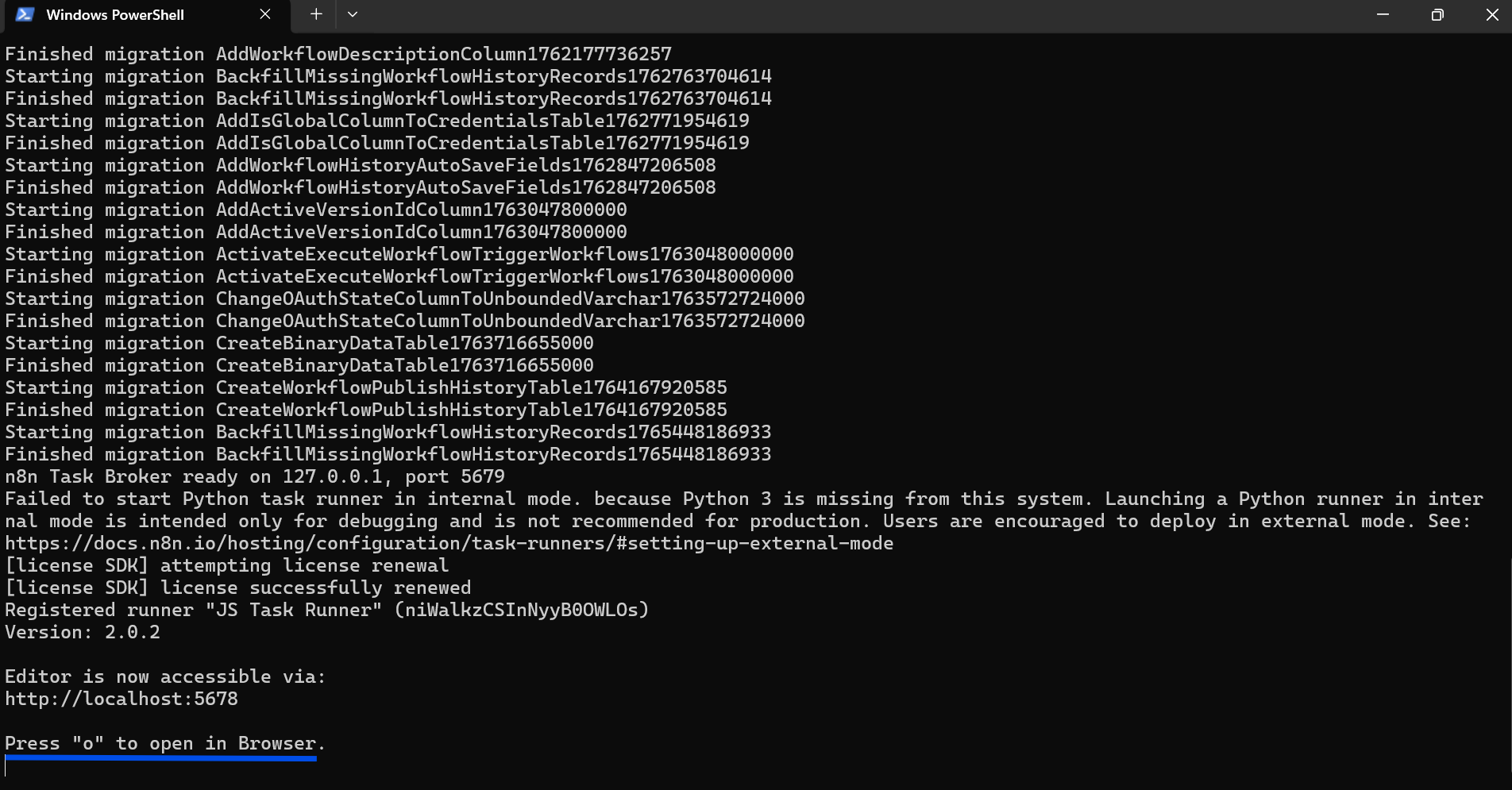
4 Start n8n by typing this command:
n8n start

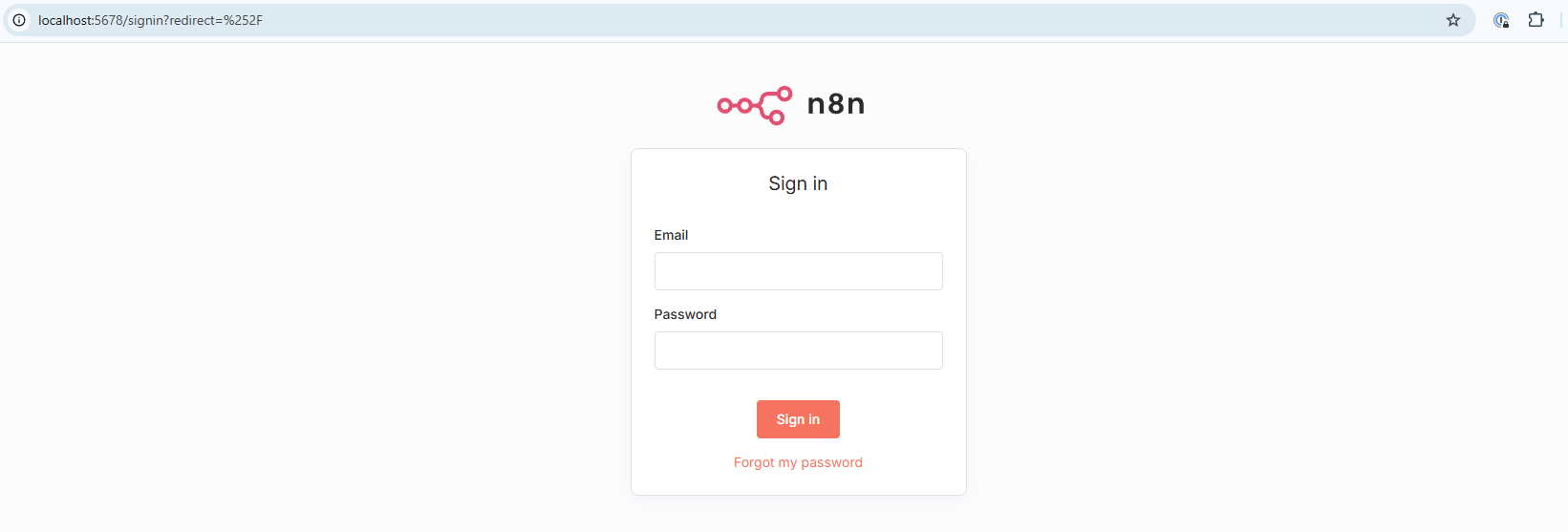
5 Open the provided link in your browser.
You’ll need to register or sign in to your n8n instance.
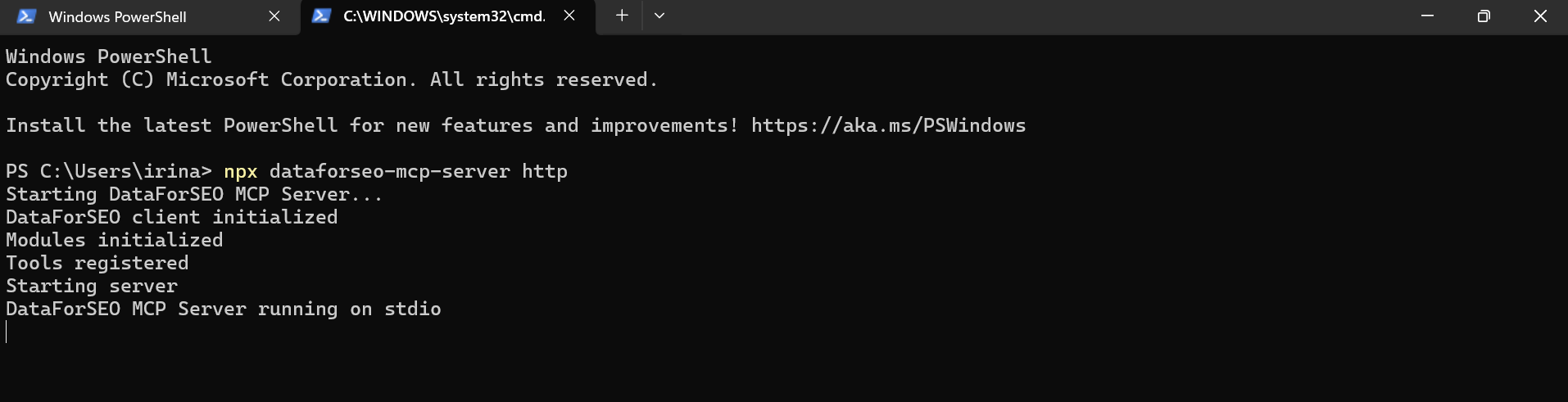
6 Back in the Terminal/Powershell, start the DataForSEO MCP server with this command:
npx dataforseo-mcp-server http
It launches the server using an HTTP protocol.
7 Open n8n and create a new workflow. As your first step, add an AI Agent, then:
- Choose a Chat Model.
- Set your preferred Memory option.
- Under Tools, find the MCP Client Tool.
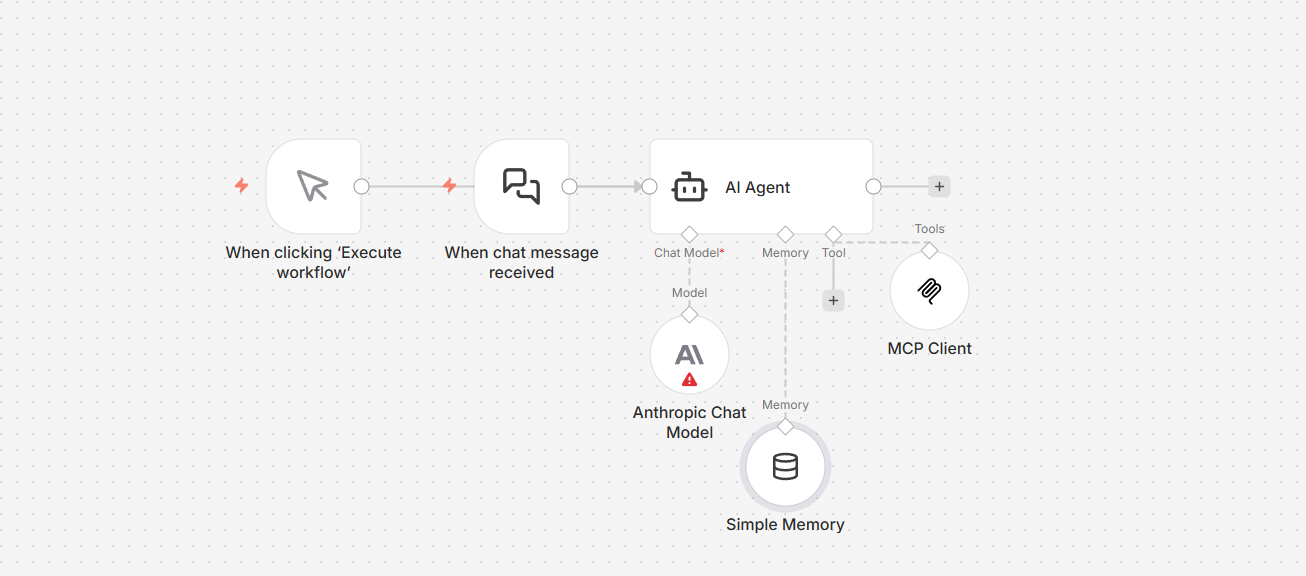
In the MCP Client Tool, specify the path to your local MCP server (for example, http://localhost:3000).
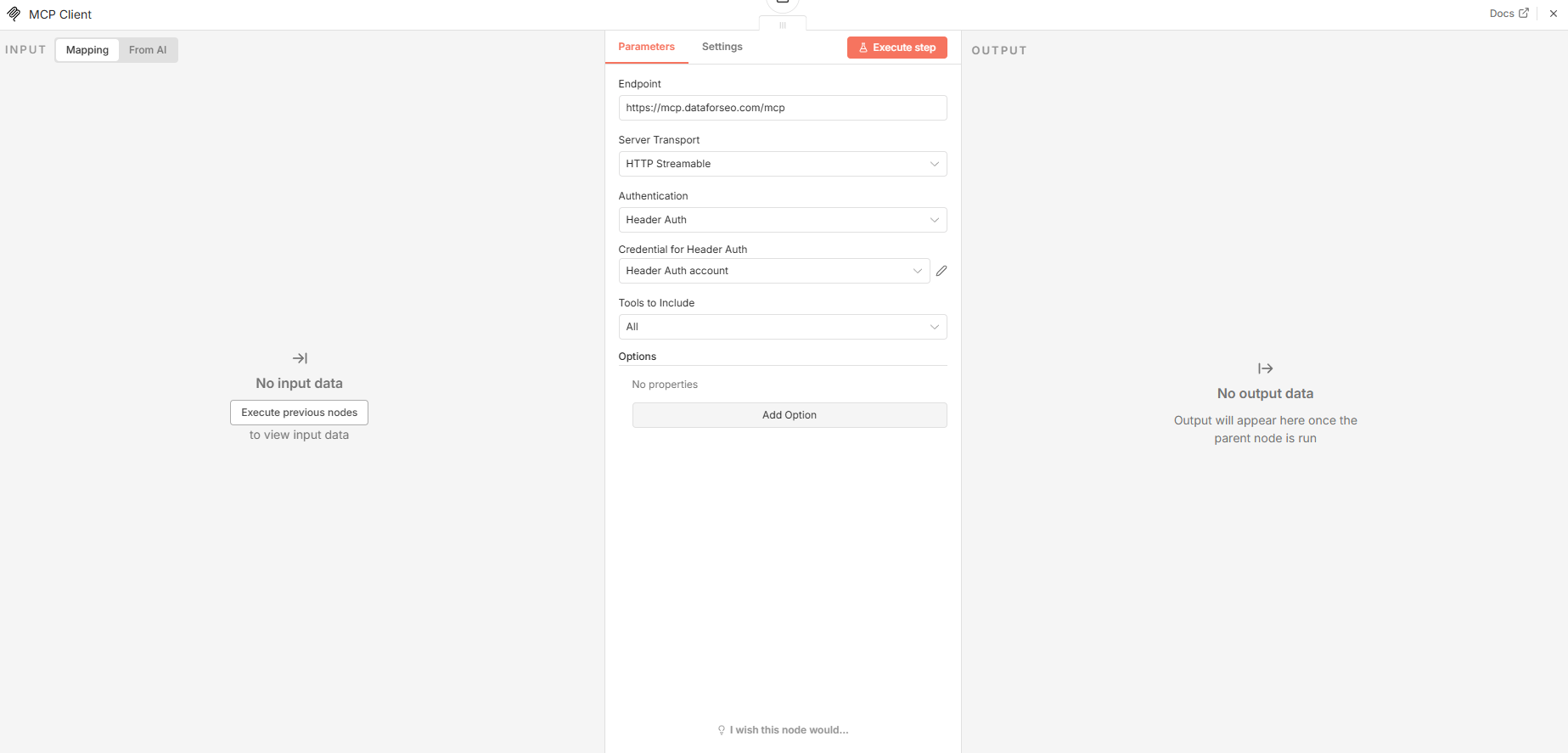
As an alternative, you can access the MCP server remotely by specifying the HTTP endpoint in the MCP Client settings illustrated below.
https://mcp.dataforseo.com/mcp
Then, choose Header Authentication. Under Value, input a Base64-encoded string with your DataForSEO API login and password. What you should do is Base64-encode the login:password string (your API login, a colon, your API password — no spaces), add the word “Basic”, and paste Basic login:password into the value field.
Once everything is set up, try sending a chat message to test the workflow.
That’s it! You’ve successfully set up the DataForSEO MCP Server with n8n.