
The DataForSEO Dashboard is a graphic user interface for managing your account and controlling API usage. You can use it to check your account balance, find and manage API credentials, update account details, monitor spending, review task IDs and errors, make test API requests, manage billing, browse database samples, and access support.
This guide explains how to use the main dashboard features based on what you want to do.
Contents:
- Start testing with your free trial balance
- Find and use your API credentials
- Check your account balance
- Understand where your funds are going
- Control spending and prevent unexpected costs
- Add funds and manage payments
- Troubleshoot failed API requests
- Browse and purchase large datasets
- Use documentation to understand requests and responses
- Quickly access essential account actions
- Manage account details and team access
- Get help when you need it
If you prefer a video, check this tutorial.
Start testing with your free trial balance
When you create a DataForSEO account, you automatically receive a $1 trial balance. Although $1 may not sound like much, it is enough to test DataForSEO APIs right away. For example, you can use it to make more than 16,000 keyword search volume lookups or inspect more than 16,000 backlinks. Your trial balance does not expire, so you can start making API calls immediately or save it for later testing. You can use this balance to test APIs in the API Playground, no-code tools, external applications, or your own internal systems.
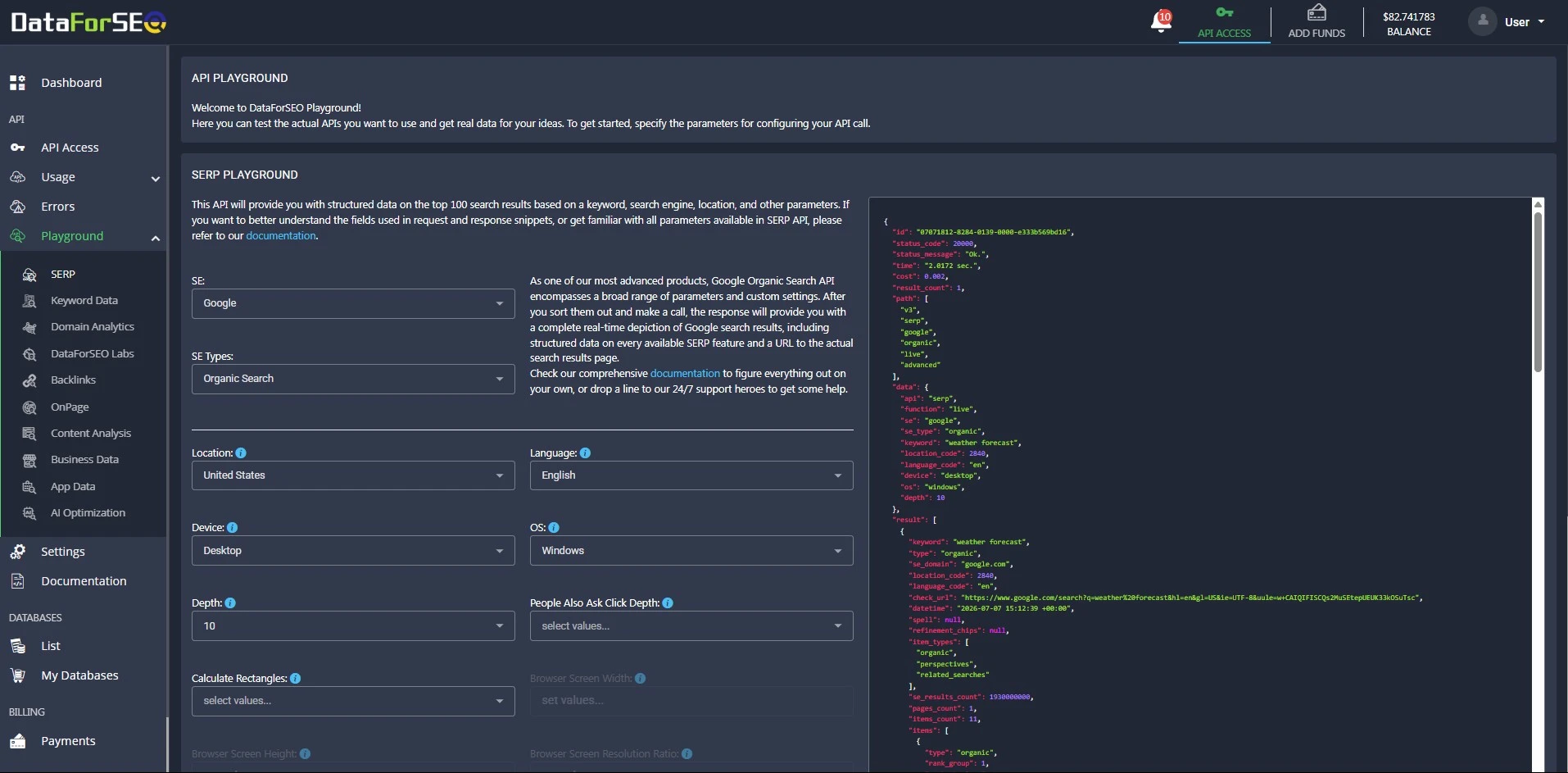
Using the API Playground to test DataForSEO APIs
The API Playground is a built-in API explorer that lets you make API calls through a simple graphic interface and view results instantly in JSON format. Please note that the API Playground sends real API requests, so using it may consume your account balance. Learn more about this option for API testing from our dedicated article.
Find and use your API credentials
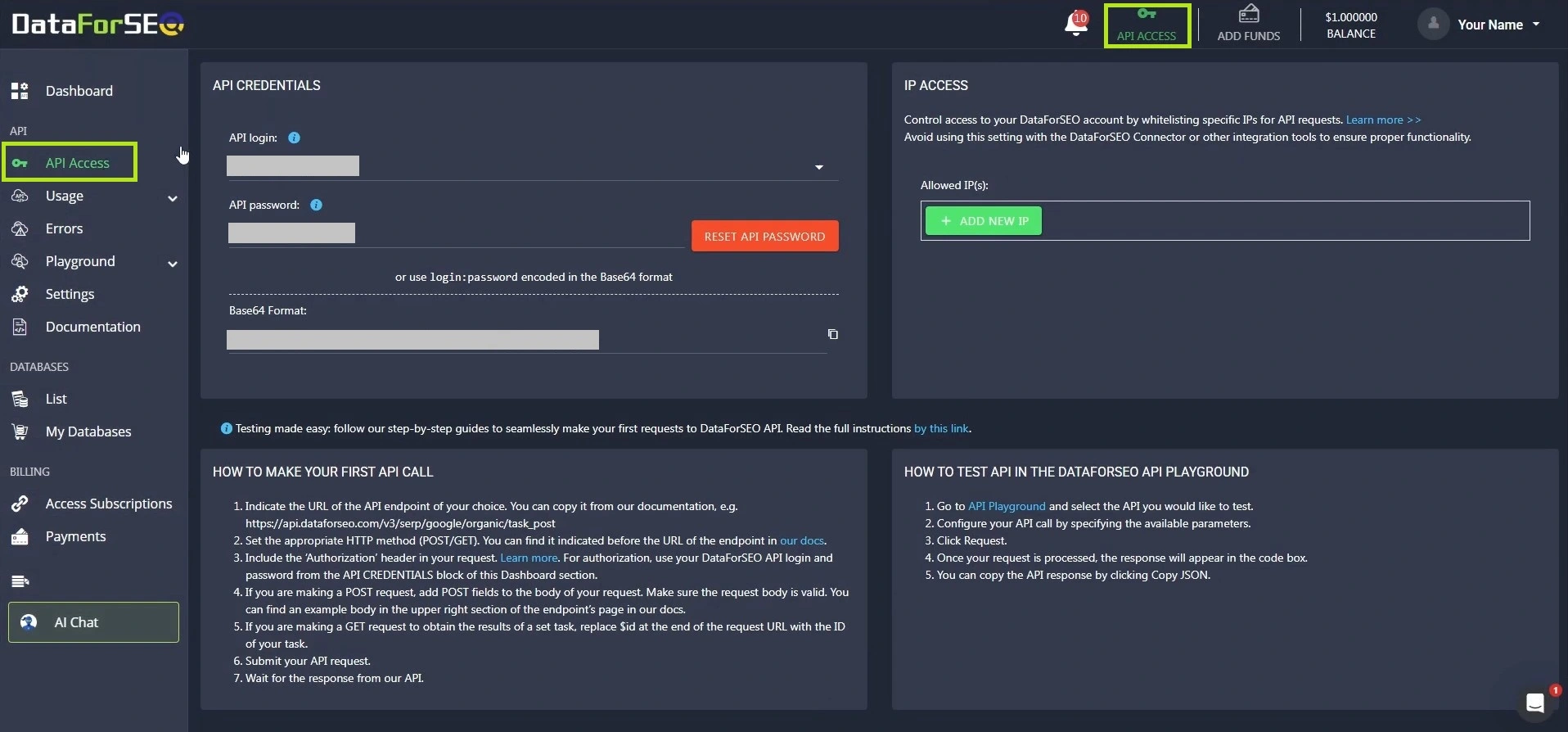
To make requests to DataForSEO API, you need your API credentials. You can find them in API Access section.
Once you log in to your DataForSEO Dashboard, you can open this section from the left-hand navigation menu or by using the shortcut in the top bar. Clicking either option will open the API Access section where your API credentials are.
The API credentials include:
- API login — a unique, automatically generated string used to identify your account when making API requests.
- API password — a secure password automatically generated by DataForSEO for API authentication.
You can use these credentials to connect DataForSEO APIs to tools like Postman, Make, n8n, Google Sheets connectors, or your own applications.
Changing your API login
If you need to update your API login, you can do so in the API Access section of your Dashboard.
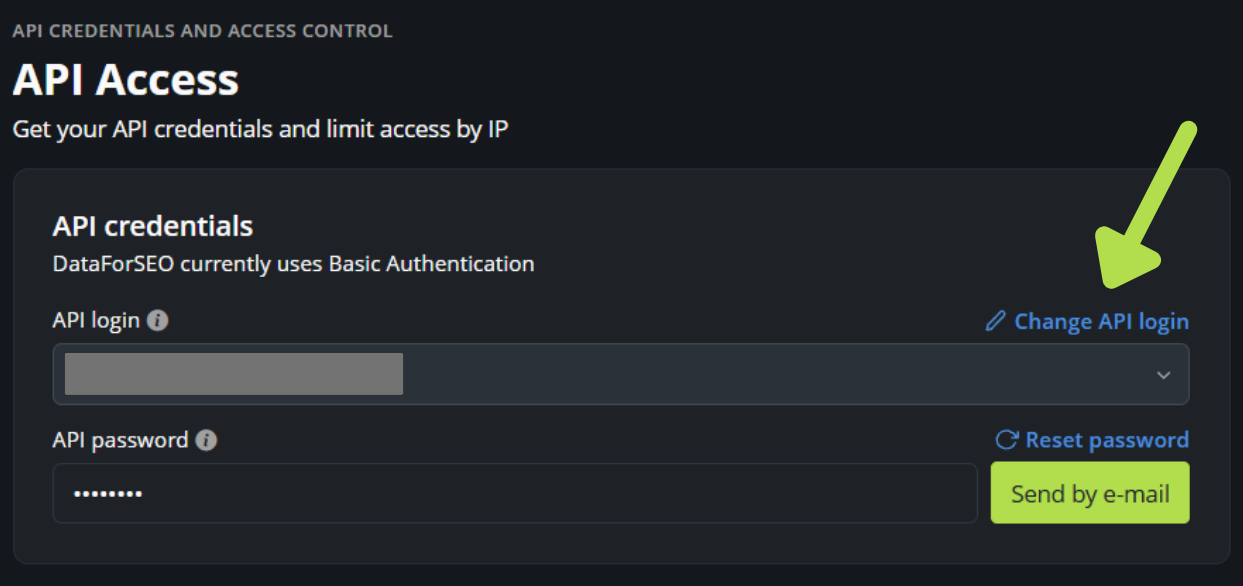
Keep in mind that your API login is used to authenticate API requests. After changing it, make sure to update the credentials in any applications, integrations, or workflows connected to DataForSEO.
API password visibility and recovery
Your API login always remains visible in the Dashboard. Your API password is visible only during the first 24 hours after registration. After that, it is hidden for security reasons. If you need your API password later, click Send by e-mail, and the password will be sent to the email address you used to create your DataForSEO account.
Base64-encoded API credentials
For the first 24 hours after registration, the API Access tab displays a ready-made, Base64-encoded string of your login:password. It disappears later for the same security reason your API password does, but you can similarly request it by email at any time.
If you change your API login, remember that any previously generated Base64 authentication strings containing the old login will also need to be updated.
Account password vs API password
Note that the API password is different from your account password. They serve different purposes.
Account password is created by you when you register as a new DataForSEO user and is meant for logging into the DataForSEO Dashboard – a graphic user interface for API usage control, account data, and funds management.
A secure API password is automatically created by our system and is meant for authentication when making requests to DataForSEO API.
Learn more about Authentication in our docs >>
Check your account balance
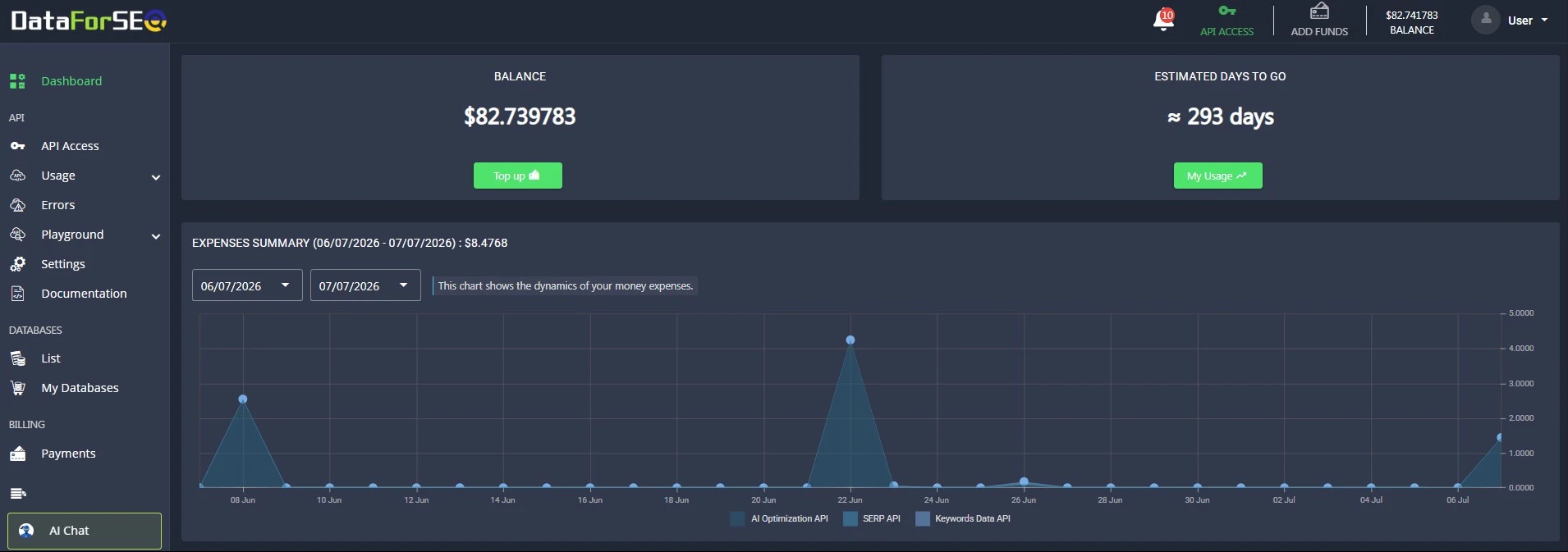
To check current account balance, look at the balance shortcut in the top bar or go to the main API Dashboard section. It shows:
- Balance — your current account credit.
- Estimated days left — an estimate based on your current usage.
If you want to get detailed information about your spendings, you should head to the Usage section.
Understand where your funds are going
There are two main ways to review API spending in the Dashboard: the main Dashboard section and the Usage section.
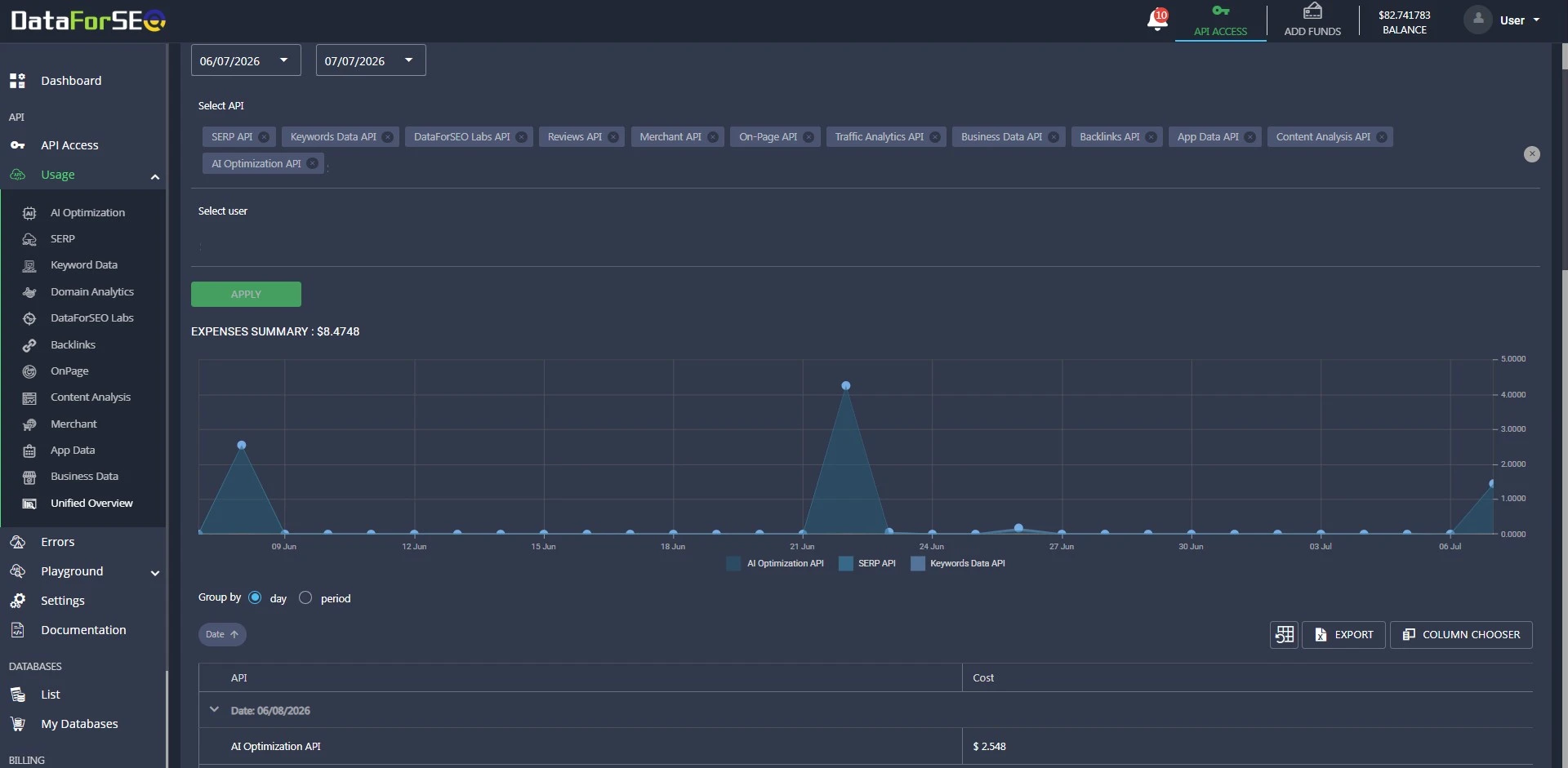
The Expense Summary chart in the main Dashboard section gives you a quick overview of how your funds are being spent across different DataForSEO APIs. Use this chart when you want a high-level view of your usage patterns.
The Usage section gives you a more detailed breakdown of your spending per API and endpoint and aggregated data for all APIs in a Unified view. Here you can find the number of requests made to each endpoint on a given date and the tasks’ cost in the table below the expenses chart.
Control spending and prevent unexpected costs
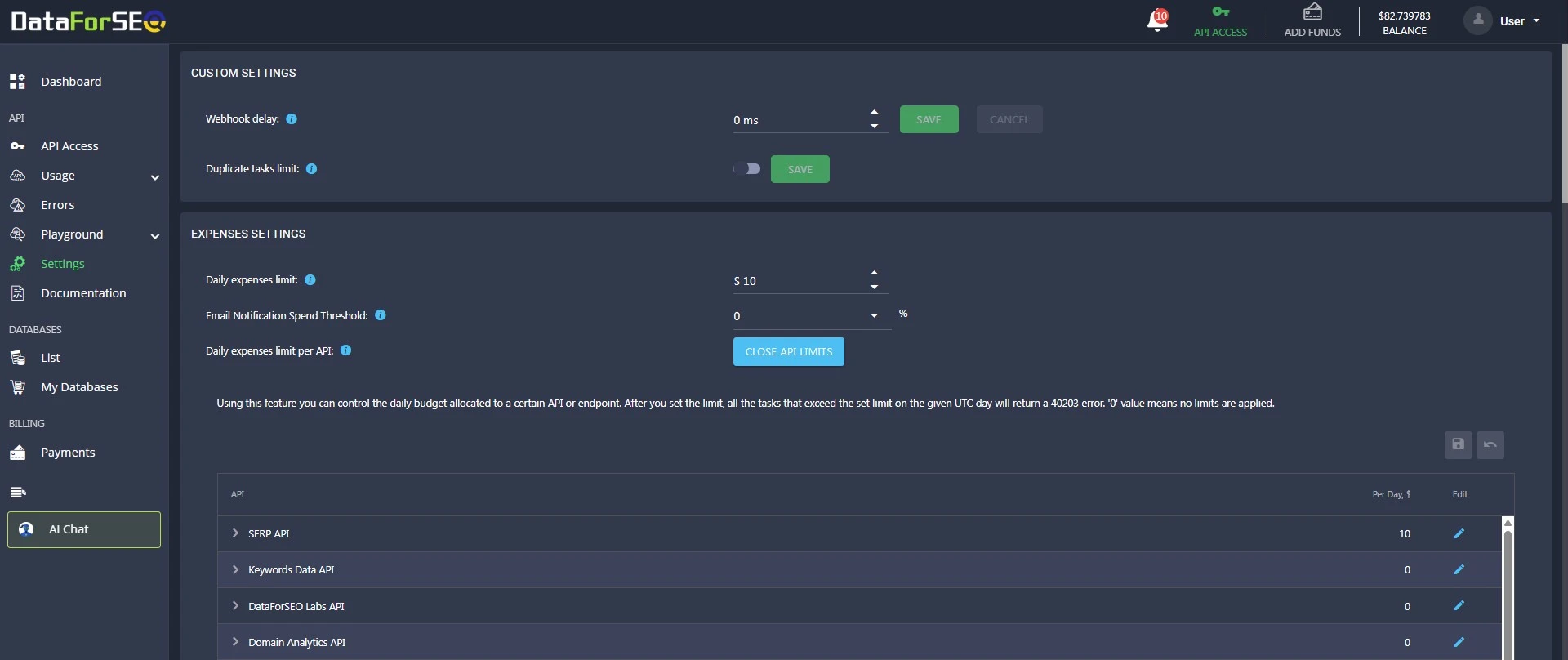
The DataForSEO Dashboard allows you to control your spending and set a cap per API or endpoint.
Set daily spending limits: go to Settings to set daily spending limits for all APIs or specific API endpoints. When a daily limit is reached, new requests are blocked until the next day. This helps you control costs and avoid unexpected spending.
See also: How can I set a limit for my payments to DataForSEO?
Add funds and manage payments
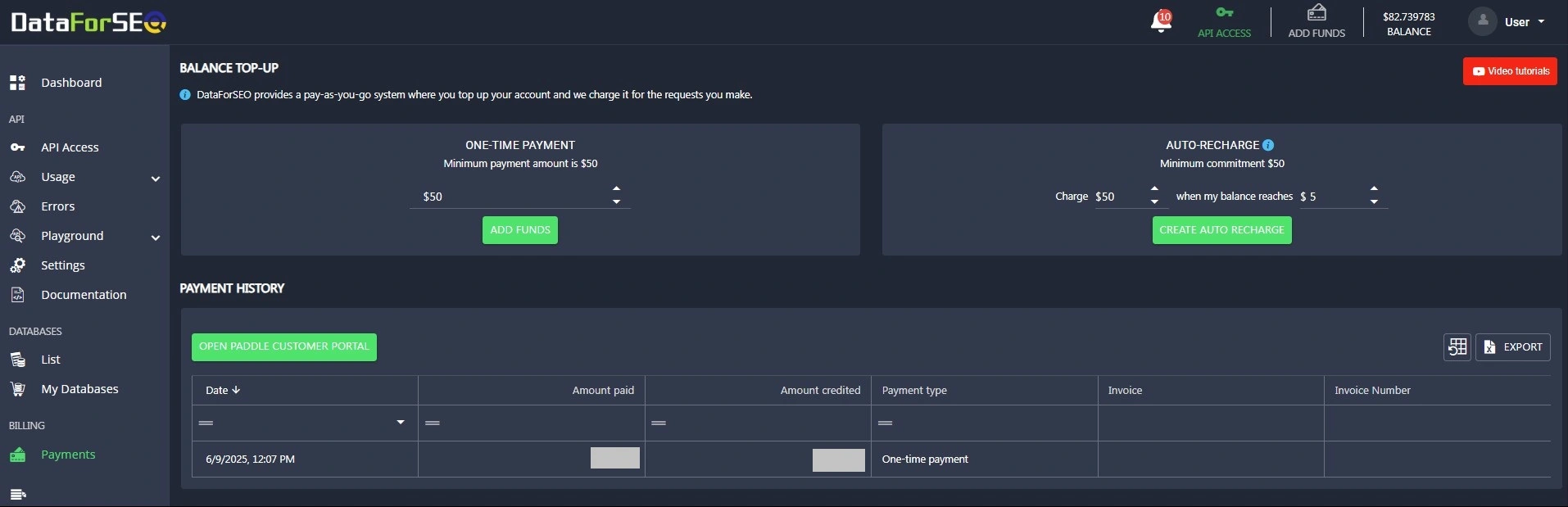
Use the Payments section to manage your account balance, make payments, view your payment history and download invoices.
To top up your account balance, click Add Funds. You can access this option from the Billing section or from the top bar. The minimum payment amount is $50, but funds never expire. And since DataForSEO uses a pay-as-you-go model, you only spend funds when you make API calls.
Use Auto-Recharge to avoid low balance: go to Billing to enable Auto-Recharge. With Auto-Recharge, you set a recharge amount, and a balance threshold. When your balance falls below that threshold, the system automatically charges you using the selected payment method and adds funds to your account.
See also:
Making a payment, changing payment or invoice details, and requesting refunds
How to set an auto-recharge for my account?
Troubleshoot failed API requests
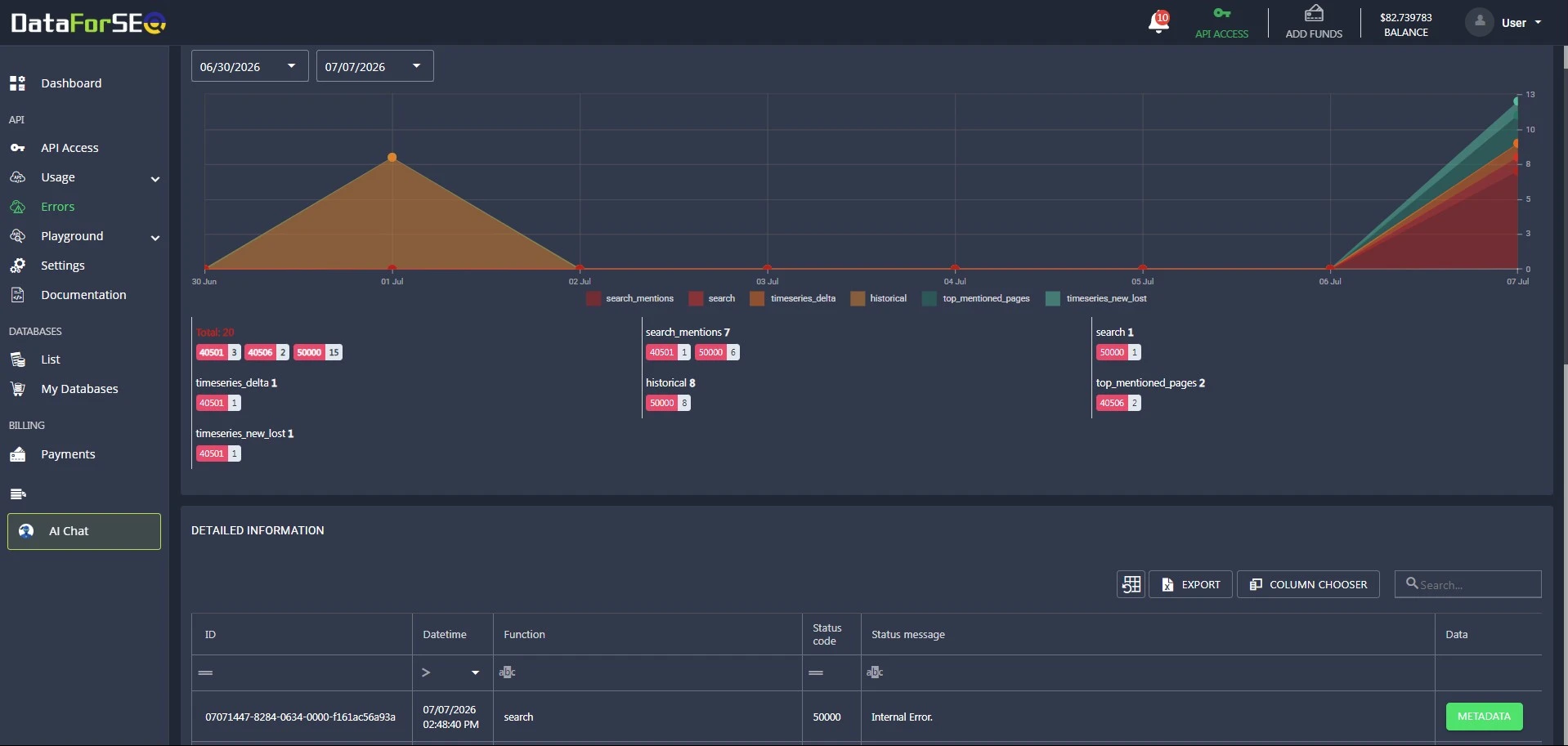
If an API request fails, go to the Errors section. It will show you the tasks, task IDs, the error codes and messages our system returned for unsuccessful requests. You can use these details to identify what went wrong and troubleshoot the request more easily.
A task ID is a unique identifier assigned to every API request. You can use it to identify a specific request.
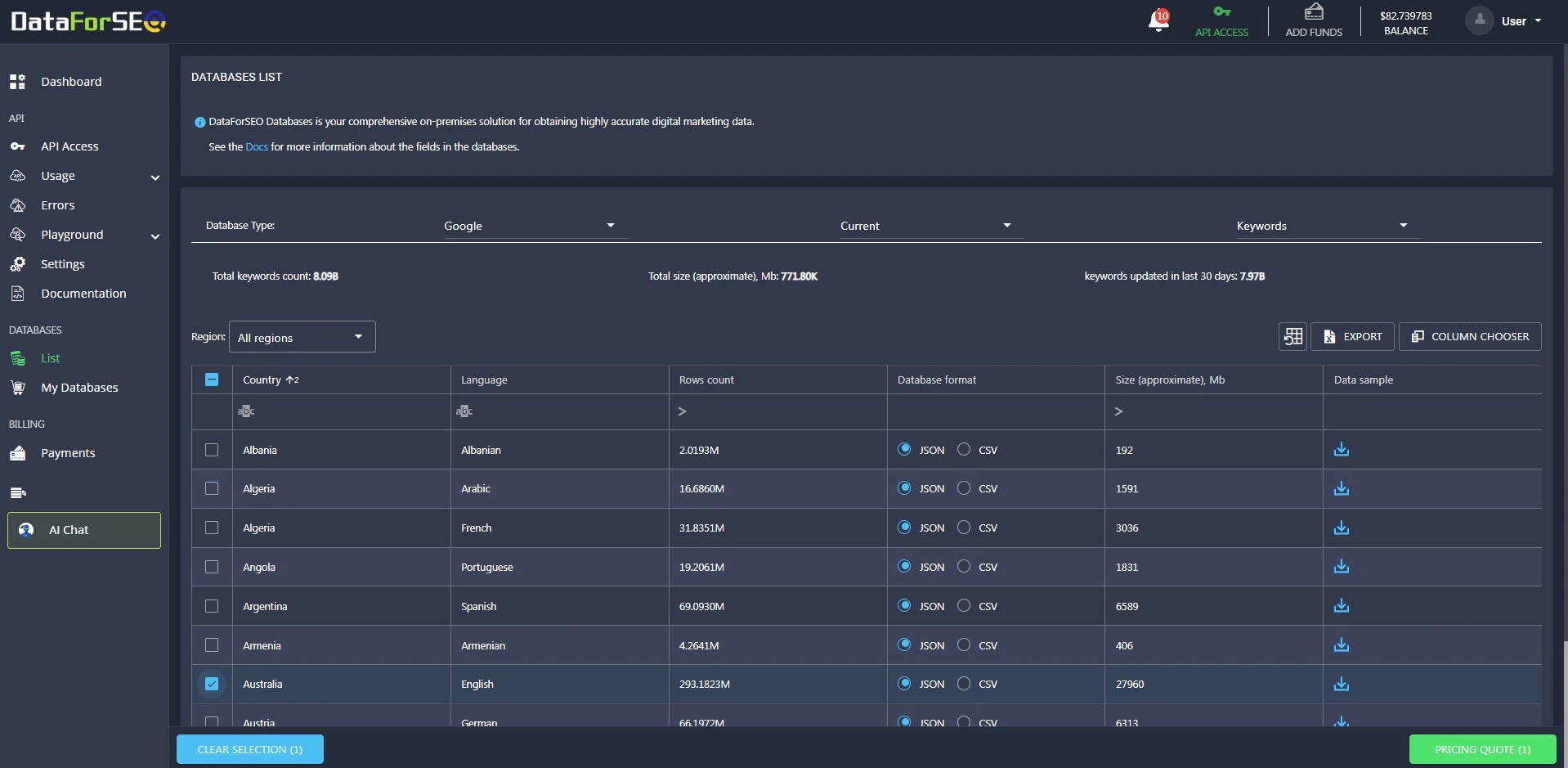
Browse and purchase large datasets
Use the Databases section when you need access to large datasets. Here, you can:
- View available datasets and request their pricing quote
- Download test samples
- Purchase datasets
- Review previous purchases
Use documentation to understand requests and responses
Documentation in the navigation menu opens the DataForSEO docs. The documentation explains:
- How API requests are structured
- What parameters are available
- What each returned data point means in the API response
The docs are useful for developers and non-developers. They can help you understand API responses and correctly map DataForSEO data in no-code tools, spreadsheets, dashboards, or internal workflows.
Quickly access essential account actions
Use the top bar when you need quick access to important account information or frequently used actions without leaving your current page, such as:
- Check your current balance
- Add funds
- Open API login and password details
- View notifications about product updates and important changes
- Open your profile settings
This is useful when you want to quickly confirm whether you have enough balance, top up your account before making API calls, or copy your API credentials while setting up an integration.

Manage account details and team access
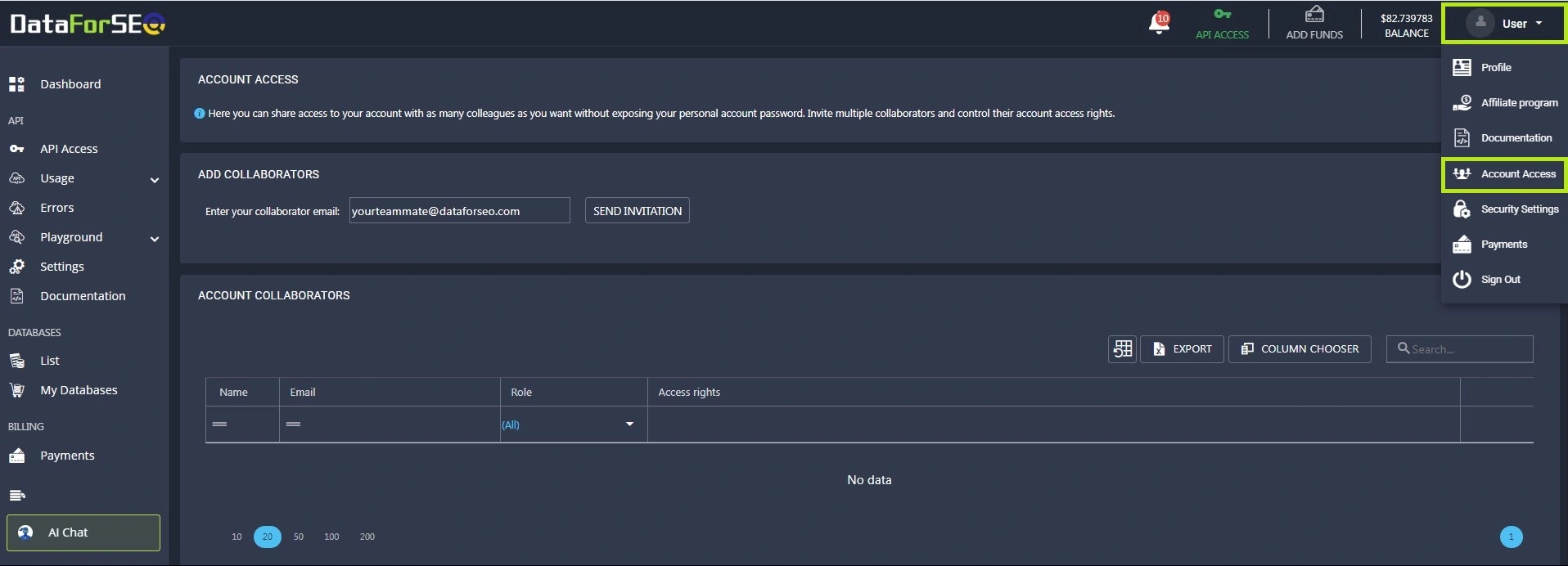
Use the Profile dropdown menu when you need to:
- Edit your personal information
- Change the email address associated with your DataForSEO account
- Change the password you use to log in to the DataForSEO Dashboard
- Request account deletion
- Access your affiliate links
- Manage account access for your team
- Secure your account with 2FA (two-factor authentication)
If you work with colleagues, you can go to Account Access to invite them as collaborators. This lets other team members use the account without sharing your personal password.
Get help when you need it
At the bottom of the Dashboard navigation menu, you can access support options. Use AI Chat for instant help with common questions or contact the DataForSEO support team available 24/7 through Live Chat.