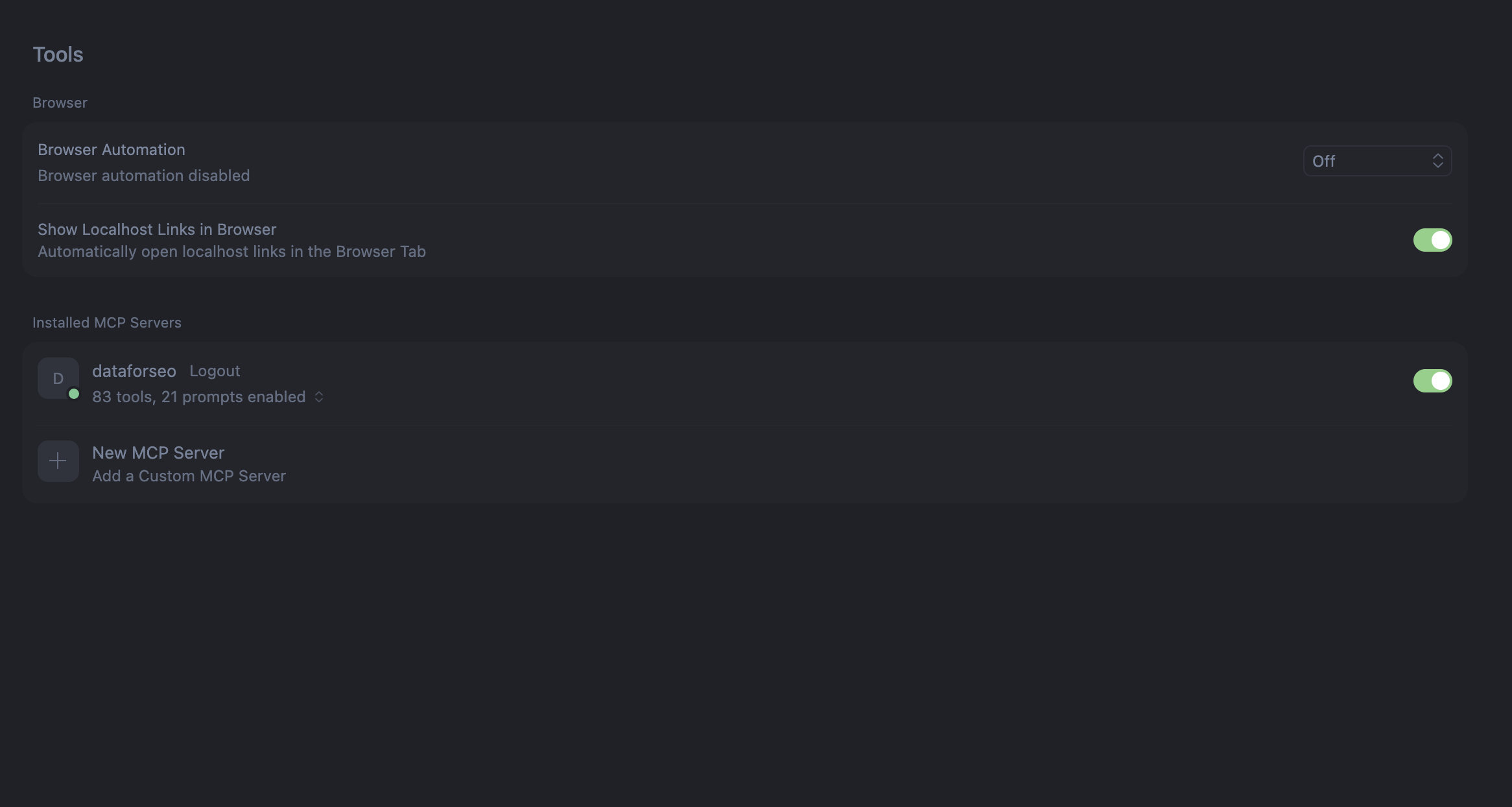
DataForSEO MCP server is an implementation of the Model Context Protocol that allows popular LLMs and AI-powered tools to interact with our APIs and fetch data. In this guide, we’ll demonstrate how to connect to the DataForSEO MCP server remotely, using the OAuth protocol.
Using the remote MCP connection method, you don’t need to make any preparations on your device, such as creating configuration folders or running commands in Terminal or the Command Line. This method is completely no-code, and the OAuth protocol enables fast, secure authentication with your DataForSEO account.
This guide showcases connection workflows for the three most popular AI solutions: Claude Desktop, ChatGPT, and Cursor.
Contents:
Claude Desktop connection
ChatGPT connection
Cursor connection
1 Claude Desktop connection
Before setting everything up, make sure you have the following:
- Claude Desktop installed on your device.
- An active Claude account with Pro subscription.
- An active DataForSEO account.
Here is the connection process step-by-step:
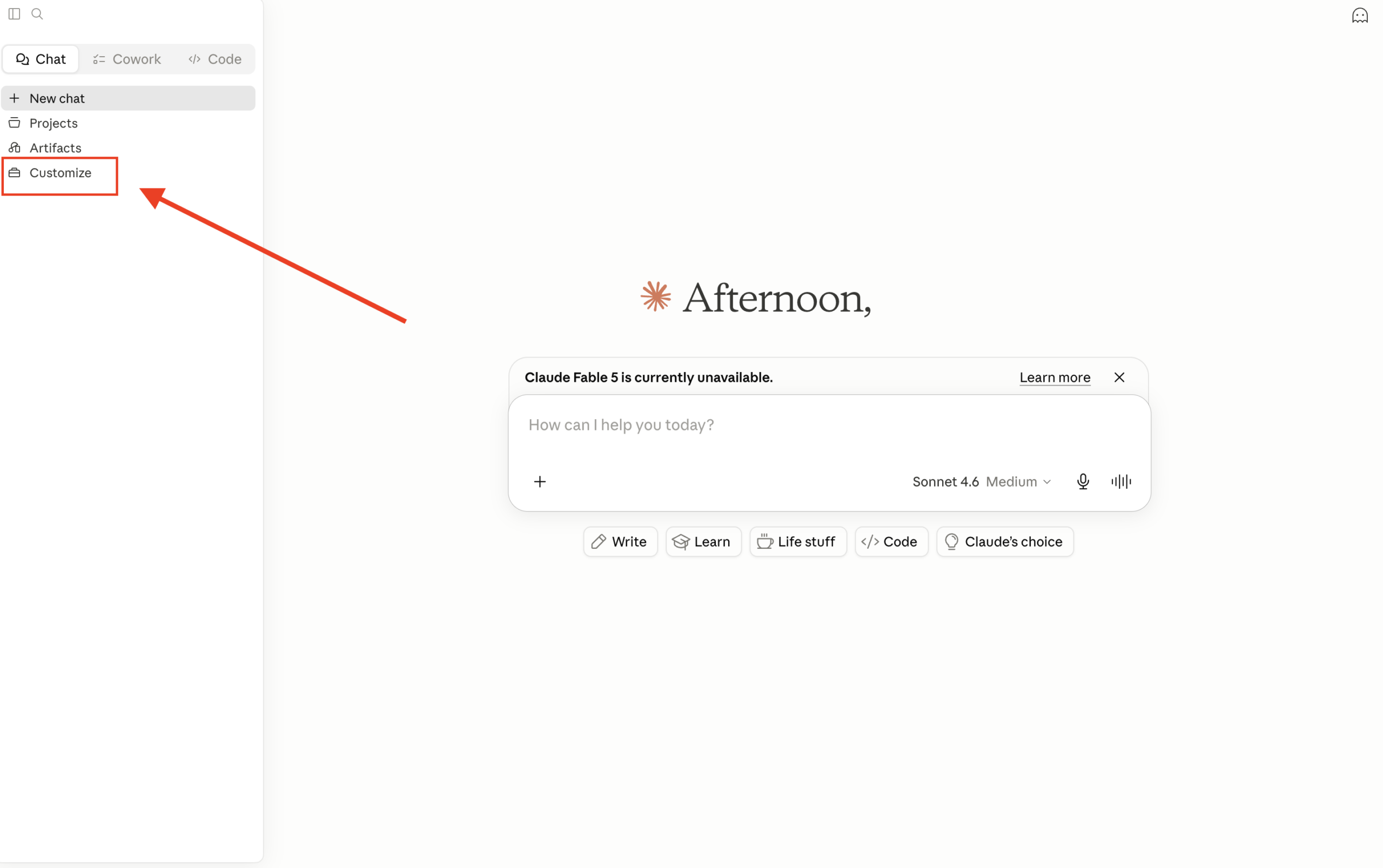
1. Open Claude Desktop and click on Customize in the upper left corner.
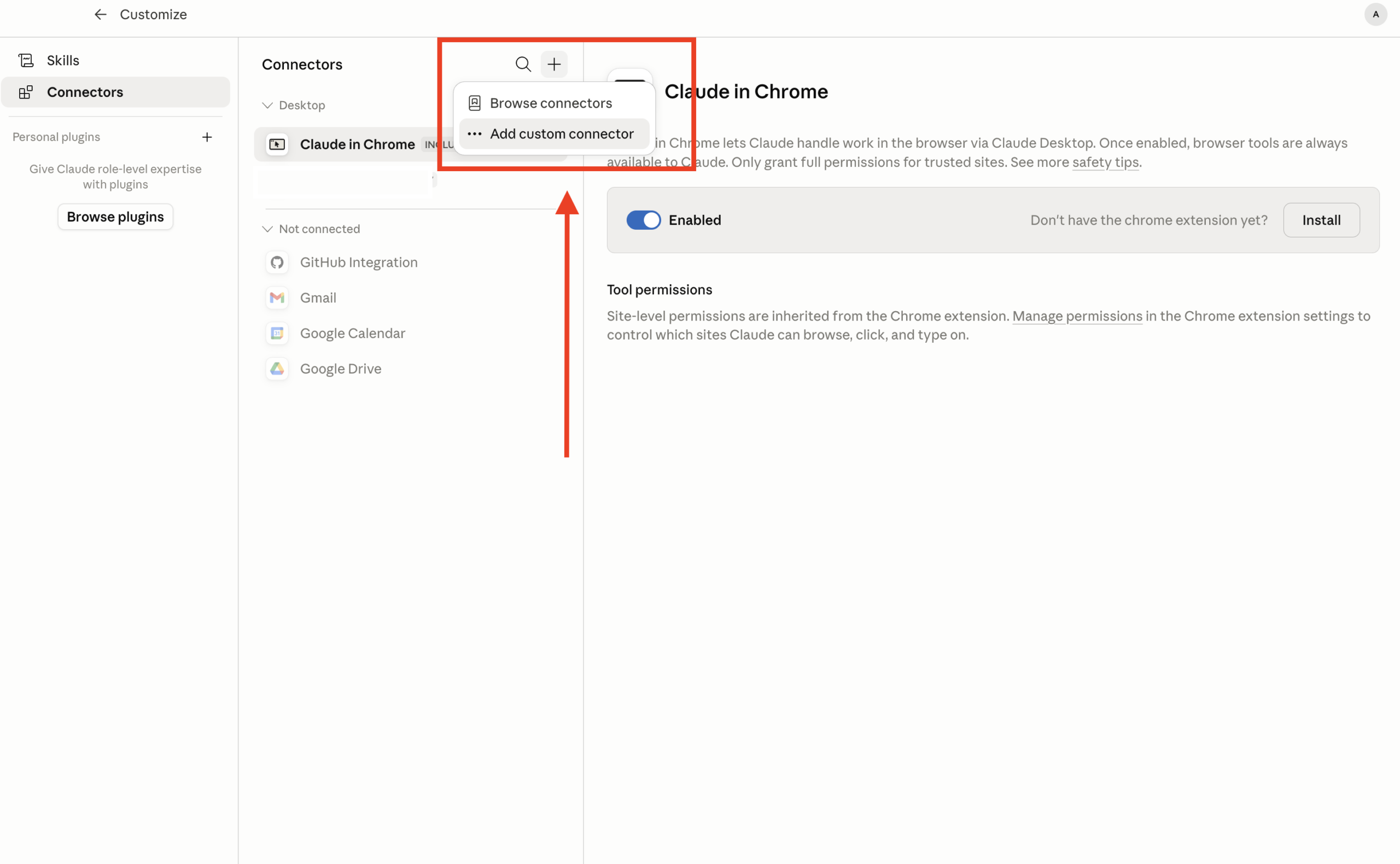
2. In the menu that appears, select Connectors. Then, click on the Plus (+) button and choose Add custom connector.
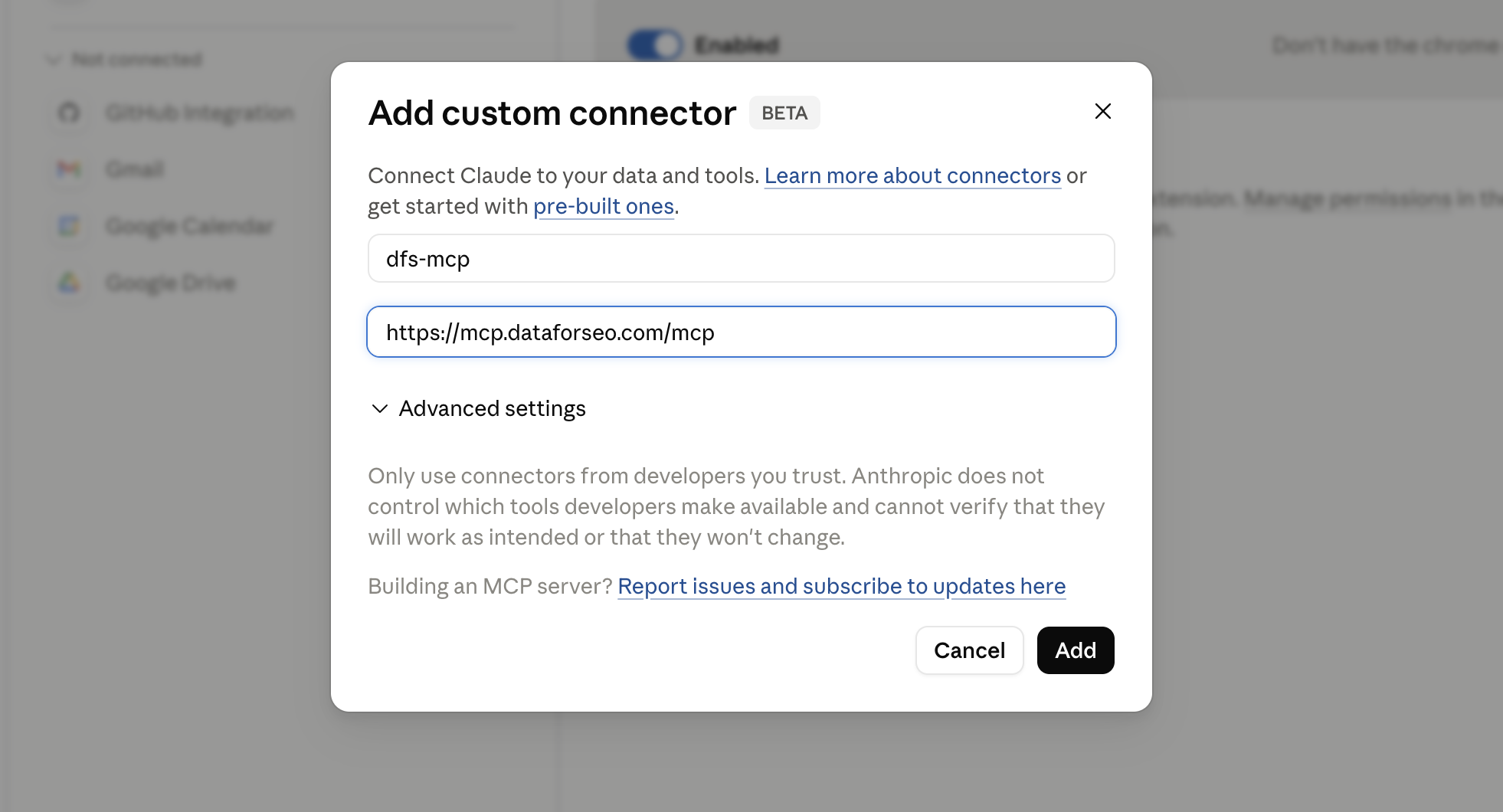
3. Give the connection a meaningful name, and in the URL field, paste the following DataForSEO MCP server URL:
https://mcp.dataforseo.com/mcp
Click Add.
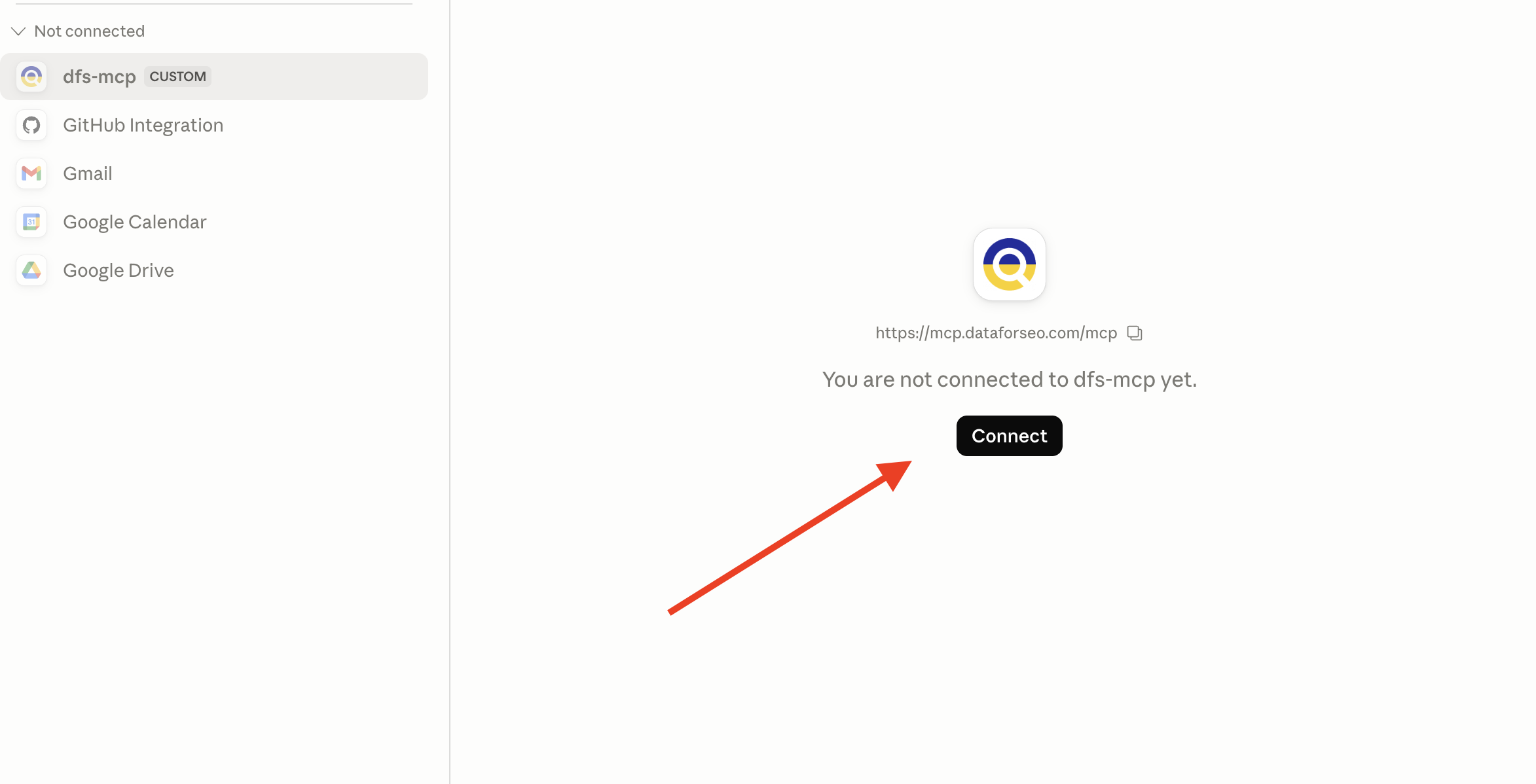
4. On the Connector page, click Connect.
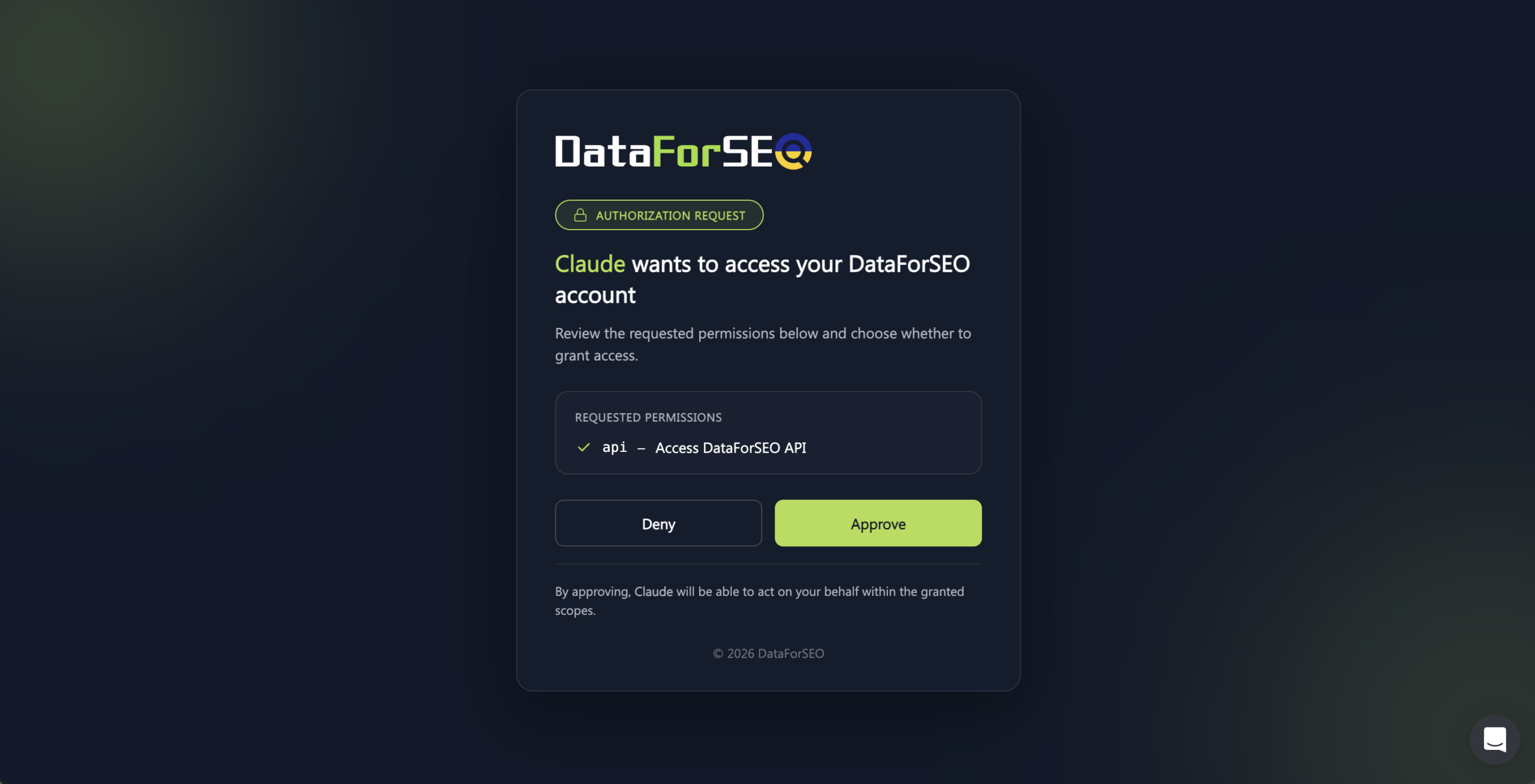
5. You will be redirected to the DataForSEO authentication flow page. Click Approve to establish the connection. After that, return to the Claude Desktop.
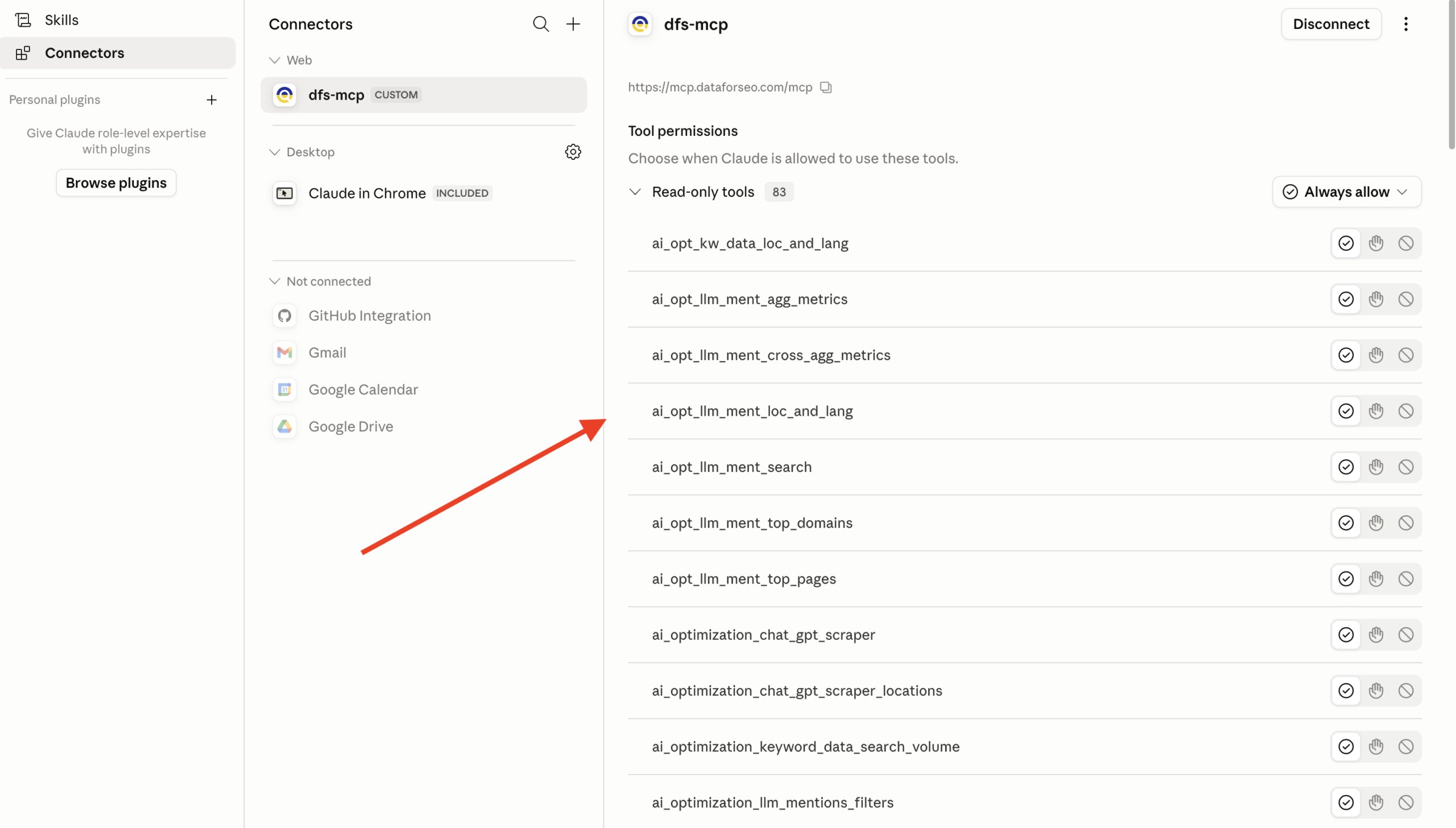
6. The connection is ready. Now, you can configure MCP tool permissions before using them in Claude.
2 ChatGPT connection
Before setting everything up, make sure you have the following:
- An active ChatGPT account.
- An active DataForSEO account.
The connection process is as follows:
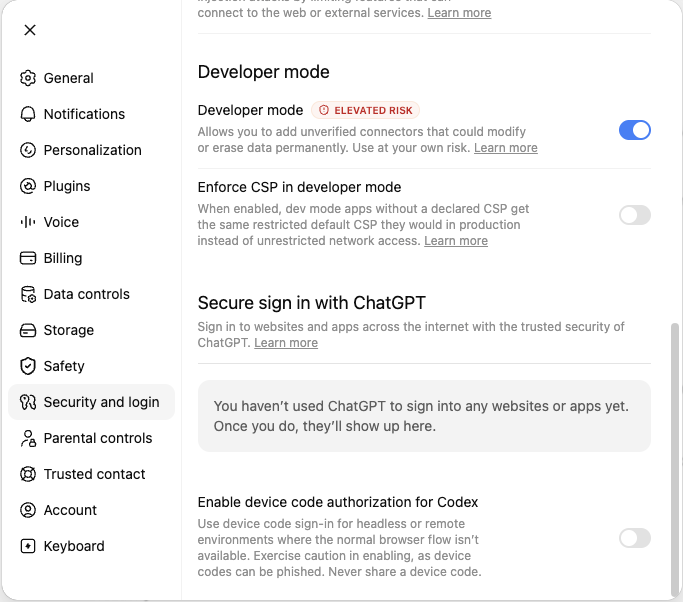
1. In ChatGPT, open Settings → Plugins → Developer mode and enable the Developer mode.
2. Go back to Plugins and click a + icon to create a new plugin.
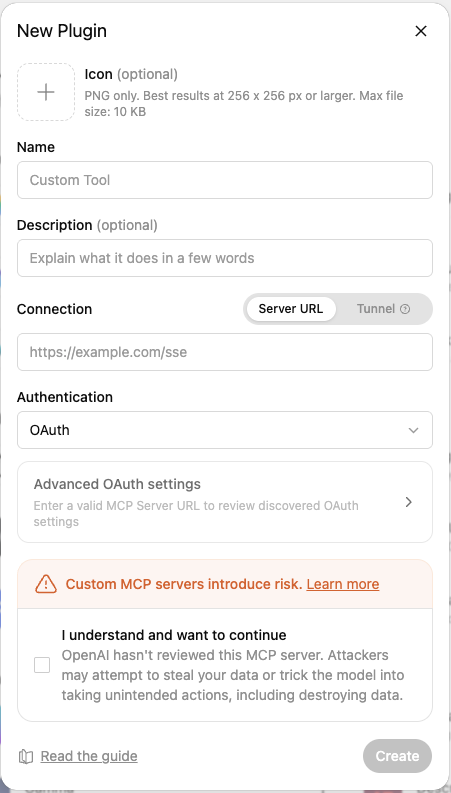
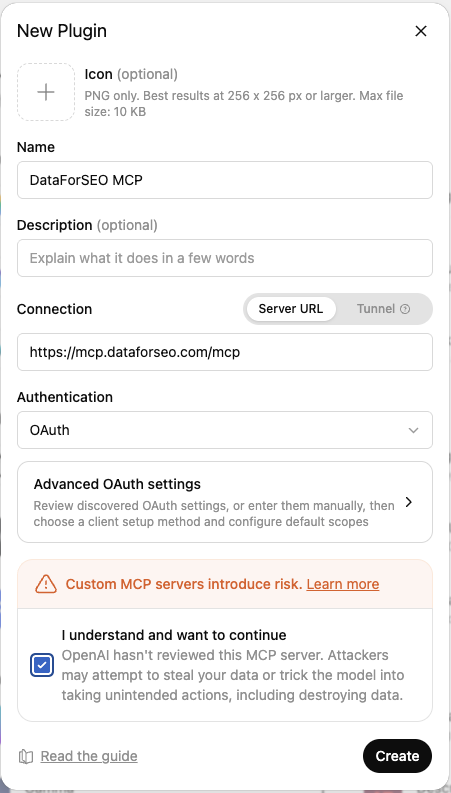
3. In the menu that opens, write an app (connection) name of your choice, tick the box with the “I understand and want to continue” message, and paste the following DataForSEO MCP URL into the Connection field:
https://mcp.dataforseo.com/mcp
Select the OAuth authentication method and click Create.
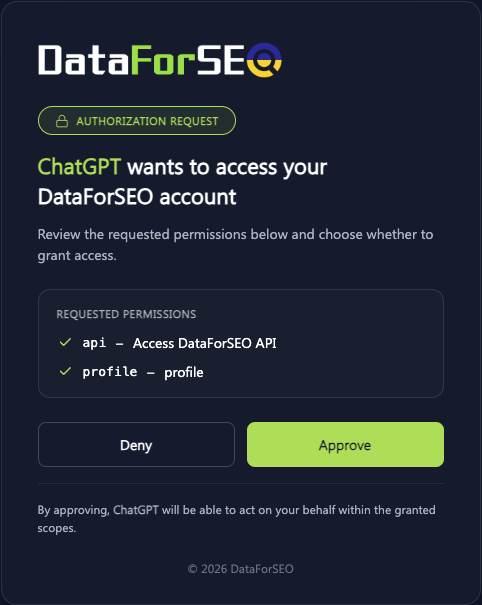
4. Then, you will be asked to sign in with your connection and redirected to the DataForSEO authentication flow page. Click Approve to establish the connection. After that, return to the ChatGPT.
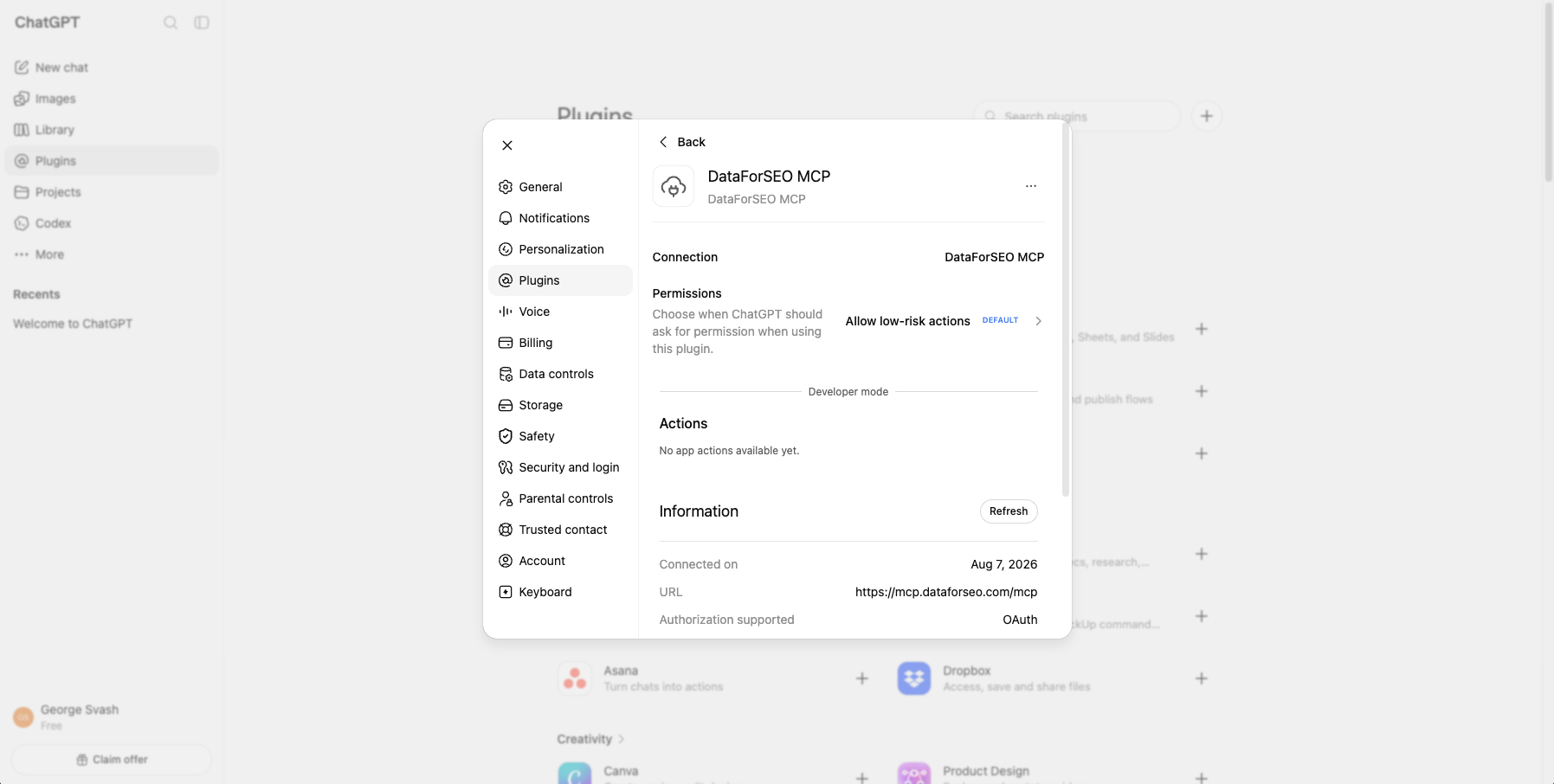
5. The connection is ready. Now, you can try DataForSEO MCP tools in a conversation with ChatGPT.
3 Cursor connection
Before setting everything up, make sure you have the following:
- Cursor app installed on your device.
- An active DataForSEO account.
Here is the connection process step-by-step:
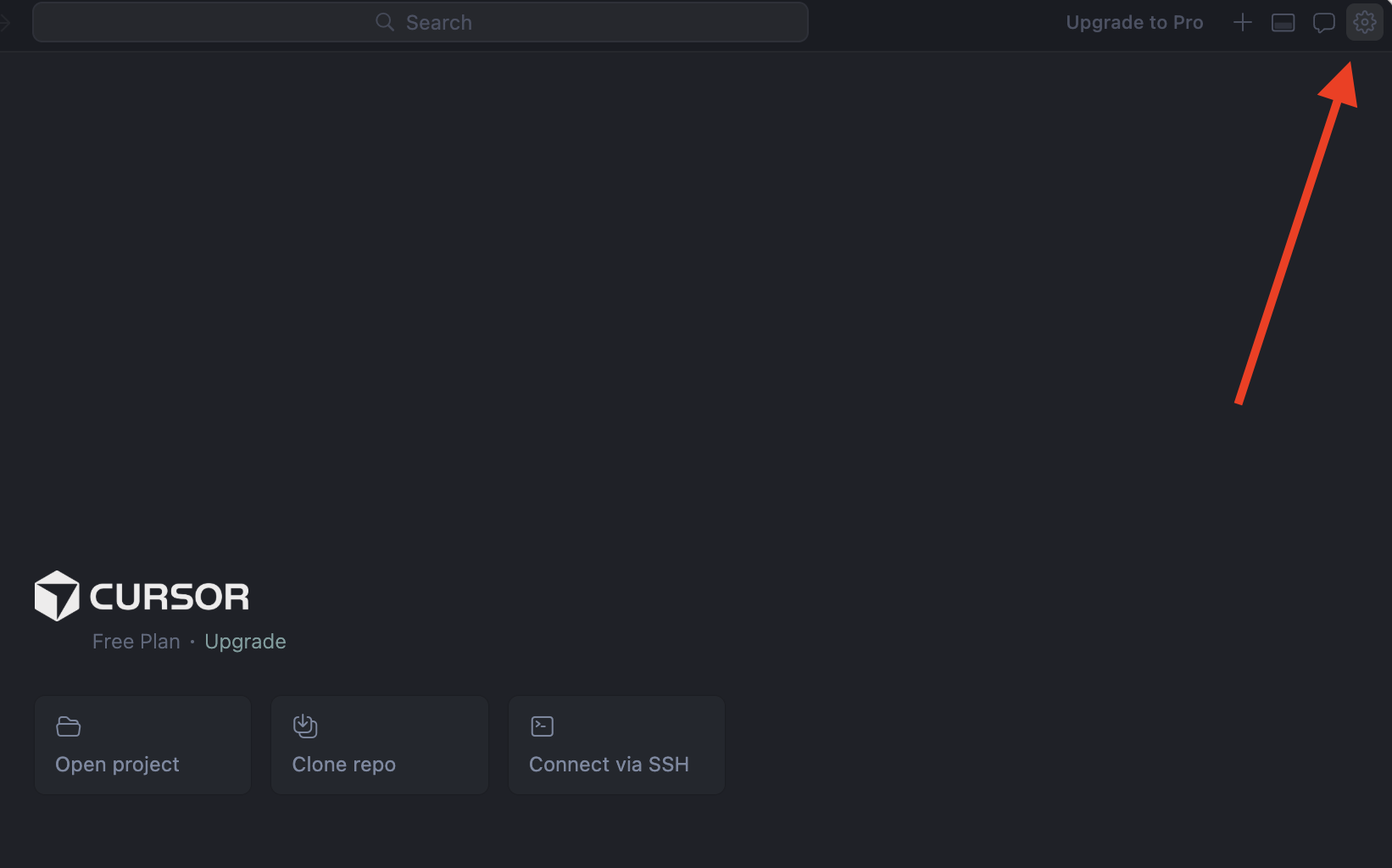
1. Open Cursor and click on the Settings button in the upper right corner.
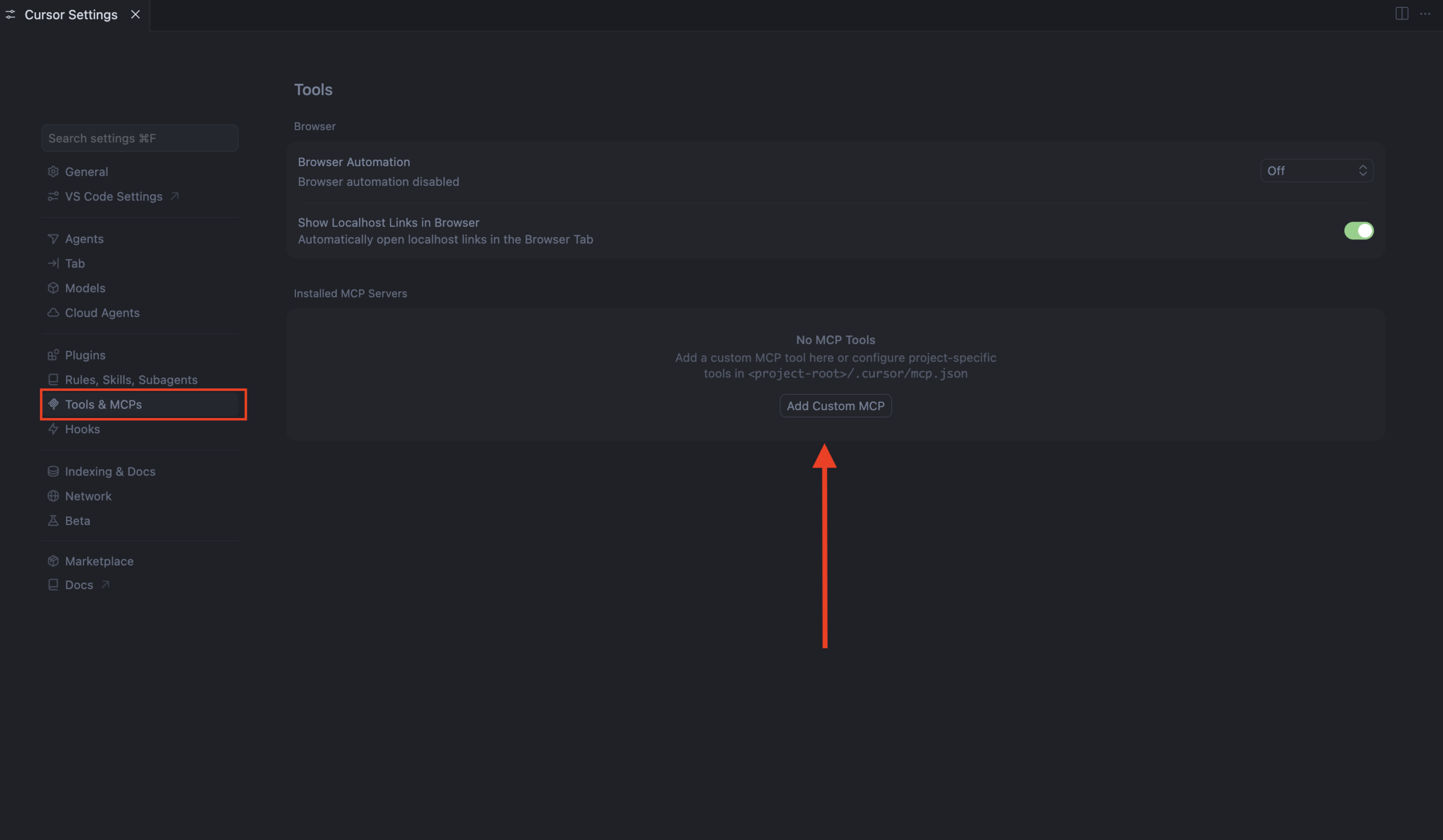
2. Navigate to Tools & MCPs and click Add Custom MCP.
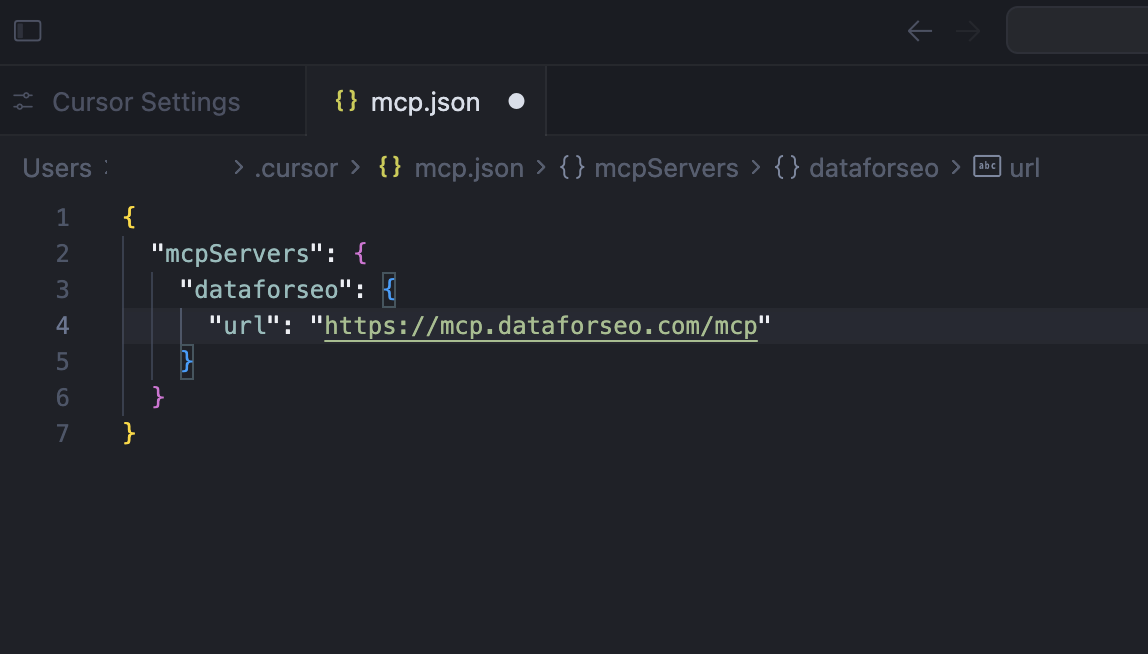
3. In the window that opens, paste the following JSON configuration snippet:
{
  "mcpServers": {
    "dataforseo": {
      "url": "https://mcp.dataforseo.com/mcp"
    }
  }
}
Save and close.
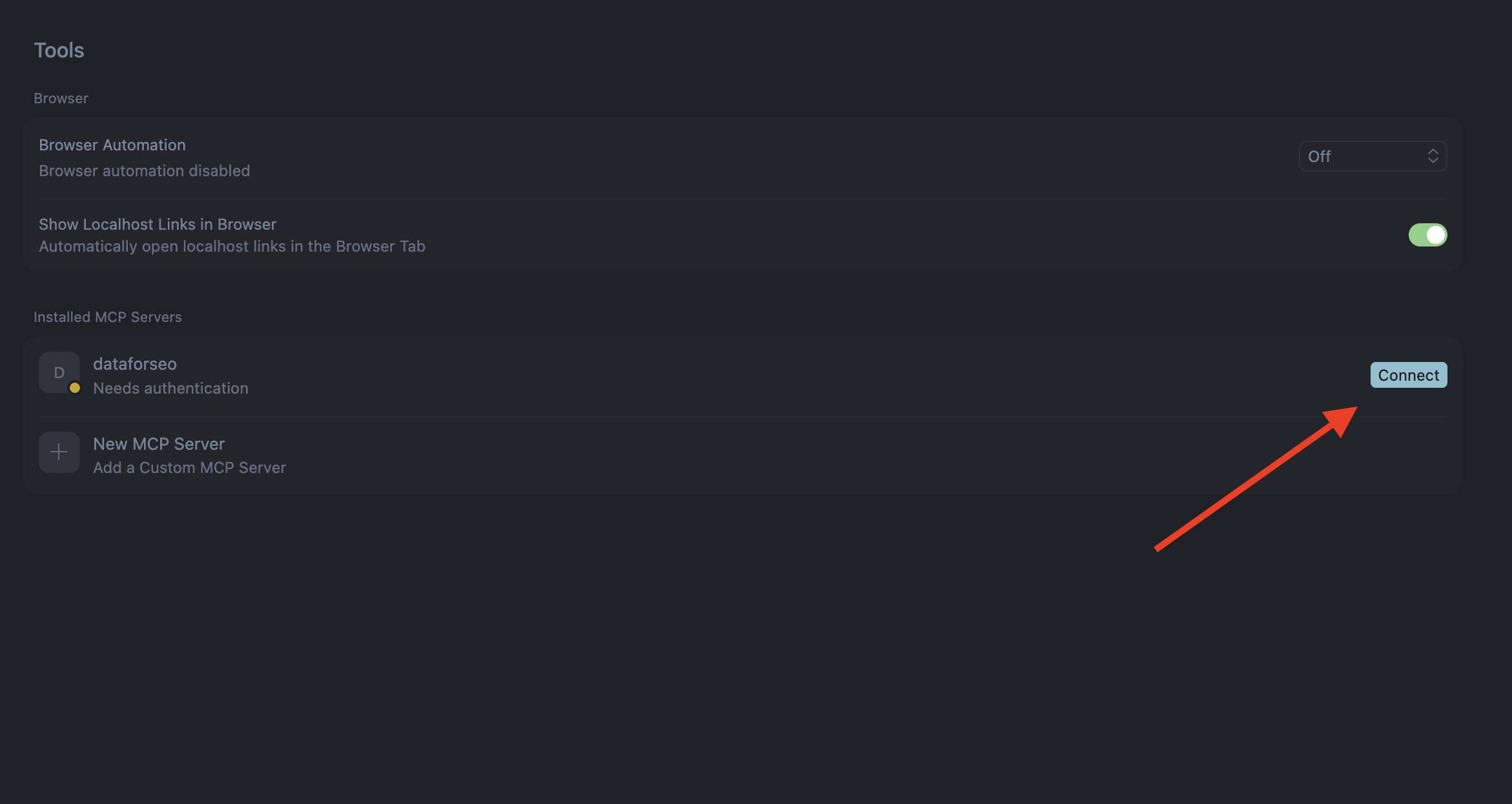
4. The Cursor will ask for authentication. Click Connect.
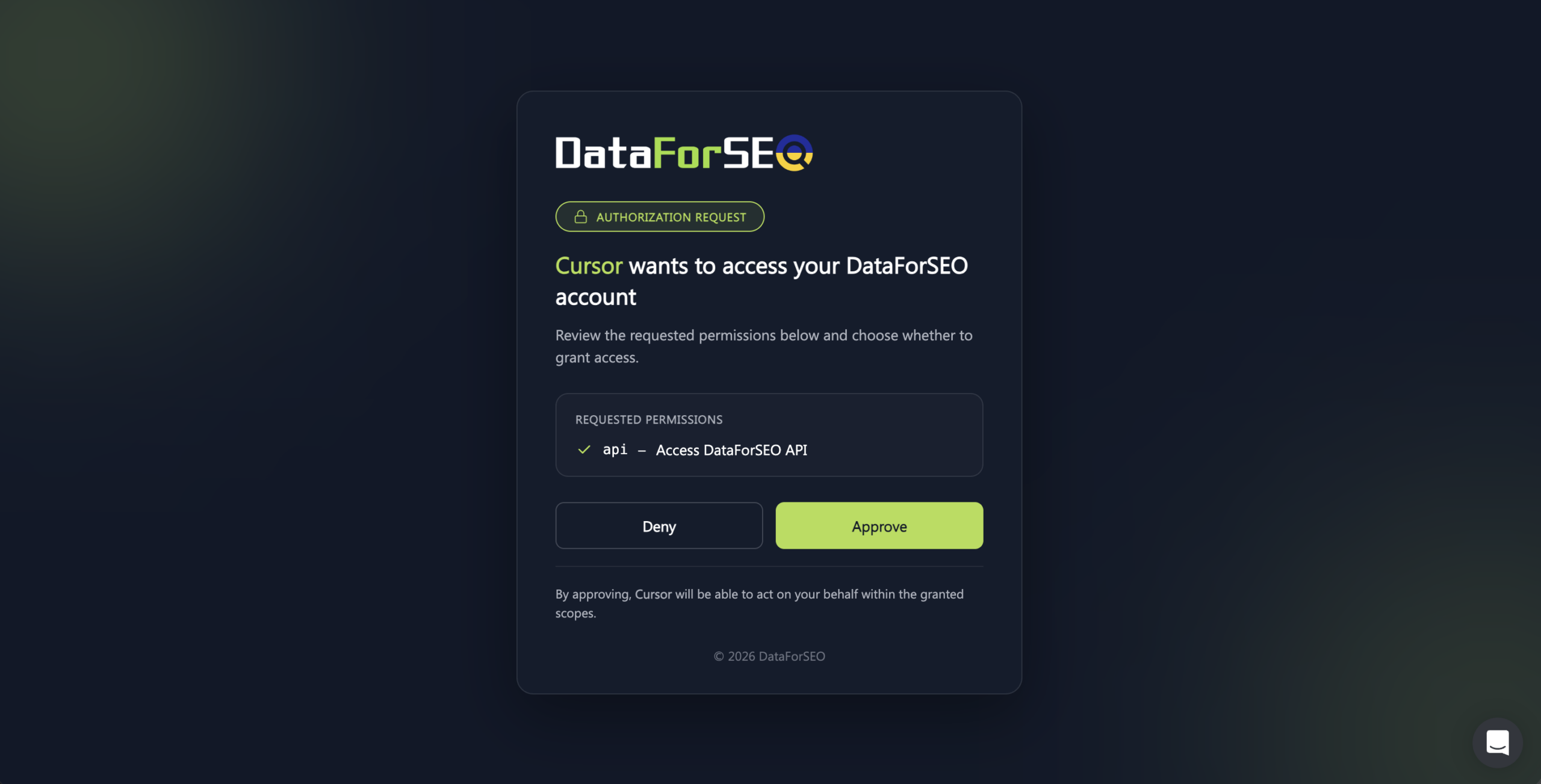
5. You will be redirected to the DataForSEO authentication flow page. Click Approve to establish the connection. After that, return to Cursor.
6. The connection is ready. Now, you can use DataForSEO MCP tools in your Cursor projects and agents.