
In this guide, we’ll explain how to connect the official DataForSEO MCP server to the desktop and web versions of ChatGPT for use with the new ChatGPT Work mode. Additionally, we’ll showcase the MCP integration with OpenAI’s Codex CLI.
Why use DataForSEO MCP with ChatGPT Work and Codex?
ChatGPT Work and Codex extend ChatGPT’s capabilities beyond standard conversations with AI and on-demand tasks. Codex is OpenAI’s autonomous AI agent and development environment that can write, fix, test code, and build software, and is available in the ChatGPT desktop app and can also be installed as a CLI tool.
ChatGPT Work is a separate ChatGPT agentic mode built with Codex technology and available in both the web and desktop versions of ChatGPT. It performs complex, step-by-step analyses and scheduled tasks, and can interact with files and applications on your device.
The DataForSEO MCP connection enables you to run more advanced SEO, GEO, and marketing processes in both extensions. For instance, you can run data-driven scheduled SEO and GEO audits in Work and make the AI generate structured visual reports instead of plain text. In Codex, you can use DataForSEO MCP to pull SEO insights straight into the coding environment and build and test your projects against real data.
Overall, the DataForSEO MCP server extends the capabilities of Codex and Work, making them more versatile for marketing, SEO, and development tasks that depend on real data.
Prerequisites
Before we begin, make sure you have the following:
1. An active DataForSEO account. You’ll need your API credentials for connection.
2. An active OpenAI account.
3. ChatGPT Desktop app installed (for desktop integration).
4. A Pro, Enterprise, or Edu ChatGPT subscription (for ChatGPT web version integration).
5. Latest version of Node.js installed (for Codex CLI integration).
1 ChatGPT Work (Desktop and Web) integration guide
ChatGPT Work Desktop
1. Open the ChatGPT Desktop app and navigate to Settings.
2. In Settings, go to Plugins → Add → Add MCP Server.
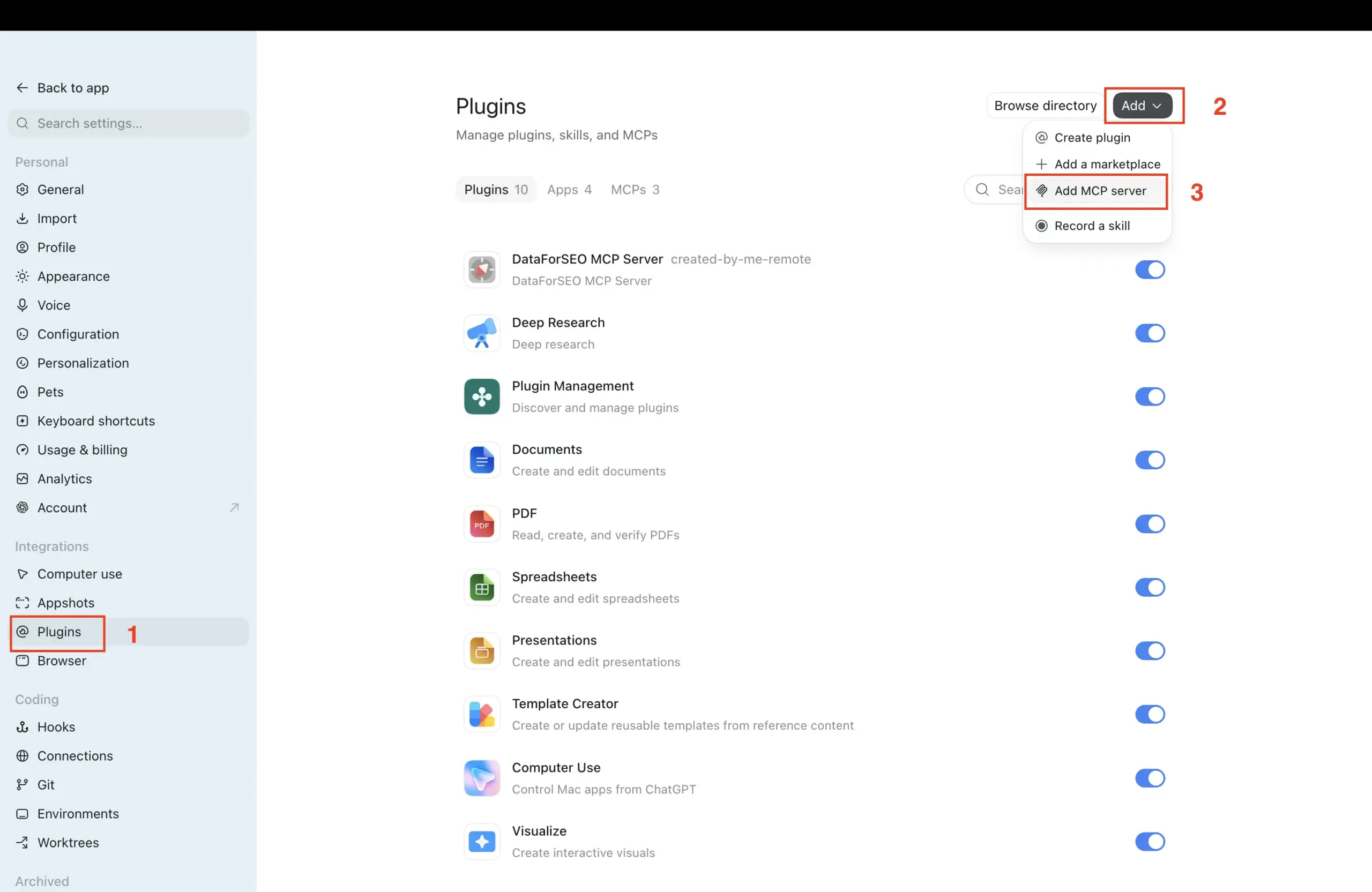
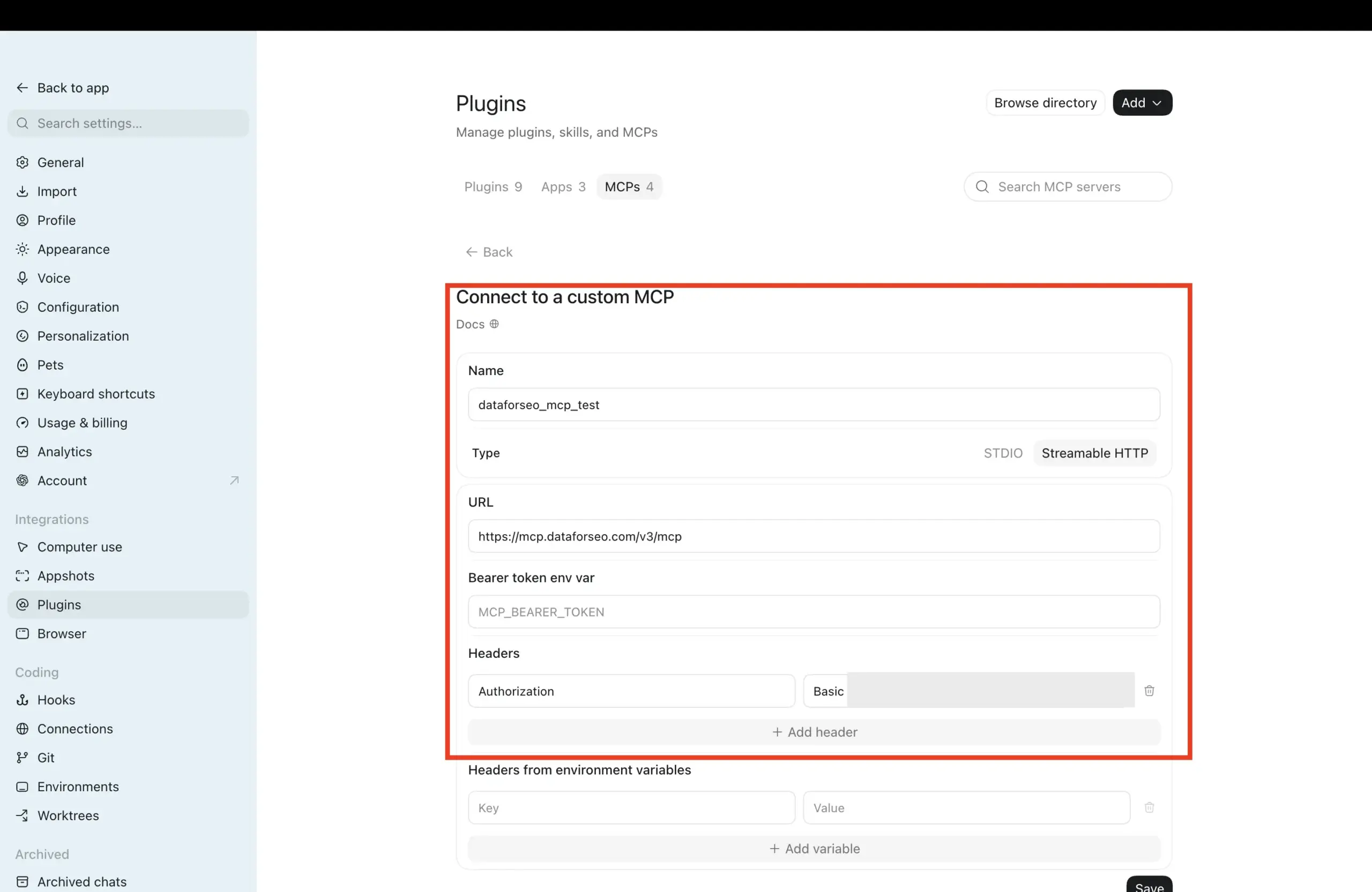
3. In the window that opens, you’ll have two connection options: using Standard Input/Output (STDIO) or Streamable HTTP.
A. For Streamable HTTP connection, set a Name for the MCP server, specify the following DataForSEO MCP server URL: https://mcp.dataforseo.com/v3/mcp. After that, in the Headers section, specify “Authorization” in the Key field, and in the Value field write “Basic” and paste your DataForSEO API credentials encoded in Base64 format. We can send your credentials via email after you make a request in your DataForSEO Dashboard.
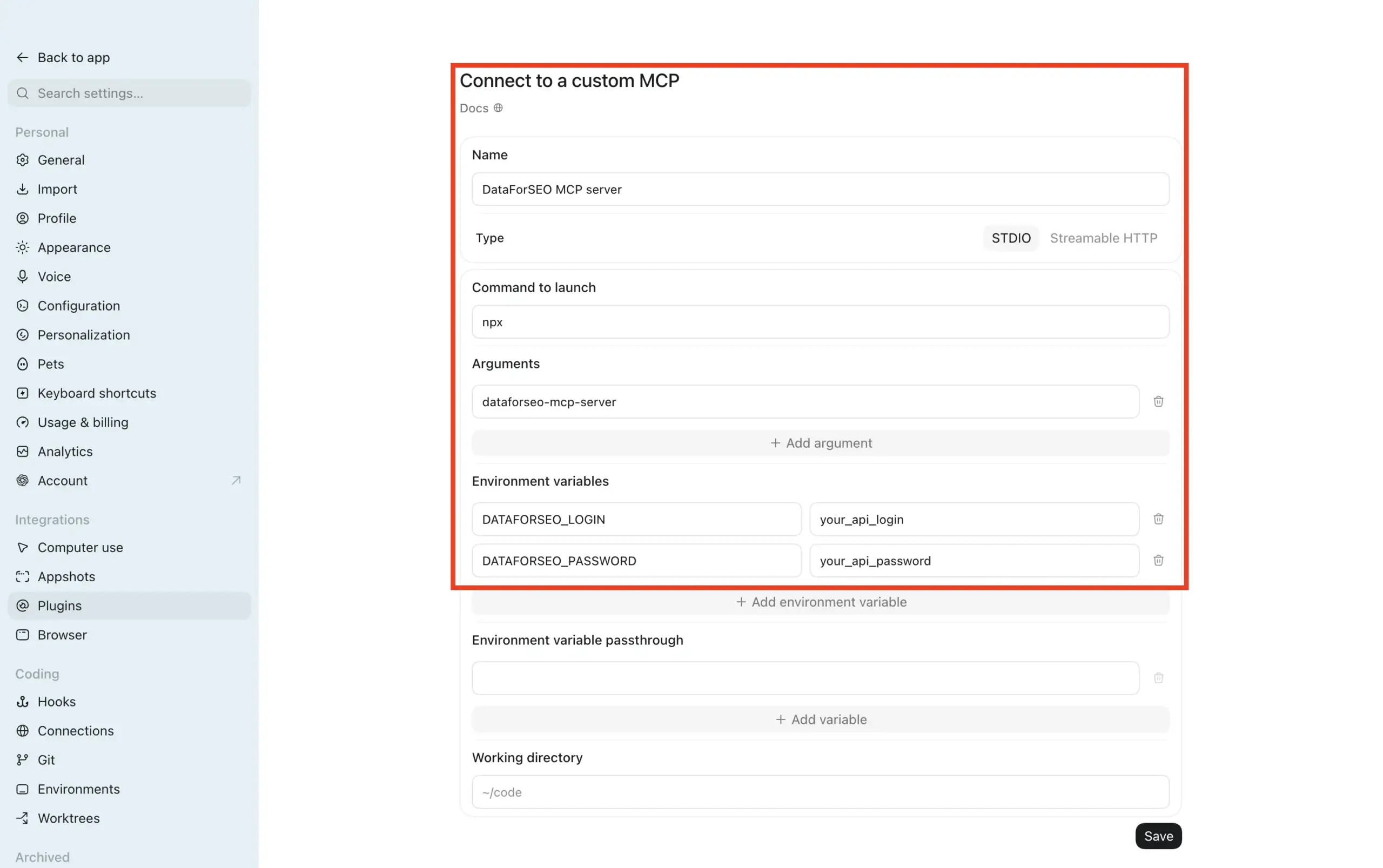
B. For STDIO connection, set a Name, specify “npx” in the Command to launch field, “dataforseo-mcp-server” in Arguments, and set the following Environment variables. Remember to replace the “your_api_login” and “your_api_password” with actual API credentials:
DATAFORSEO_LOGIN and your_api_login
DATAFORSEO_PASSWORD and your_api_password.
4. After configuring the connection, click Save.
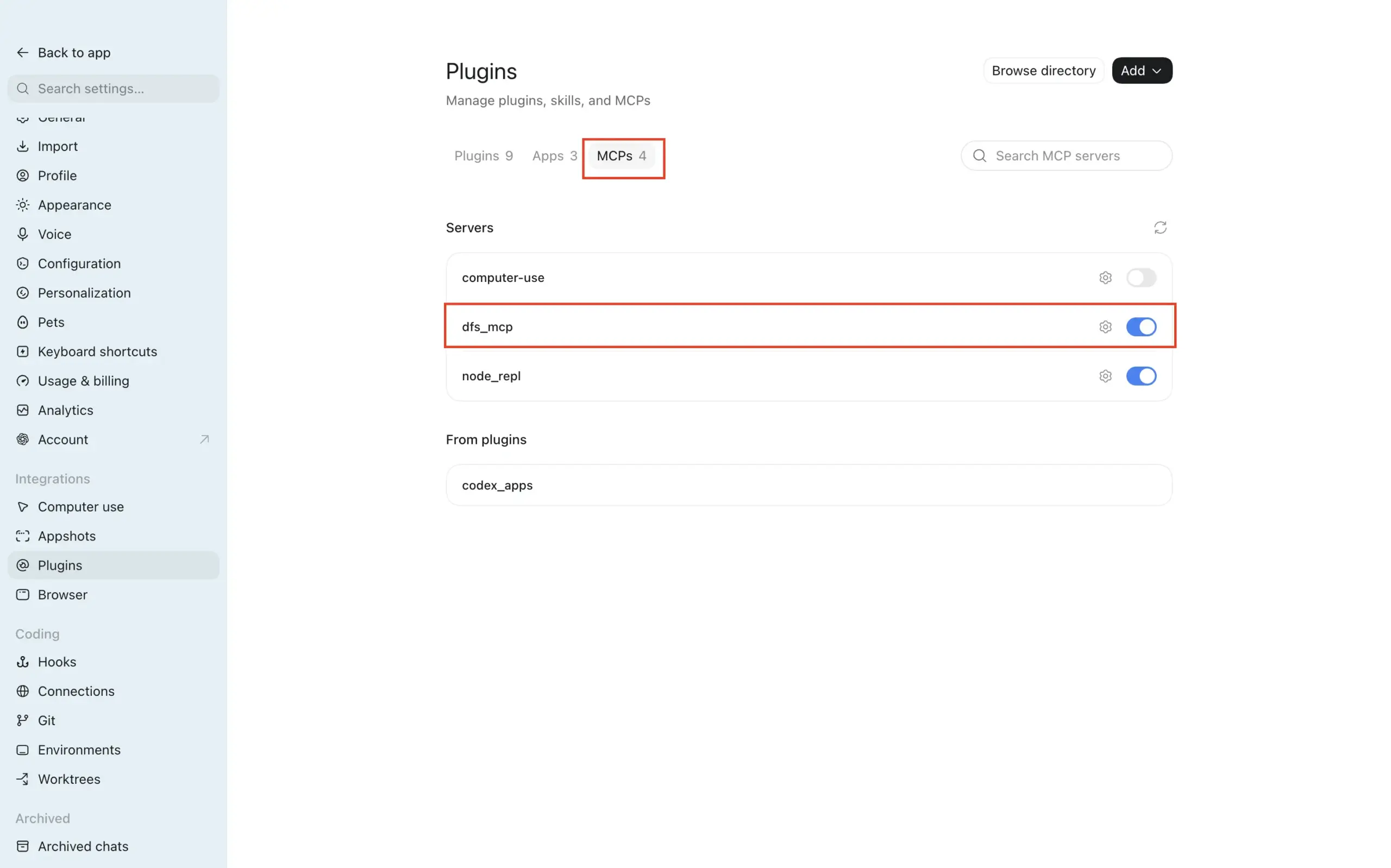
5. You can see connected MCP servers in the MCPs section of the Plugins menu. Here, you can also enable/disable MCP servers and access their settings.
6. Go back to the app, start a New chat, switch to the Work mode at the top of the chat interface, and test the MCP connection. You can send a simple prompt for testing, as one below:
“Using dfs_mcp fetch the top 10 keywords the dataforseo.com domain ranks for in the US.”
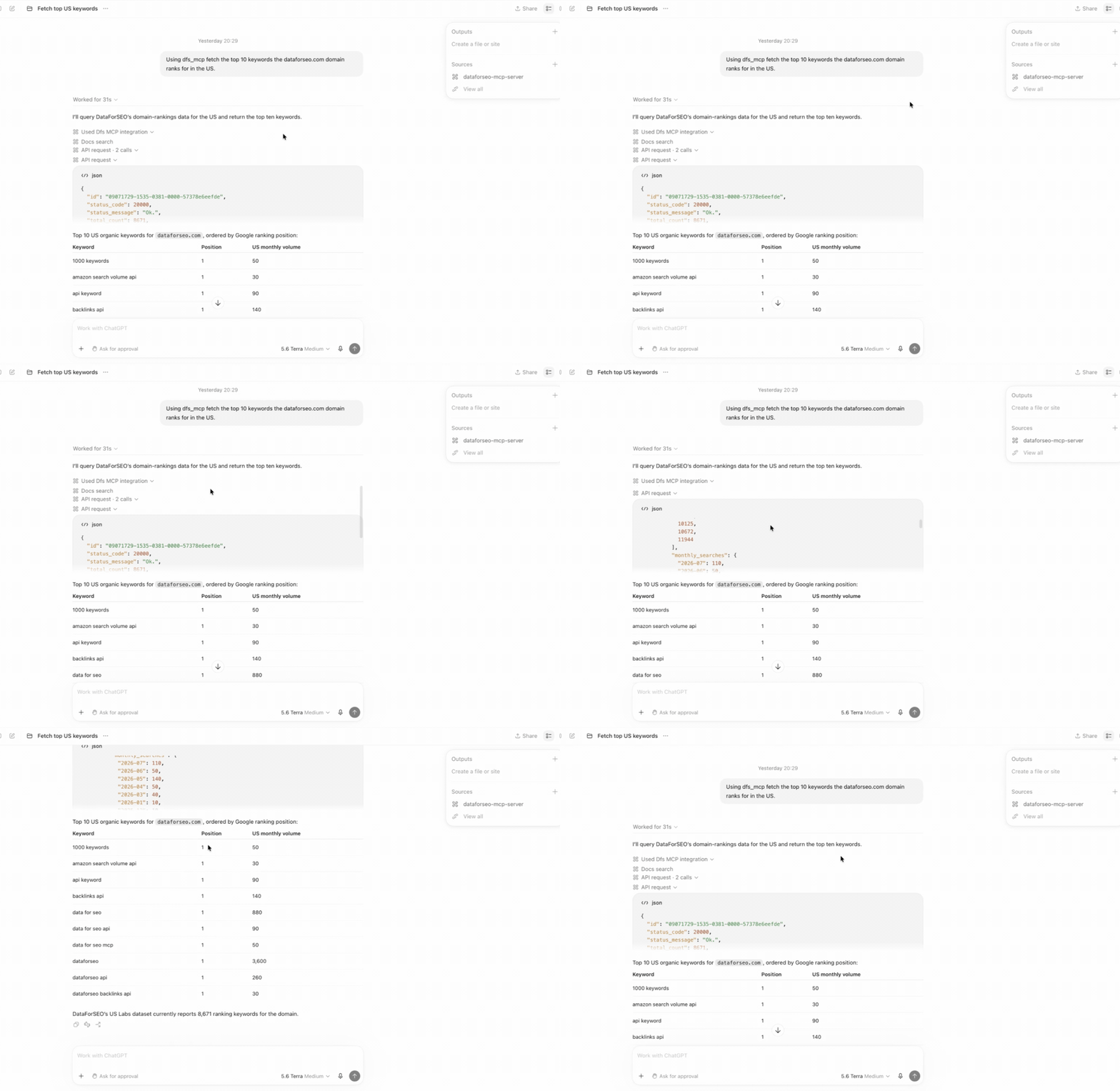
The connection is ready. ChatGPT Work will use the DataForSEO MCP server to call our APIs and fetch data to complete the task. You can review the API request and responses right in the chat.
ChatGPT Work Web
The Web version connection workflow is identical to the one described in the remote MCP integration guide for ChatGPT. However, to use Work mode in the Web version, you must have an active Pro, Enterprise, or Edu subscription.
Below is the integration workflow step-by-step:
1. Open ChatGPT in your browser, go to Settings → Plugins, and turn on the Developer mode.
2. Go back to Plugins and click the Plus (+) icon to create a new plugin.
3. Set a Name for the plugin and paste the following DataForSEO MCP server URL: https://mcp.dataforseo.com/v3/mcp.
4. Select the authorization method. You can choose between OAuth or API key. For API key authorization type, choose the Header Scheme → Basic and specify the credentials as “Basic {your_base64_encoded_credentials}“. Click Create.
5. If you chose the OAuth, you will be asked to sign in with your connection and redirected to the DataForSEO authentication flow page. Click Approve to establish the connection. After that, return to the ChatGPT.
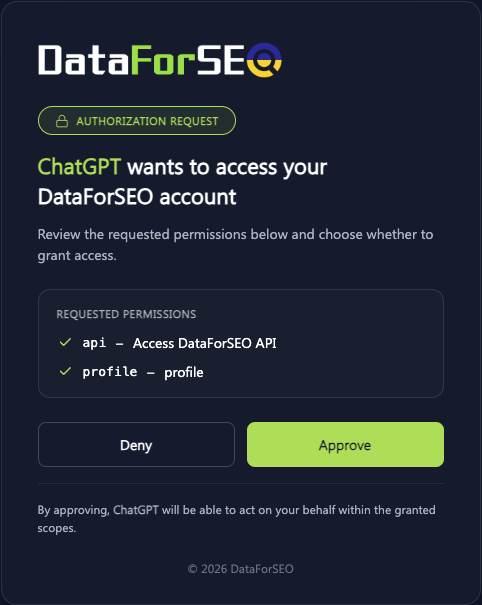
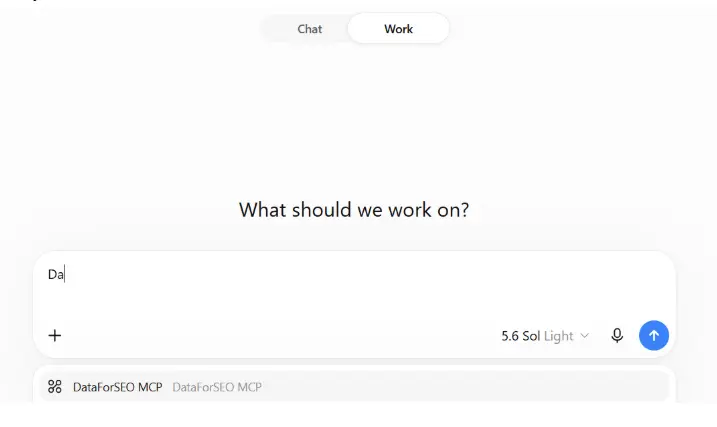
6. The connection is ready. Start a New chat and choose the Work mode. In the chat window, click the Plus (+) button and write the MCP plugin’s name. It should appear in the list below.
2 Codex CLI integration guide
First, install the Codex CLI on your device following the official installation guide.
Then, if you have the ChatGPT Desktop app on your device with the DataForSEO MCP server integrated, the MCP is also available in the Codex CLI. That’s because Codex CLI and ChatGPT Desktop share the same MCP configuration settings. Thus, you can use the MCP connection in Codex CLI right away.
If not, you can integrate the MCP server following our universal quickstart guide.
Alternatively, you can follow the connection workflow using the SKILL.md file:
1. Download the SKILL.md file from the DataForSEO MCP server repository. It contains instructions for LLMs on how to interact with our APIs using CLI commands.
2. Open the Codex root folder (.codex) on your device and go to the .skills folder.
The root folder is typically located by the following path:
~/.codexon macOS/Linux;C:\Users\$your_user_name\.codexon Windows.
In the .skills folder, create another folder, give it a meaningful name (e.g., dataforseo-mcp-server).
3. Move the SKILL.md file into the new folder.
4. Open the Terminal or its equivalent, and change the directory to your project folder.
5. Set your environment variables. Remember to replace your_username and your_password with your actual DataForSEO API login and password.
macOS/Linux
export DATAFORSEO_USERNAME="your_username"
export DATAFORSEO_PASSWORD="your_password"
Windows PowerShell
$env:DATAFORSEO_USERNAME = "your_username"
$env:DATAFORSEO_PASSWORD = "your_password"
Windows Command Prompt
set DATAFORSEO_USERNAME="your_username"
set DATAFORSEO_PASSWORD="your_password"
6. Start Codex with the codex command.
7. Confirm if the skill is available by writing /skills or a prompt such as “Check whether the (skill_name) is available“.
8. Send a relevant prompt to test the connection.
“Using dataforseo-mcp-server fetch the top 10 keywords the dataforseo.com domain ranks for in the US.”
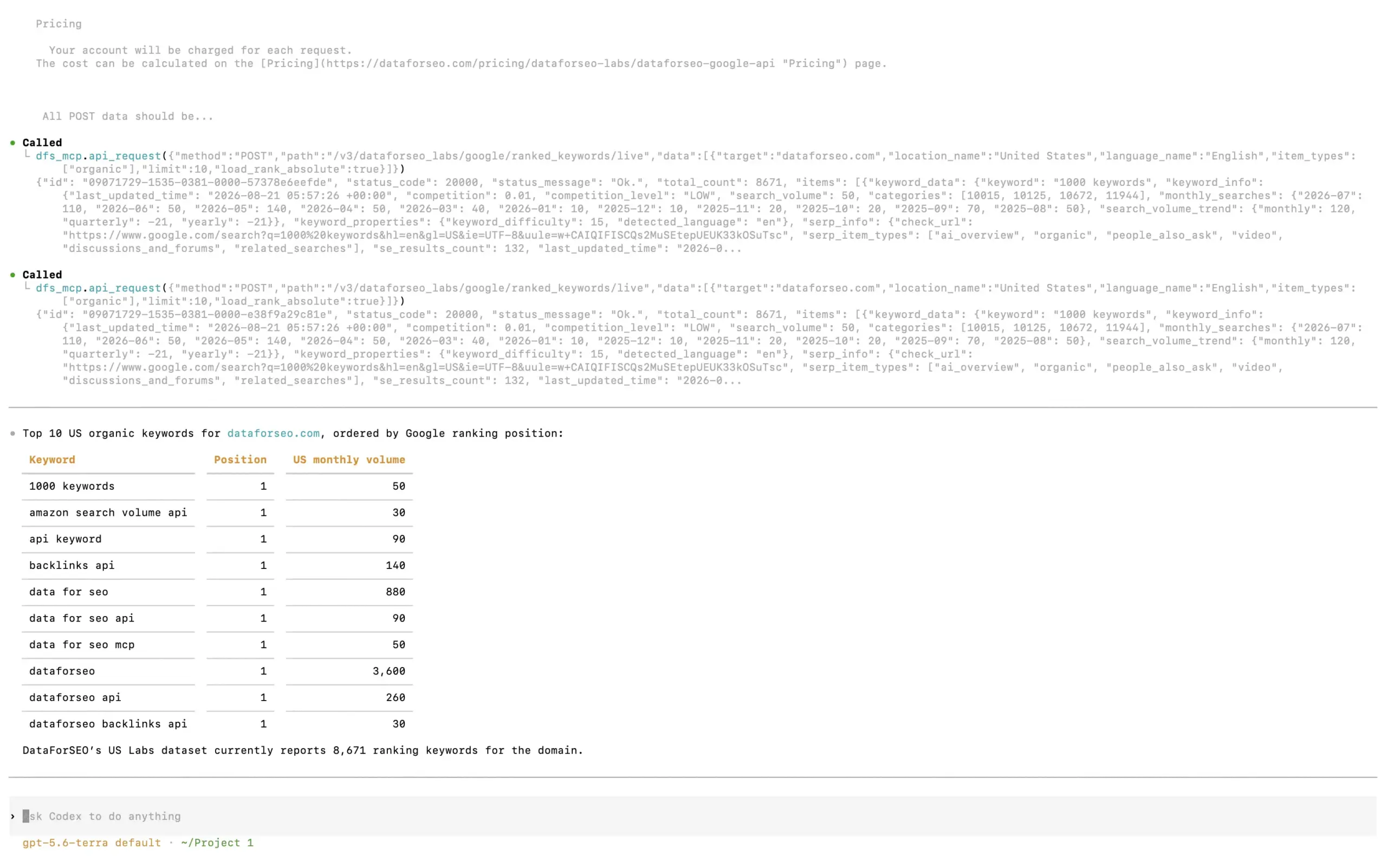
Done! The Codex can now call DataForSEO APIs and use them directly in your project.
If you run into any problems while integrating the MCP server or configuring the CLI connection, contact our 24/7 customer support.