
In this guide, we’ll explain how to connect DataForSEO APIs to desktop LLM apps and Command-Line Interface (CLI) LLM tools using our new MCP server and CLI connection method.
What is the difference between new and old MCP servers?
The new iteration of the DataForSEO MCP server is lighter and easier to integrate than the previous one, with key distinguishing features.
First, it introduces a new logic that significantly streamlines how LLMs interact with our APIs. Instead of relying on a list of more than 80 API-based tools, an LLM can now access the complete DataForSEO documentation index, read the documentation, and make authorized API requests to fetch data. This allows an LLM to interact with any available DataForSEO API endpoint without managing a long list of tools and fetch data directly into your project.
Second, it has a CLI mode that lets you connect your CLI LLM apps to DataForSEO APIs without setting up the MCP server. This method involves copying a SKILL.md file directly into your CLI AI agent’s skill folder, which gives an LLM direct instructions on how to interact with DataForSEO APIs.
Note: If you use the legacy DataForSEO MCP server version, we strongly recommend switching to the latest version. Although the legacy DataForSEO MCP server remains operational, it is no longer supported or updated.
Prerequisites
Before we begin, make sure you have the following:
1. Node.js version 18 or higher installed on your device (for MCP connection using a config file).
2. An active DataForSEO account. You’ll need your API credentials for connection.
3. A CLI/desktop-based LLM app you want to connect to the DataForSEO Universal Tool.
Step-by-step setup instructions
1 CLI connection using a SKILL.md file
This method doesn’t require setting up an MCP server or editing an LLM’s config file. However, it is used only with LLMs that operate through the Command-Line Interface (CLI), such as Gemini CLI and Claude Code. In the example below, we show the connection process for the Claude Code, but the same workflow applies to other CLI-based LLM tools.
1. First, download the SKILL.md file from the DataForSEO MCP server repository. This file contains instructions for LLMs on how to interact with our APIs using CLI commands.
2. Open the Claude Code root folder (.claude) on your device and create a skills folder (if it is not already created).
The root folder is typically located by the following path:
~/.claudeon macOS/Linux;C:\Users\$your_user_name\.claudeon Windows.
Then, in the skills folder, create another folder, give it a meaningful name (e.g., dataforseo-mcp-server).
3. Move the SKILL.md file into the new folder.
4. Open the Terminal or its equivalent, and change the directory to your project folder.
5. Set your environment variables. Remember to replace your_api_login and your_api_password with your actual DataForSEO API login and password.
macOS/Linux
export DATAFORSEO_USERNAME="your_api_login"
export DATAFORSEO_PASSWORD="your_api_password"
Windows PowerShell
$env:DATAFORSEO_USERNAME = "your_api_login"
$env:DATAFORSEO_PASSWORD = "your_api_password"
Windows Command Prompt
set DATAFORSEO_USERNAME="your_api_login"
set DATAFORSEO_PASSWORD="your_api_password"
6. Start Claude Code with the claude command.
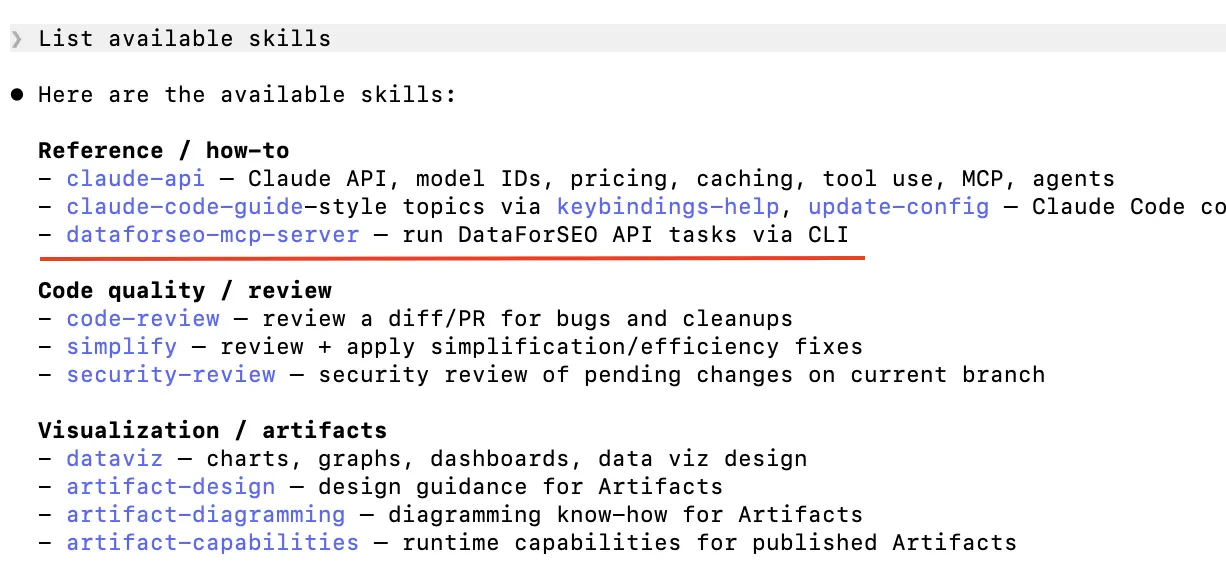
7. Confirm if the skill is available by writing /$skill_name or a prompt such as “List available skills”.
8. Send a relevant prompt to test the DataForSEO Universal Tool.
Example: “Pull the top 10 organic results for ‘best crm software’ in the UK and summarize which domains dominate.”
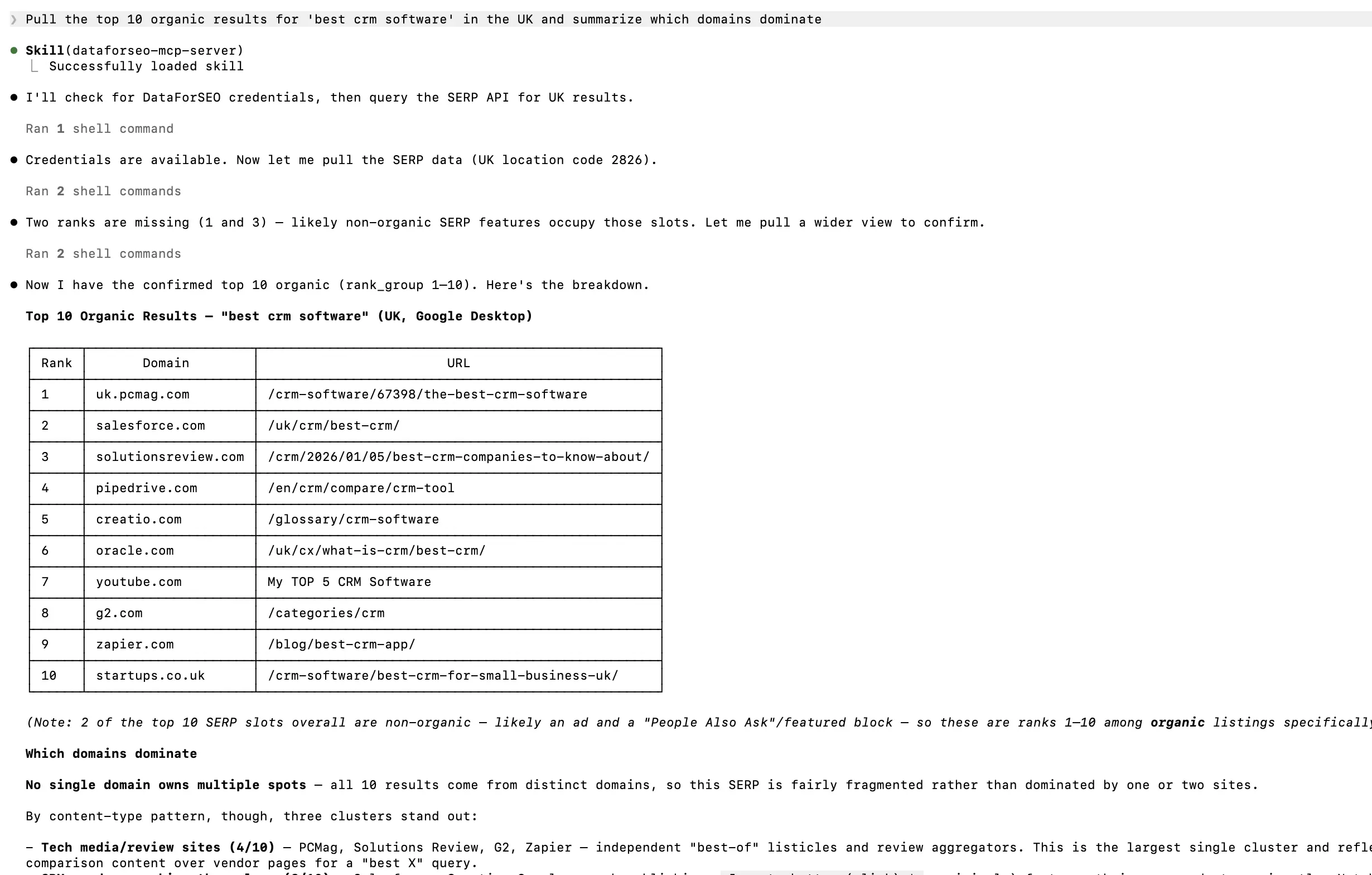
The connection is ready.
2 Desktop app and CLI connection using MCP client configuration
This approach uses the MCP server configuration to connect an LLM to DataForSEO APIs. It allows integration with both desktop LLM applications and CLI-based LLM tools.
Let’s demonstrate it on an example connection with the Claude Desktop app:
1. Open Claude Desktop and navigate to Settings > Developer.
2. Select Edit Config and open the claude_desktop_config JSON file.
3. In the JSON file, paste the following configuration snippet with your API credentials in the DATAFORSEO_LOGIN and DATAFORSEO_PASSWORD fields.
{
  "mcpServers": {
    "dataforseo": {
      "command": "npx",
      "args": [
        "dataforseo-mcp-server"
      ],
      "env": {
        "DATAFORSEO_LOGIN": "your_api_login",
        "DATAFORSEO_PASSWORD": "your_api_password"
      }
    }
  }
}
Save and close.
4. Restart Claude Desktop and start a new chat.
5. Click the Plus (+) button in the left part of the chat window, and check whether the MCP tools are connected. You must see the following four tools enabled:
docs_index– retrieves the DataForSEO documentation index.docs_list_sections– returns available documentation section names.docs_search– fetches documentation by URL.api_request– makes an authenticated API request.
6. Test the tools by sending a specific prompt.
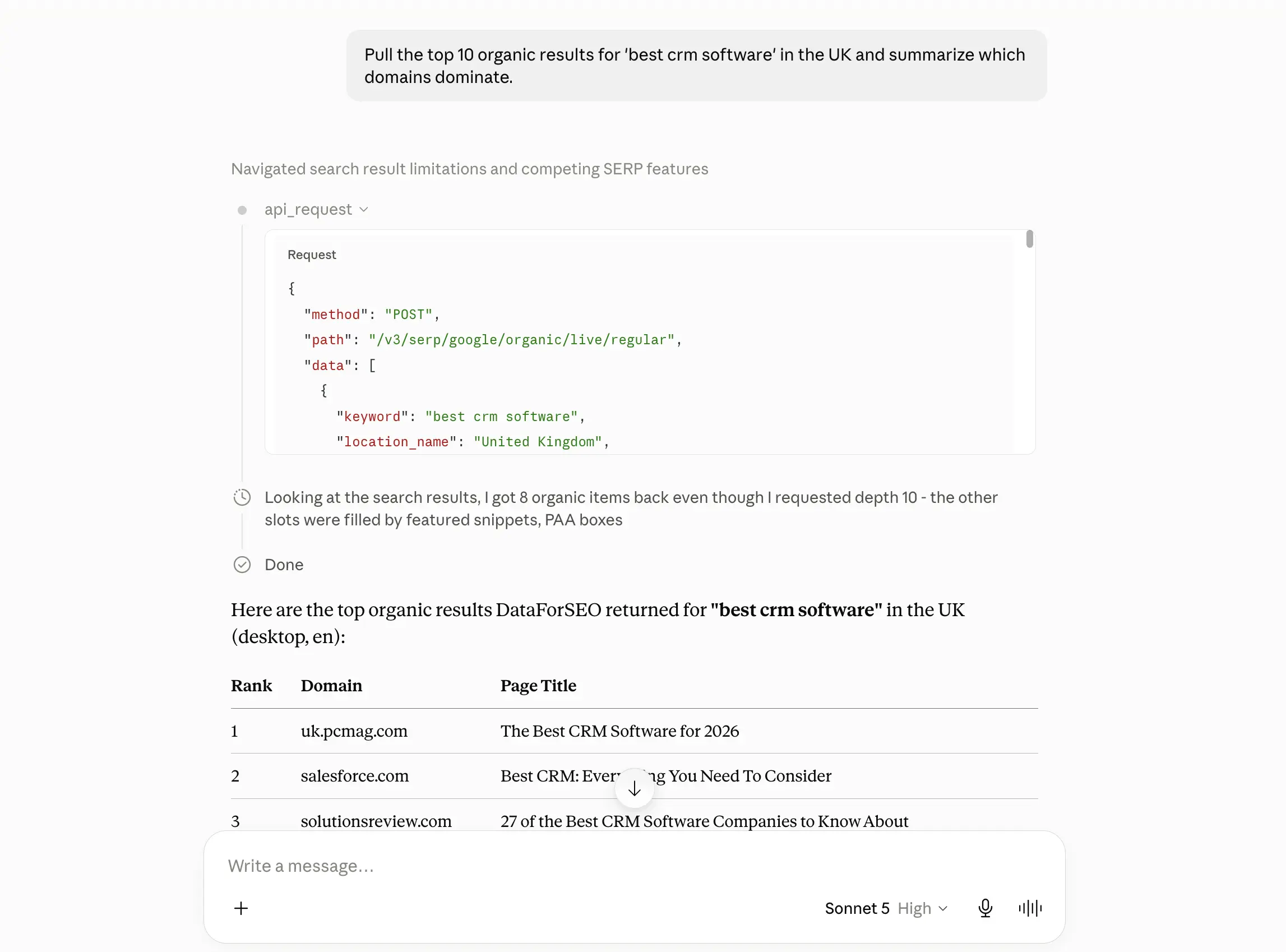
Here is the result. Claude called the api_request tool and sent the API request to retrieve the actual data.
For the MCP connection with CLI-based LLM tools, you should locate the settings JSON file (.claude.json for Claude Code and settings.json for Gemini CLI) and add a dedicated MCP configuration. Here are examples of configuration snippets for Gemini CLI and Claude Code:
Gemini CLI
{
  "selectedAuthType": "gemini-api-key",
  "mcpServers": {
    "dataforseo": {
      "command": "npx",
      "args": ["-y", "dataforseo-mcp-server"],
      "env": {
        "DATAFORSEO_USERNAME": "your_api_login",
        "DATAFORSEO_PASSWORD": "your_api_password"
      }
    }
  }
}
Claude Code
{
  "dfs-mcp": {
    "type": "stdio",
    "command": "cmd",
    "args": ["/c", "npx", "-y", "dataforseo-mcp-server"],
    "env": {
      "DATAFORSEO_USERNAME": "your_api_login",
      "DATAFORSEO_PASSWORD": "your_api_password"
    }
  }
}
The guides below explain the integration process in detail:
If you run into any problems while integrating the MCP server or configuring the CLI connection, reach out to our 24/7 customer support.